Subscription Renewals
Please contact Tixly Support to activate the renewal module
Set-up Subscription Renewal
To renew a fixed same seat subscription navigate to Administration > Subscriptions > Renewal and click Add renewal in the top right corner, or go to the Renewal tab within a subscription.
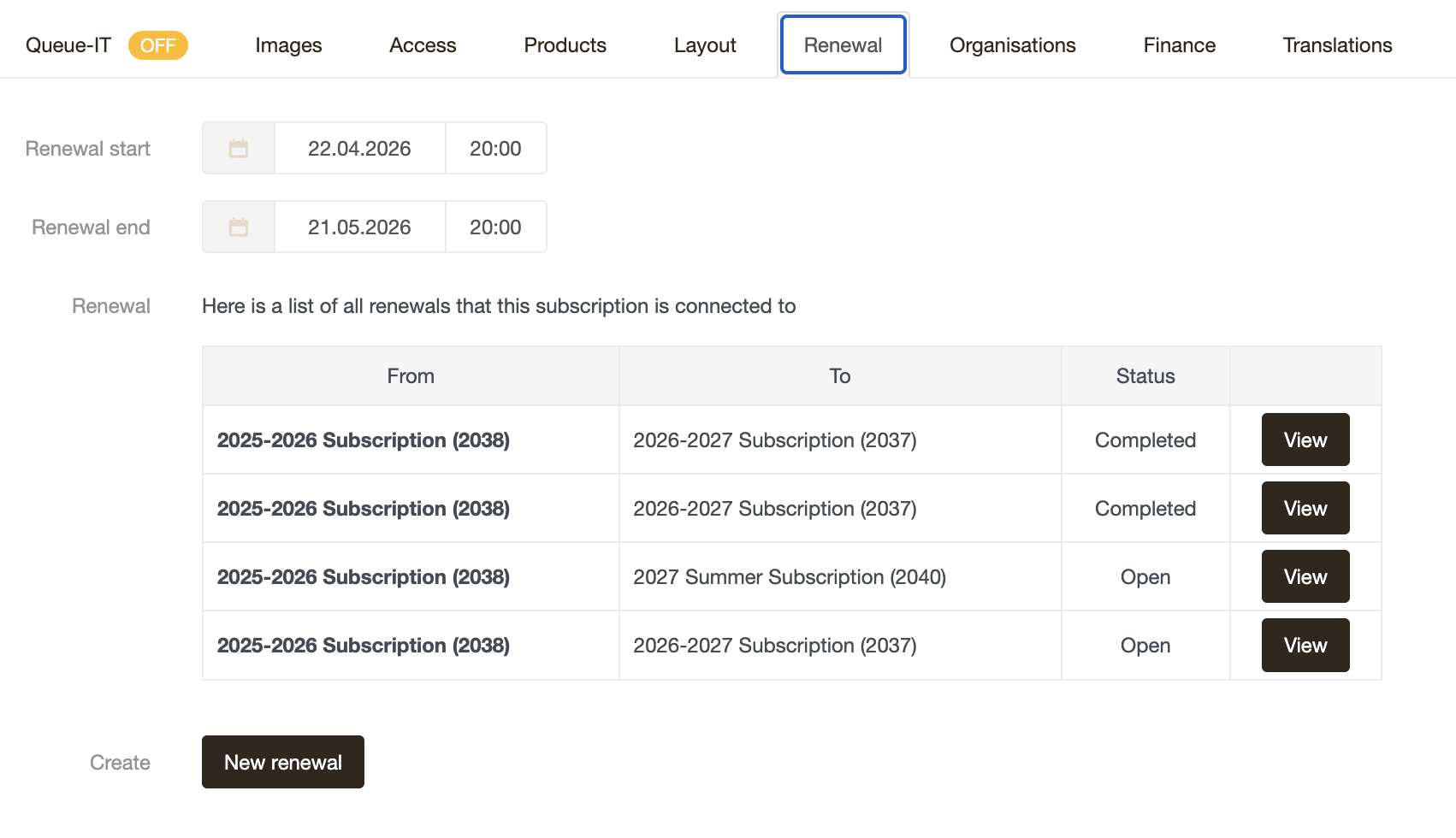
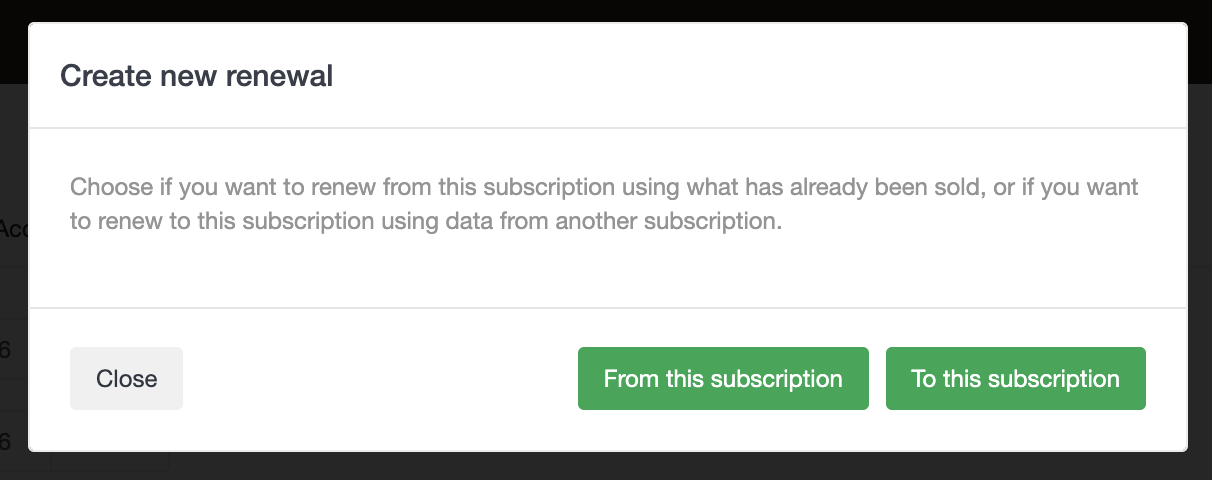
When creating a renewal from within a subscription the option to renew from or to the selected subscription is given.
When renewing from the Renewal module the From and To subscriptions both need to be selected.
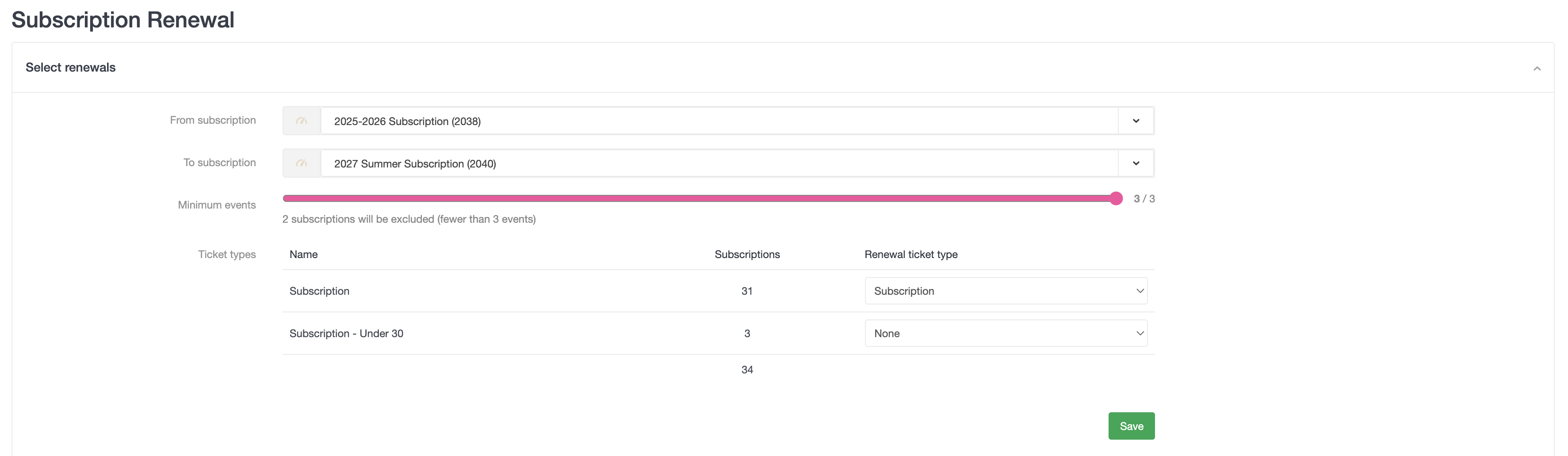
Minimum events
- Use the slider to select the minimum number of events that were initially included in the original subscription for the order to be included in the renewal.
Ticket types
- Map the ticket types from the current subscription to the new subscription. If a ticket type shouldn’t be renewed, select none.
Reviewing Renewal Orders
After pressing save a checklist shows up showing if there are any conflicts that need to be resolved, and an overview of which subscriptions won't be renewed and why.
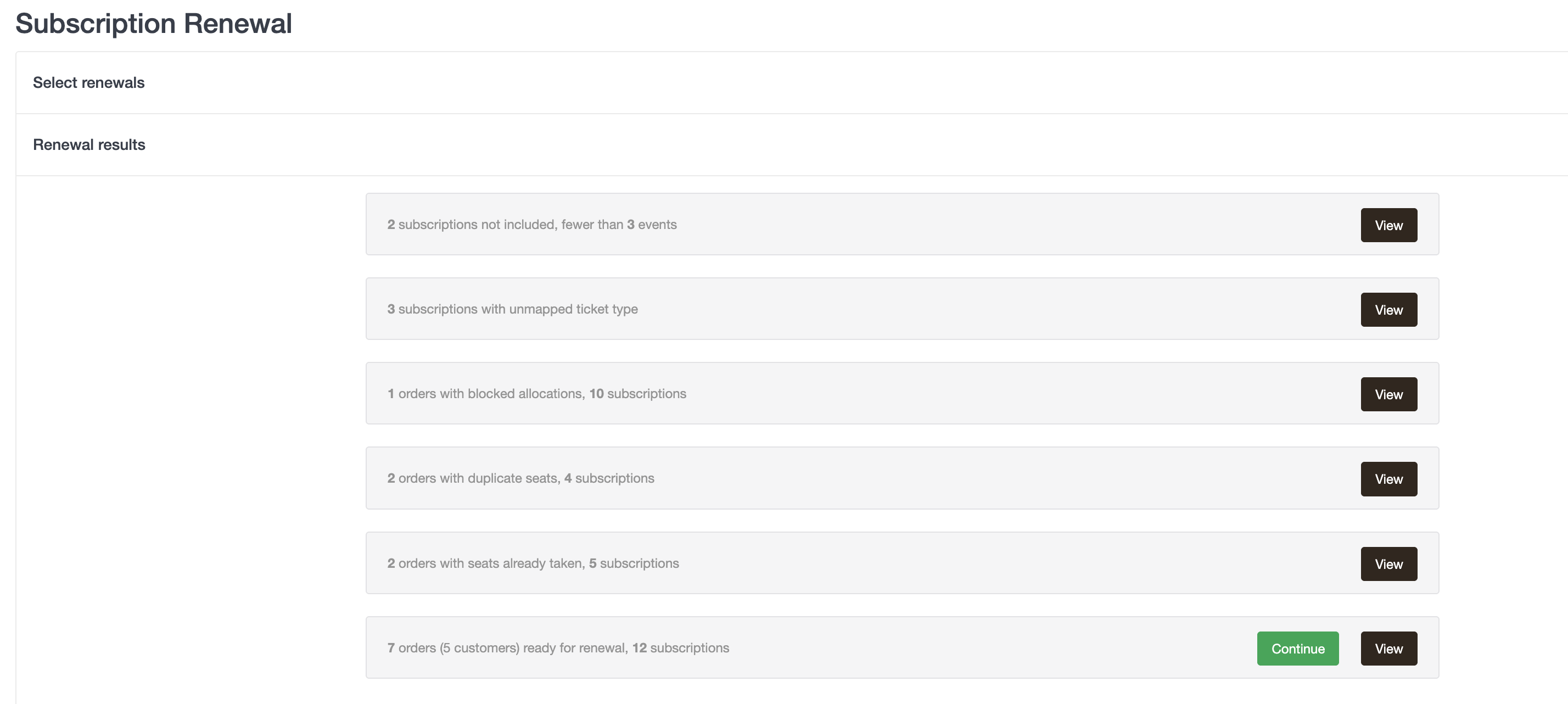
Click on View to see which orders are included in the conflict. Some conflicts can be resolved immediately within the pop up, other might require an individual order approach.
As a renewal is processed, all progress is saved in the database, allowing users to pause and continue the renewal on another day.
Fewer than x events
- Shows an overview of all orders that won't be renewed because they include less than the set number of minimum events. This can be resolved by lowering the minimum number of events in the original subscription.
Unmapped ticket type
- Shows an overview of all order that won't be renewed because the order for the original subscription contains a ticket type that has not been mapped to a ticket type in the new subscription. This can be resolved by mapping the ticket type from the original subscription to a ticket type that is available in the new subscription.
Invalid seat assignment
- Shows an overview of orders where the original subscription contains multiple seats in the same venue, and Tixly cannot automatically determine which seat is the fixed seat. This can be resolved by selecting which seat should be included in the renewed subscription.
Blocked allocation
- Shows any events that have blocked allocations on seats that are included in a renewal order. If an allocation needs to be adjusted, it can be changed or removed immediately from this screen by pressing Allocate.
Duplicate seats
- Any orders containing the same seat assignments are listed here. The Resolve button can be used to select which customer should keep the seat, or to exclude the seat from the renewal.
Seats already taken
- Shows orders which have seats that have already been sold or reserved on another order. This can be resolved by changing the conflicting seats or manually moving the customer to different seats.
Missing prices
- Any orders containing tickets in price zones where no price has been defined are displayed here.
Once the conflicts have been resolved, just hit Continue. A quick pop-up will appear to make sure it's okay to move forward without any subscriptions that are still unresolved.
For renewing to subscriptions that have events in halls that were not included in the original subscription, users are able to configure missing halls, choosing which price zone to place seats in from best available options.
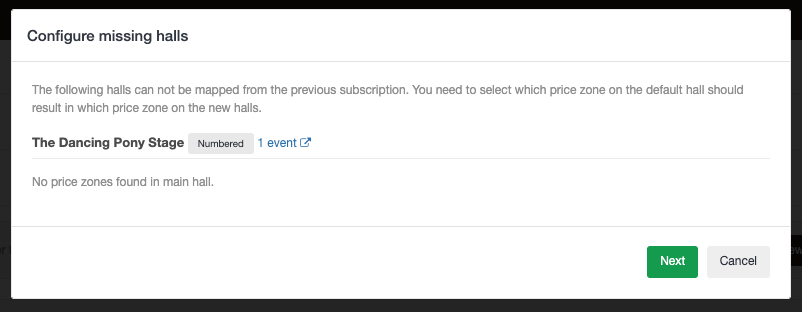
New subscription events must have enough seats for renewing orders to process the renewal creation. A warning is presented if there is potential for seating conflicts due to available seats in a selected price zone.
Renewal Reservation Settings
After resolving the conflicts reservation settings are set before the renewal is confirmed.
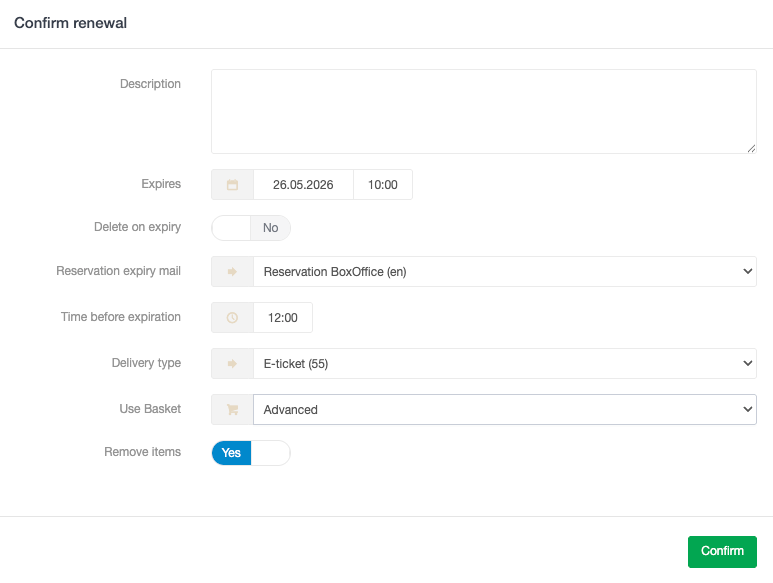
Description
- Possibility to add an order description to the renewal orders to for instance indicate it's a renewal.
Expires
- The specific date and time for the reservation’s payment link to expire.
Delete on expiry
- If set to Yes, the reservation is removed from the system when the link expires. If set to No, the reservation is kept, but the payment link is deactivated.
Reservation expiry mail
- Select which email template should be used to remind customers their reservation is expiring soon.
Time before expiration
- Set the specific time on the date of expiration for the reminder email to be sent.
Delivery type
- Define the delivery method to be applied to all renewal reservations.
Use basket
- Determine whether the basket can be viewed and/or edited online. Can be set to:
- No - The customer can see but not edit the contents of the basket.
- Simple - The customer can manually open the basket and edit the contents (delete an event and change seats).
- Advanced- The basket will open automatically, the customer can edit the contents (delete an event and change seats) before proceeding with the payment.
- Determine whether the basket can be viewed and/or edited online. Can be set to:
Remove items
- Determines whether the customer is allowed to delete individual items rather than just the entire event.
Once confirmed, the renewal reservation creation processes.
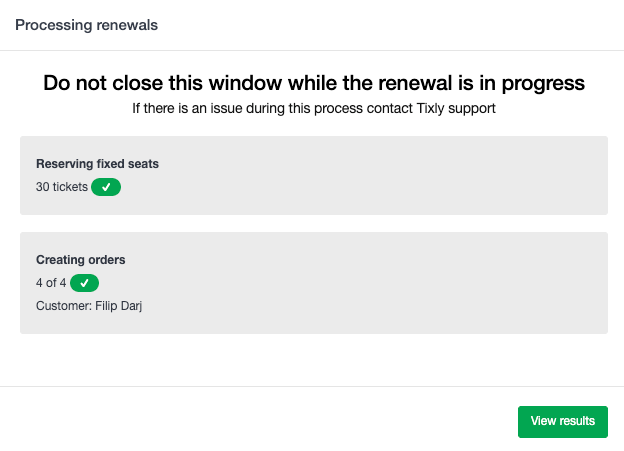
Do not navigate away from the renewal processing page or the renewal process may be interrupted resulting in incorrect orders.
Renewal Reservation Review
Once processed, a review of the renewal reservations is available including links to the orders online as well as any messages for issues encountered.
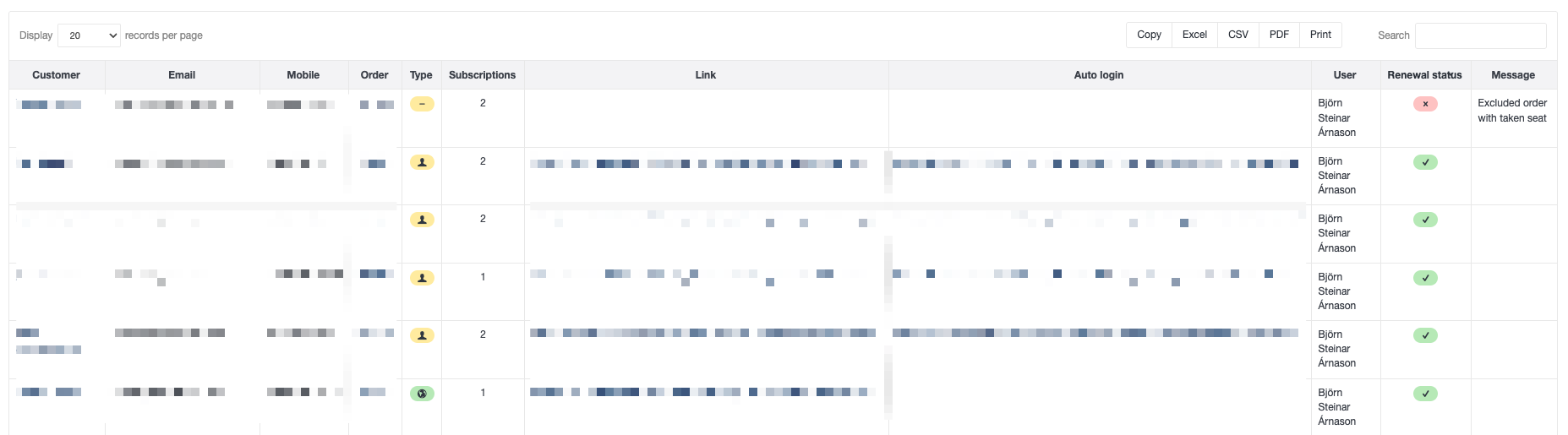
Once renewal reservations have been created, they can't be deleted in bulk. So any mistakes must be dealt with manually.
Merge Subscription Renewals
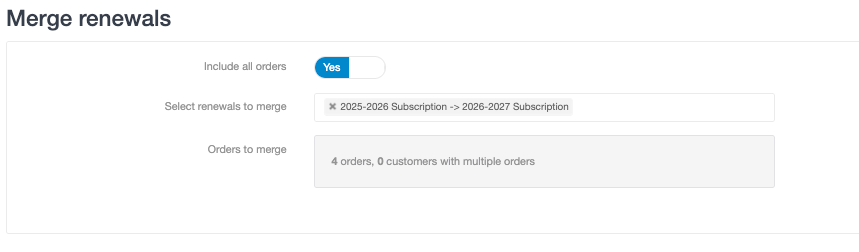
Navigate to Administration > Subscriptions > Merge renewals to merge multiple renewal orders of the same subscription that a customer may have.
Subscription Renewal - Opt out
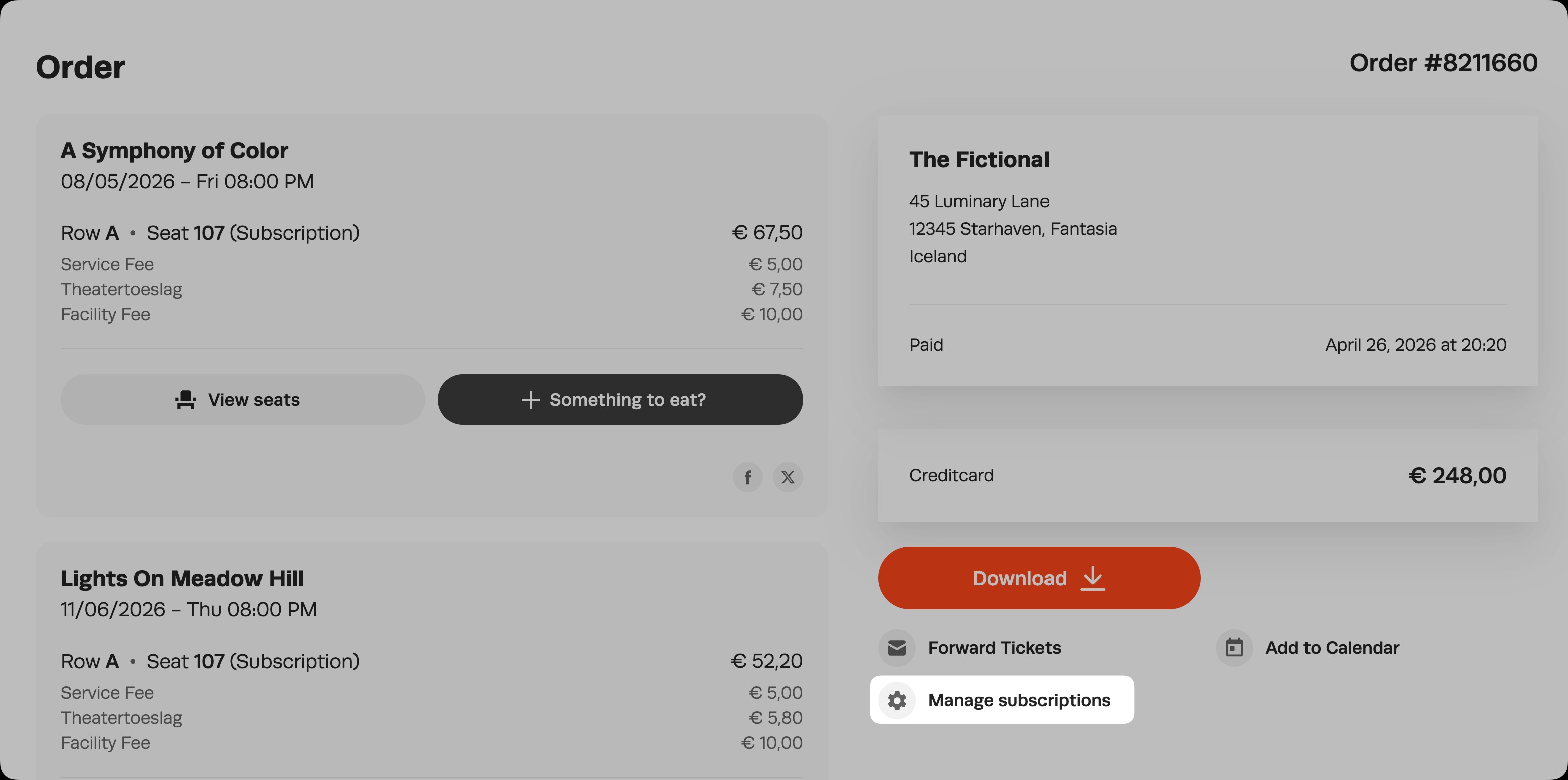
The option to opt out of future subscription renewals can be made available to customers on the online receipt page of their subscription order. This setting can be (de)activated per subscription and an email can be configured to be sent out to the customer to confirm the cancellation of future renewals.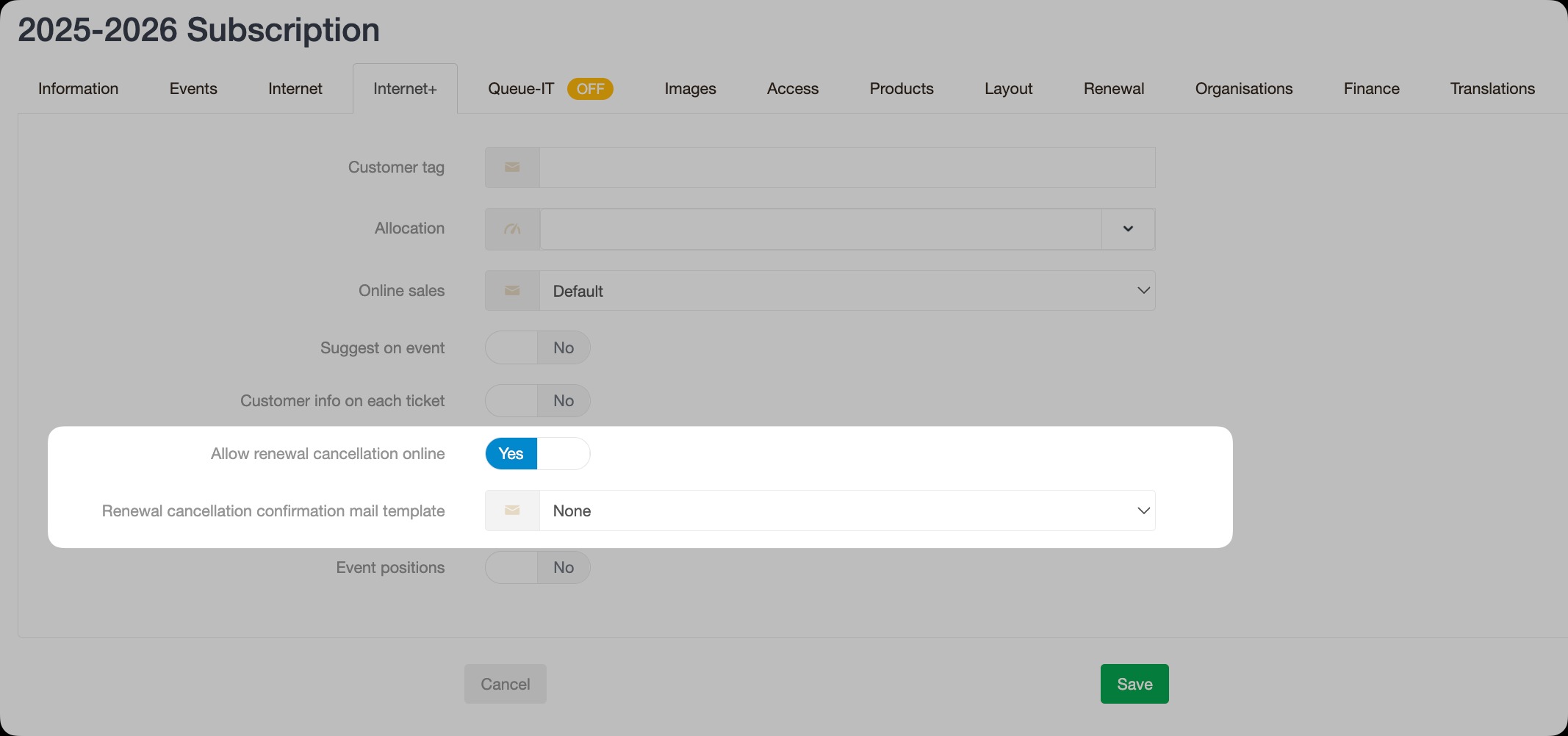
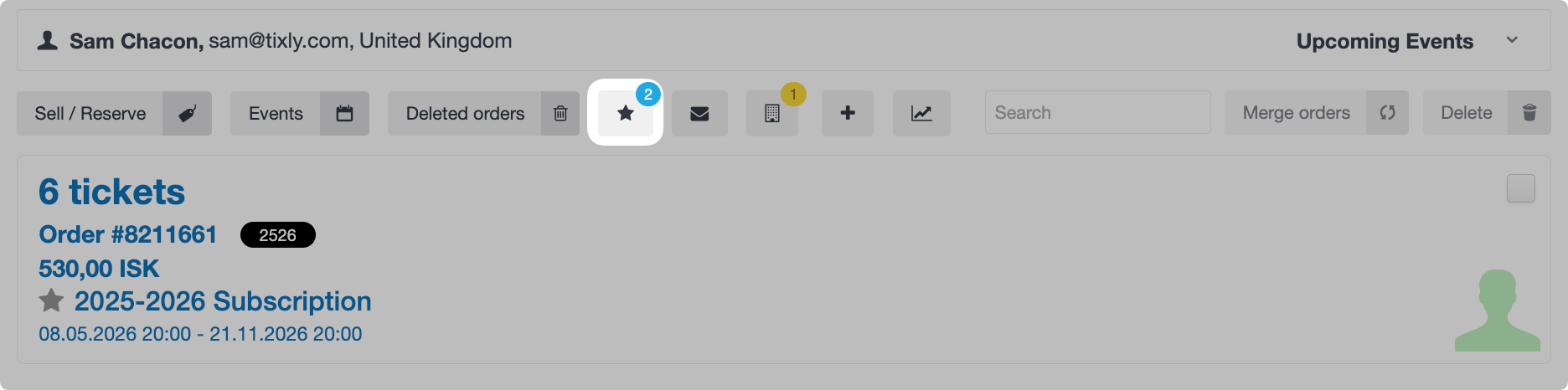
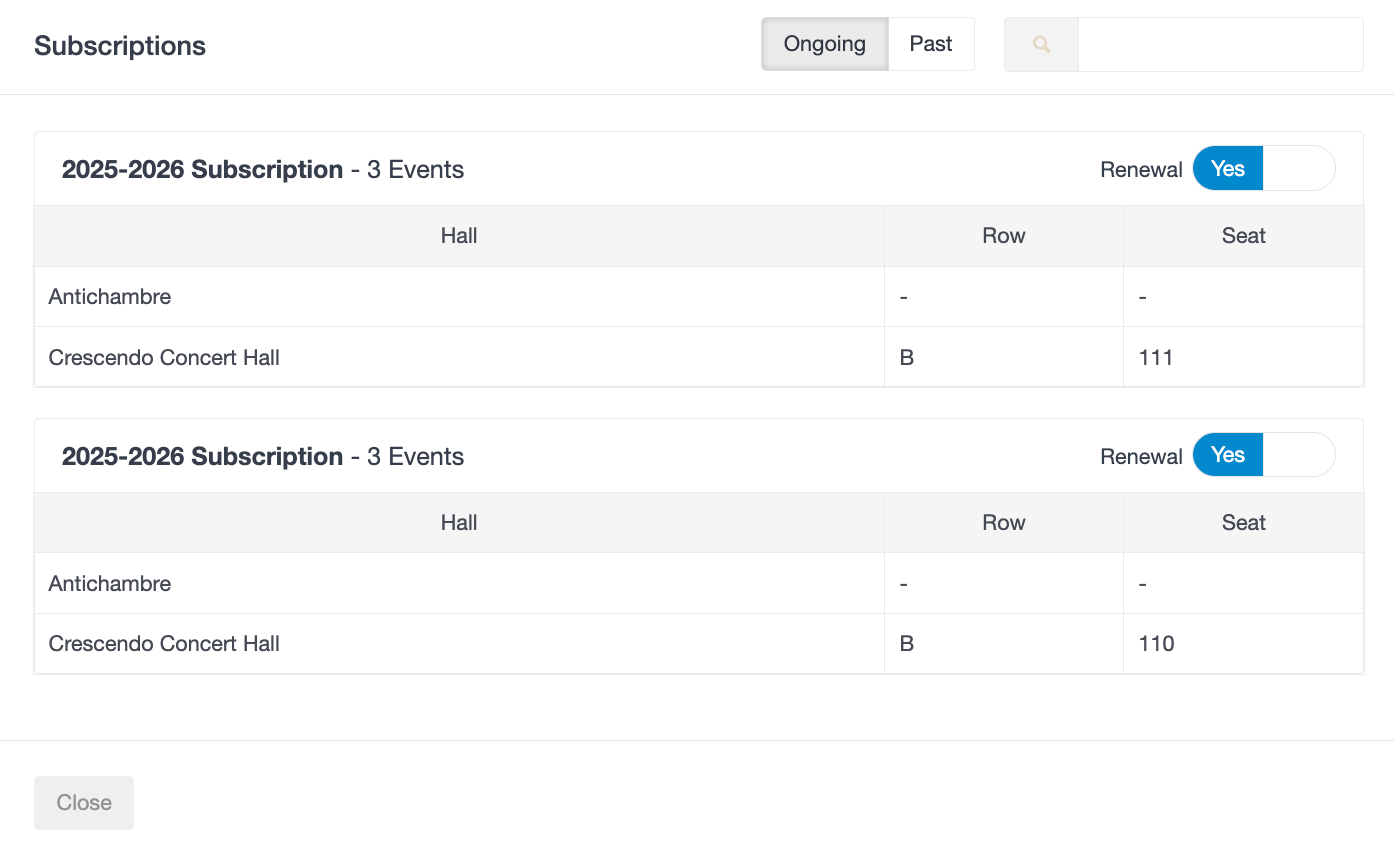
Regardless of the subscription settings, a renewal can always be cancelled manually from the customer card in Box Office. Navigate to the customer card and select the star icon. A list of all active subscriptions will be displayed, from which the renewal can be cancelled manually.
Was this article helpful?
That’s Great!
Thank you for your feedback
Sorry! We couldn't be helpful
Thank you for your feedback
Feedback sent
We appreciate your effort and will try to fix the article