Report Builder
Please reach out to your local Tixly team to request access to the Report Builder module. A 30-day free trial is included, after which the module will be available as a paid add-on.
TABLE OF CONTENTS
- Getting started
- Filters
- Click to filter
- Tables
- Charts
- Tiles
- Maps
- Seat maps
- Event pace
- Pace settings
- Custom columns
- Build reports with the chatbot
- Download and schedule reports
- Share reports
- Report history and recently deleted
- Group settings
- Data sets and columns
- Columns: Events
- Columns: Tickets
- Columns: Customers
- Columns: Subscriptions
- Columns: Ticket Fees
- Columns: Payments
- Columns: Products
- Columns: Memberships
- Columns: Gift Cards
- Columns: Services
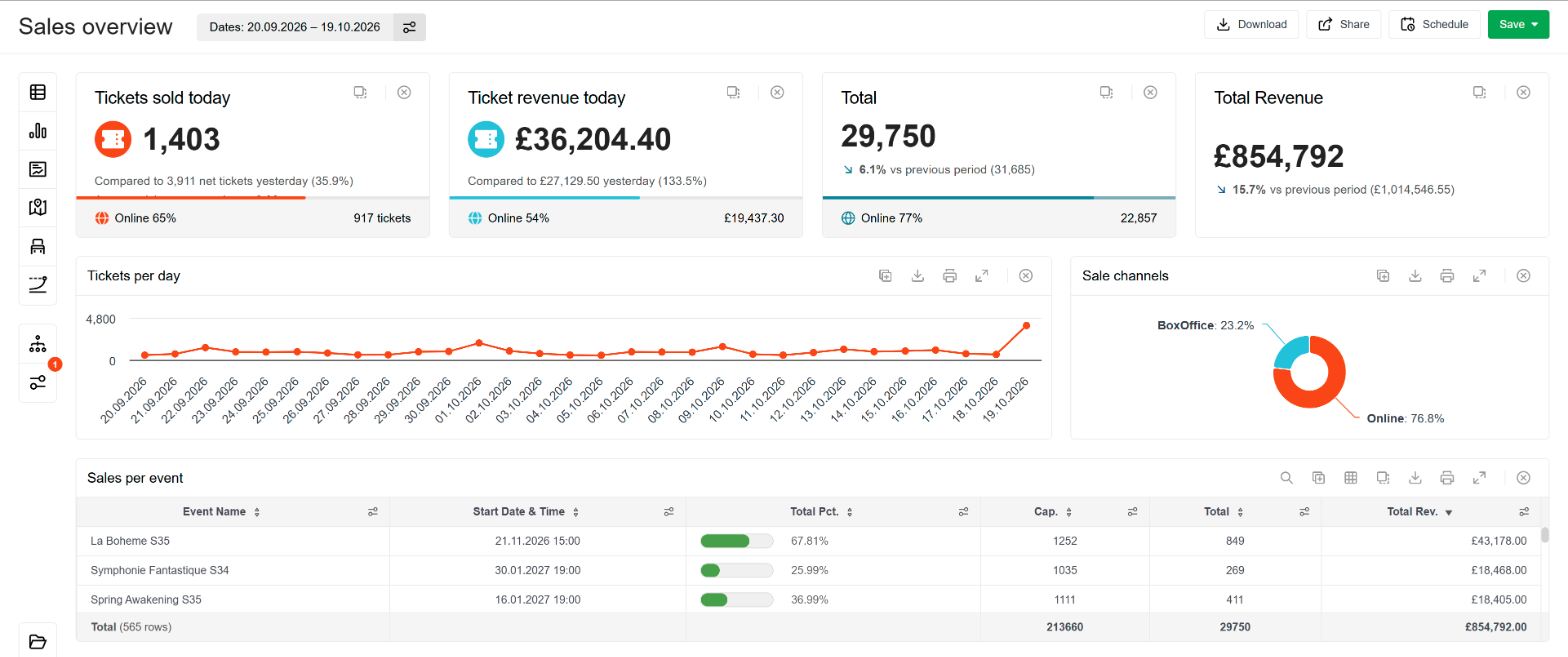
The Report Builder lets you build your own reports and dashboards from your Tixly sales data. Add tables, charts, tiles, maps and seat maps to a canvas, pick the figures you need and filter them the way you want. Reports are saved for your WorkGroup, can be downloaded as CSV, Excel or PDF and can be sent by e-mail on a schedule.
What you can do
Tables with the columns you choose, grouped, pivoted, sorted and filtered.
Charts as bars, lines, areas, pies, donuts, heatmaps or flows.
Tiles with the key figures of the day or of the report period, compared with an earlier period.
Maps showing where your buyers live.
Seat maps showing which seats are sold, and which sold first.
Sales pace showing how your upcoming events sell compared with similar events in the past.
Click to filter, by selecting a value in a table or chart to filter the rest of the report.
Custom columns with your own formulas, such as revenue per seat or revenue without a fee group.
Chatbot which builds a report for you from a plain description.
Sharing with chosen colleagues, or by a secure link with people outside Tixly.
Downloads and scheduled e-mails as CSV, Excel, PDF or with the report in the e-mail itself.
History of every change to a saved report, and a bin for reports deleted in the last 30 days.
Questions it answers
How many tickets did we sell last week, and how does that compare with the week before?
Which events sell best, and how full are they?
Which upcoming events are behind the usual pace and need a push?
Which sale channels do our buyers use, and at what time of day do they buy?
How many of our buyers are new, and where do they live?
What else did the buyers of one event buy?
Which seats in the hall sell first?
What is our revenue without the levy and the transaction charges?
Which tickets were cancelled or refunded in the period, and why?
Who holds a ticket for tonight's event in a certain ticket type?
Getting started
Please reach out to your local Tixly team to request access to the Report Builder module. A 30-day free trial is included, after which the module will be available as a paid add-on.
Navigate to Reporting > Report Builder. The menu item is available to users who have access to the Report Builder module. You only see data for the organisations you have access to.
A report in the Report Builder is a canvas of widgets. Each widget shows one table, chart, tile, map or seat map, and every widget can use its own data set and columns. This article covers the page, adding a widget and saving and opening reports.
The page
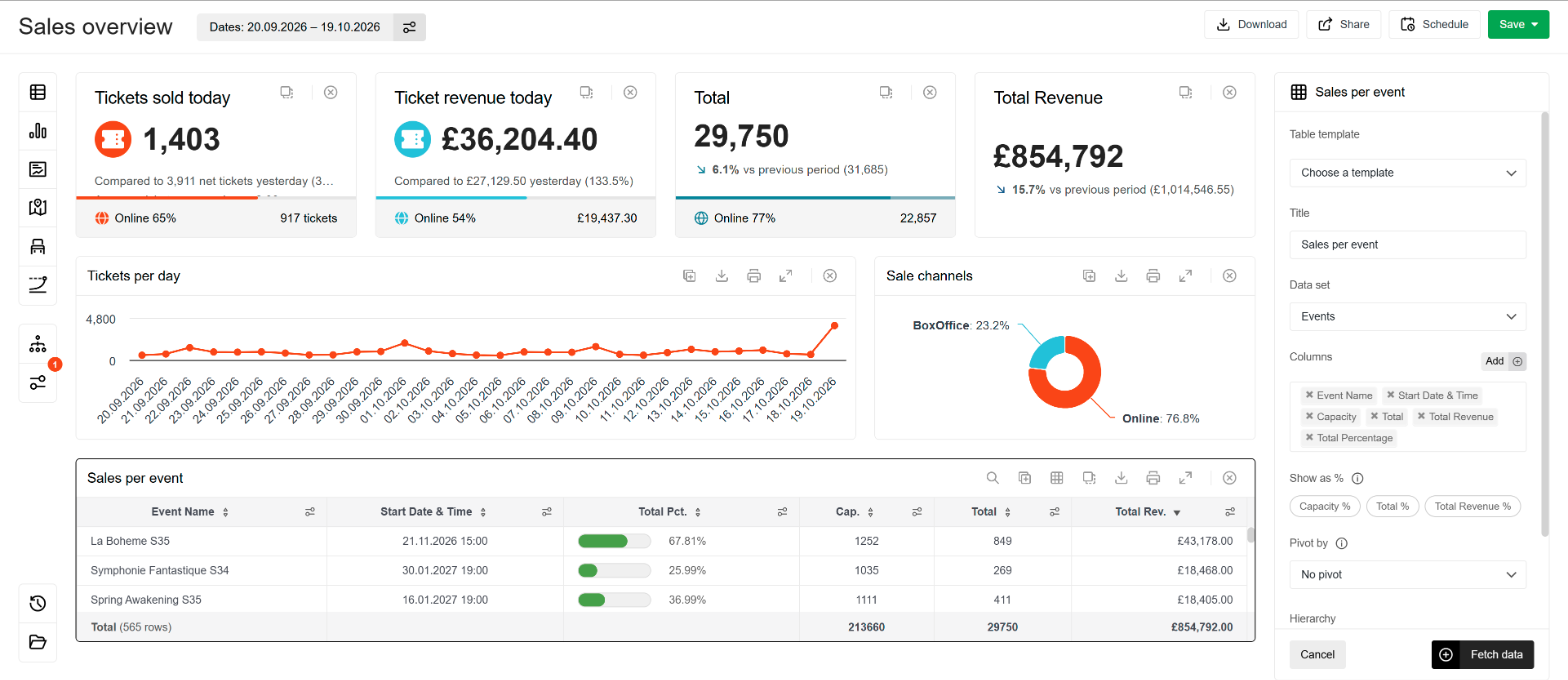
The left menu has three groups. Hover over an icon to see its name.
Add a widget
Add table, Add chart, Add tile, Add map, Add seat map and Add sales pace.
Group Settings and Filters
Settings shared by the whole WorkGroup, and the report's filters. The number on the Filters icon shows how many filters are active. Read more in Group settings and Filters.
History and Reports
The history of the open report (shown once a saved report has changes) and the Reports window, where reports are opened and organised.
The buttons in the upper right corner
Download
Download the report as CSV, Excel or PDF.
Share
Decide who sees the report, or send it to people outside Tixly. Read more in Share reports.
Schedule
Send the report by e-mail on a schedule.
Save
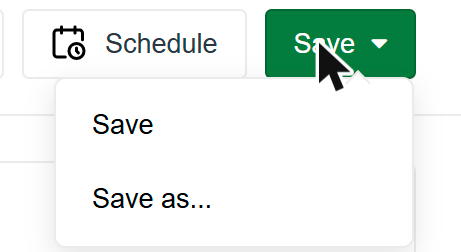
Save the report. Use the arrow for Save as... to save a copy under a new name.
Click the report title to rename the report and press Enter to confirm.
Add a widget
1. Click a widget icon in the left menu. The widget is added to the first free spot on the canvas and its settings open on the right.
2. Give the widget a Title.
3. Choose the Data set, for example Events, Tickets or Customers. The data set decides which columns are available. Read more in Data sets and columns.
4. Add columns with Add.
5. Press Fetch data.
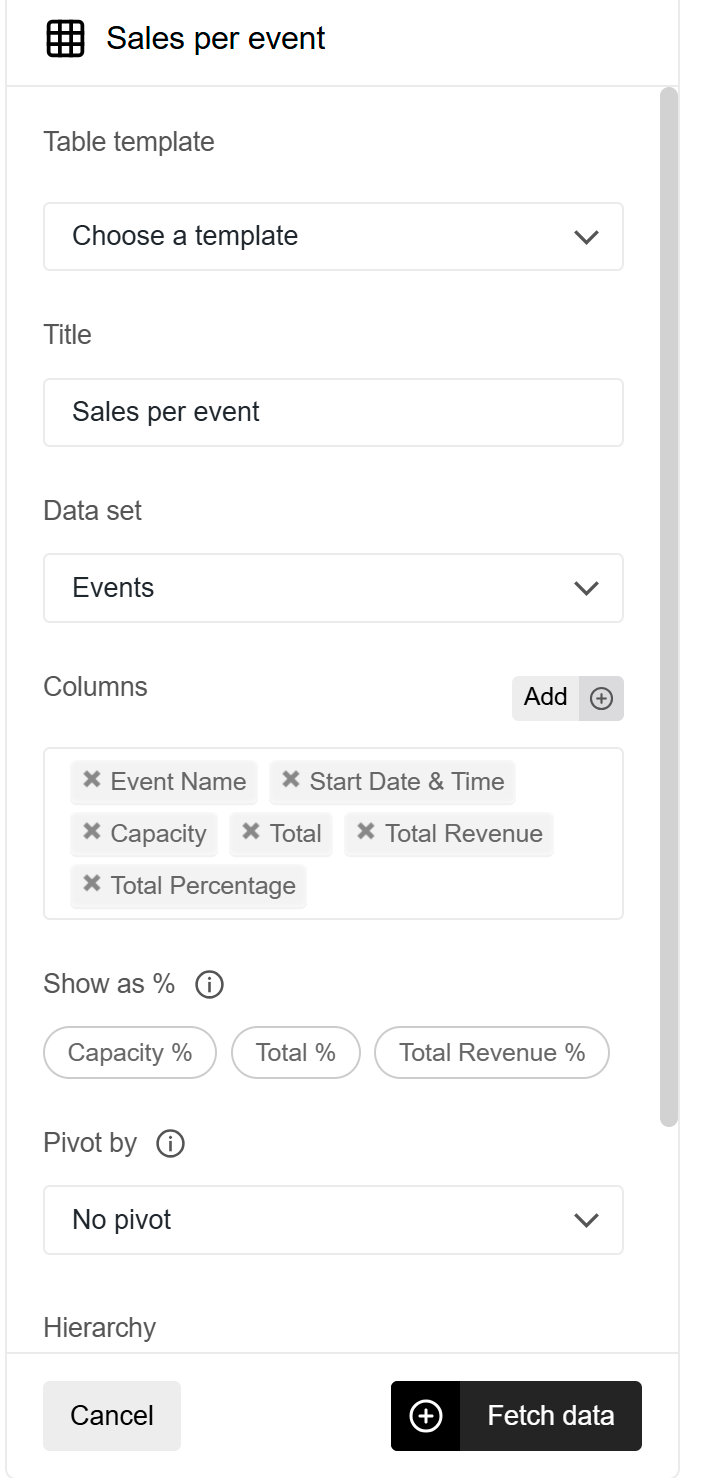
Click a widget at any time to open its settings again. Cancel closes the settings without fetching.
Most widgets need at least one filter, such as a date period or events, before they show data.
Read more in Filters.
Choose columns
The column picker lists every column of the data set. The categories are on the left: Common holds the columns most reports start with, and the other categories group the columns by subject, such as Event, Sales, Revenue and fees or Customer. Search finds a column in every category. Each column shows whether it is a Dimension or a Fact, with a short description of what it shows.
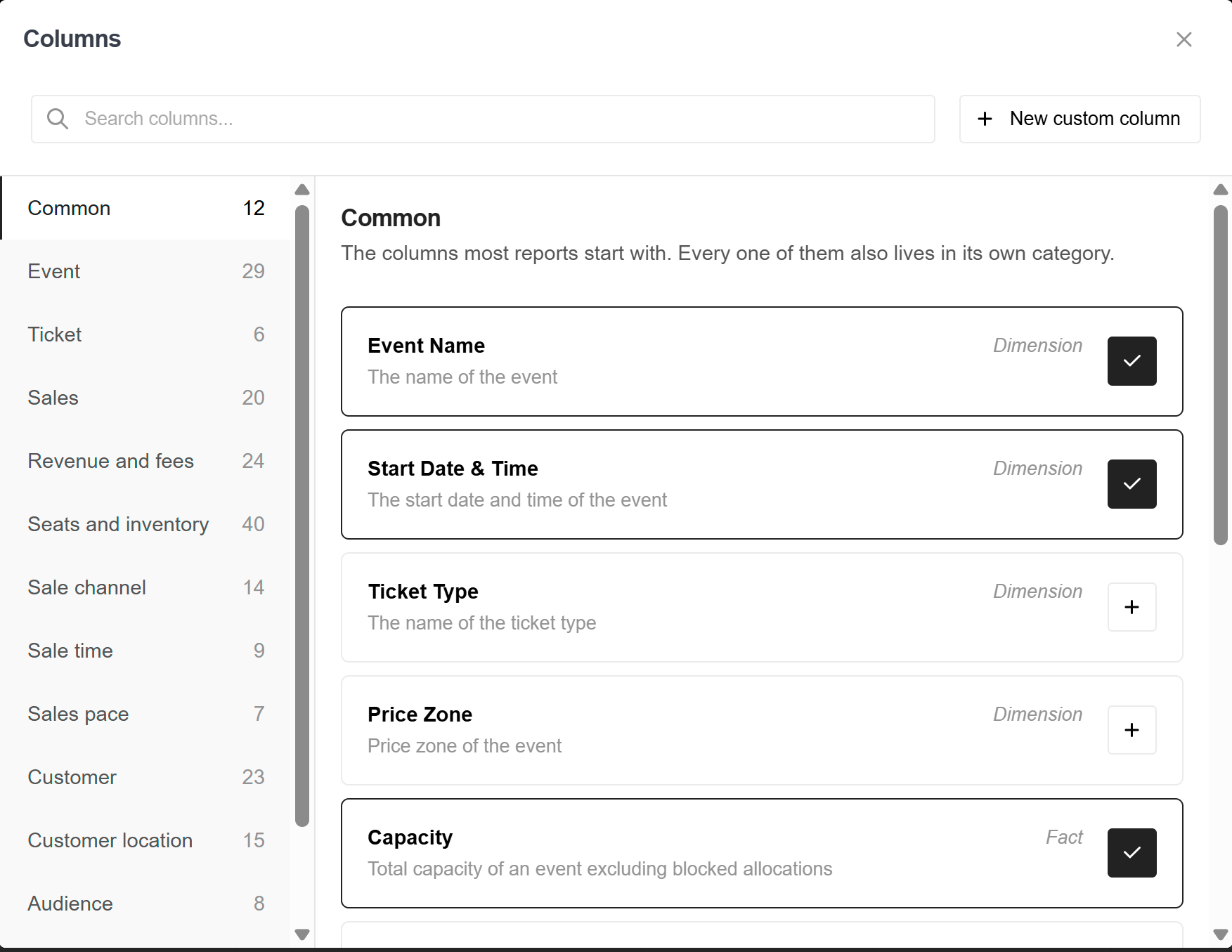
Dimension columns describe a row, such as Event Name, Ticket Type or Sale Date.
Fact columns are figures that add up, such as Total or Total Revenue.
Press + on a column to add it. A column on the widget shows a tick; press it to remove the column. New custom column next to the search creates a column with your own formula.
Read more in Custom columns.
Total and Total Revenue are the key figures: sold minus cancelled. Sold counts the sales only and Cancelled the cancellations only.
Arrange the widgets
Move a widget by dragging its title bar.
Resize a widget by dragging its lower right corner.
Duplicate a widget with the duplicate icon in its title bar, and remove it with the cross.
Save a report
Press Save and give the report a name. The next time you press Save, the report is updated. Save as... saves a copy under a new name and leaves the original as it is.
A new report can be opened by everyone in the WorkGroup who has access to the Report Builder. To keep it to yourself or to chosen colleagues, use Share. Read more in Share reports.
When a report is sent on a schedule, the Report Builder asks before saving, because the change also changes what the schedule sends.
The address bar always holds the link to the open report. Copy it to send the report to a colleague who has access to it.
Open and organise reports
Click Reports (the folder icon at the bottom of the left menu) to open a saved report.
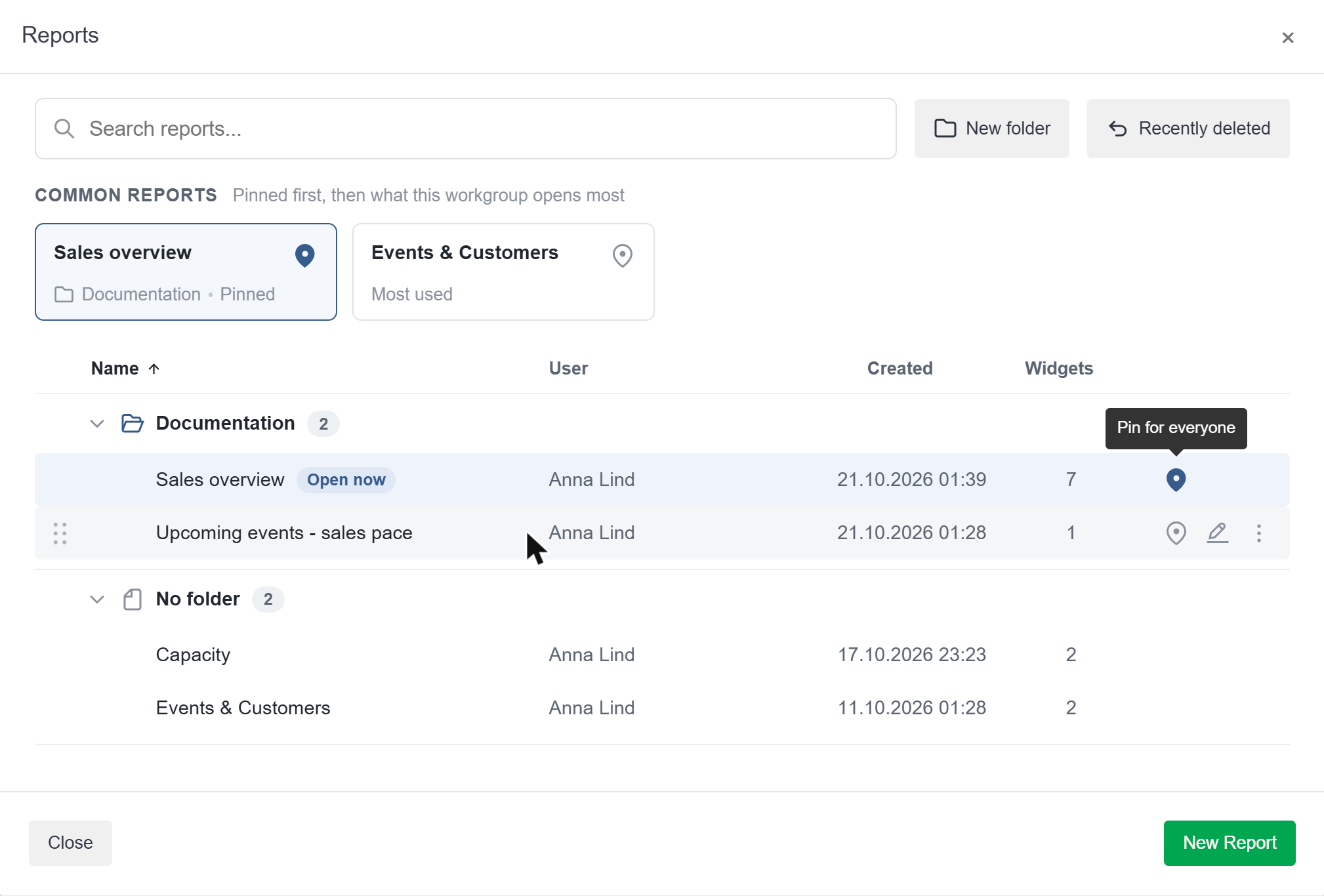
Common reports
- Pinned reports first, then the reports the WorkGroup opens most.
Search
- Search on report name, user or folder.
Folders
- Create a folder with New folder. Drag a report by its handle onto a folder to move it, and drag folders to put them in order. Deleting a folder does not delete its reports, they move to No folder.
Pin and rename
- Hover over a report to pin it for everyone or rename it.
More (…)
- History, Lock or Unlock, and Delete. Read more in Report history and recently deleted.
Recently deleted
- Reports deleted in the last 30 days, ready to be restored.
Icons next to a report name show that it is locked, kept to its owner or shared with specific people. The report you have open is marked Open now.
Press New Report to start with an empty canvas.
Filters
Filters decide which sales a report shows: a period, certain events, a sale channel and so on. The filters are set once for the whole report and every widget uses the filters that apply to its data set.
Add filters
1. Click Filters in the left menu.
2. Press Add filter and choose what to filter on.
3. Choose how to filter, for example between for dates, in to include values or not in to leave them out.
4. Select the values and press Apply.
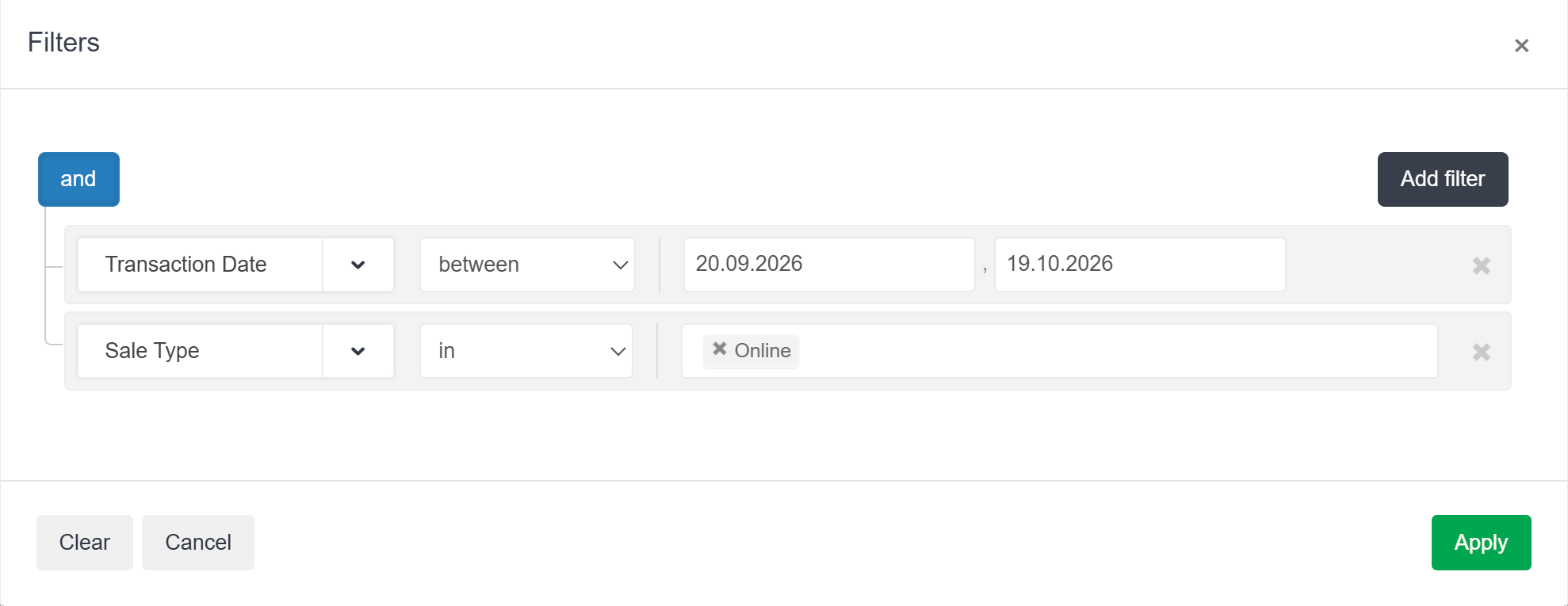
The active filters are shown next to the report title. A filter that only applies to some of the widgets, for example a product filter on a report with ticket and product tables, is shown on those widgets instead. Click the filter summary to open the Filters window.
Start with a date period or events. Most widgets need at least one of them before they show data, so a report never adds up years of sales by accident.
The list of filters follows the widgets on the report: a filter is offered when at least one widget can use it.
Available filters
Dates
Start Date (the date of the event) and Transaction Date (the date of the sale), as fixed dates or relative dates.
Events
Event Name, Event Group, Venue, Hall, Promoter, Season, Organisation, Categories, Tags and Sale Status. Event Name opens the event picker, where events can be found by date and narrowed by organisation, season, event group and more.
Tickets and sales
Ticket Type, Price Zone, Subscription Type, Sale Type (the sale channel), Order Type, Payment Status and Private Property.
Customers
Customer Tag, Audience (a customer segment), Buyer Type (new or returning) and Distance to Venue.
Products and memberships
Product and Membership, with in or not in. Products can also be filtered on Scanned and on the Start Date of the event they were sold for.
Compare with
Compares the report period with an earlier period. See below.
Some data sets have filters of their own. The Tickets data set can be filtered on printed, scanned and free tickets, and the Cancelled and released tickets data set on the Cancellation Kind: cancelled, moved, reservation expired or reservation removed.
Private Property set to No leaves out the private property seats, together with their capacity and their fees.
Allocation Type finds the seats whose allocation contains a text, or the seats without an allocation with is empty.
Filtering on a ticket type, price zone or sale channel filters the sales. Capacity and availability are still shown for the whole event.
You can also filter by clicking a value in a table or chart.
Read more in Click to filter.
Relative dates
Choose Start Date (relative) or Transaction Date (relative) to use a period that moves with the calendar, for example Last 30 days. Relative dates are especially useful in scheduled reports, which then always cover the latest period.
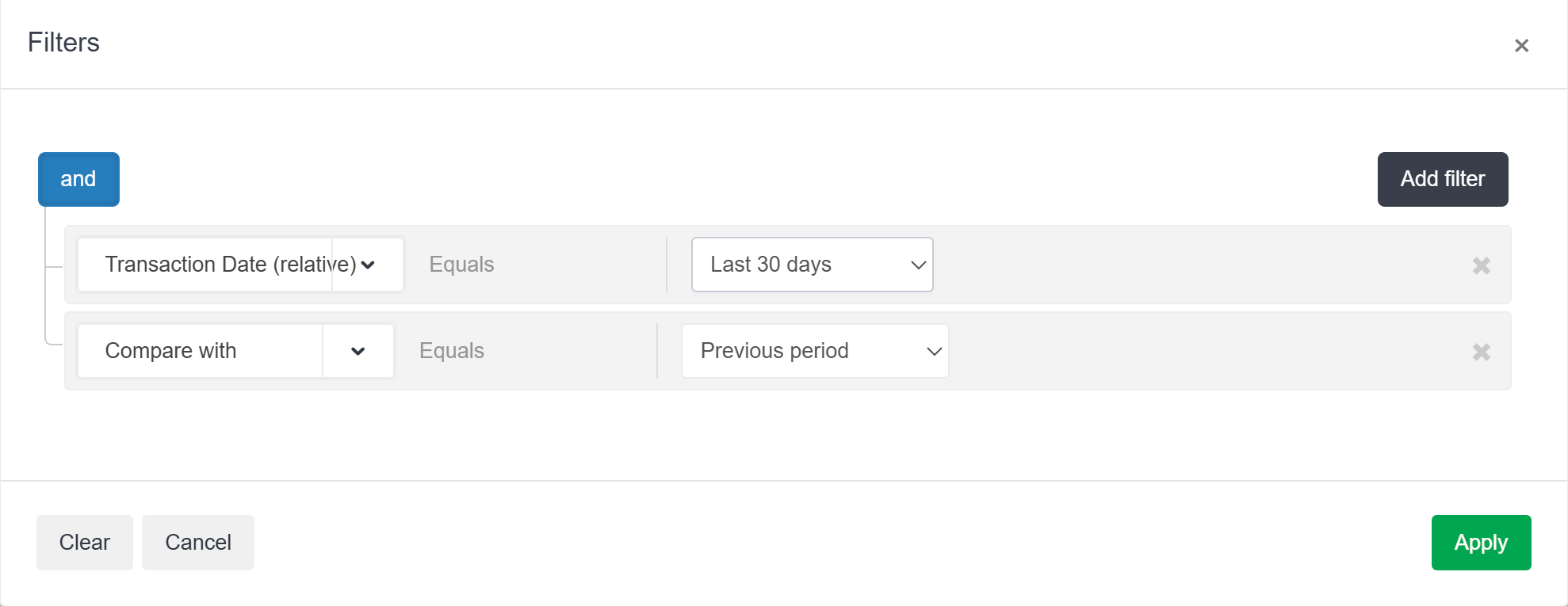
The options are Today, Yesterday, This week, Last week, This month, Last month, Last 30 days, Next 30 days, Up until yesterday, Last [X] days, Next [X] days, From [X] days and Week commencing. The first day of the week follows your market.
Compare with an earlier period
Add the Compare with filter to compare the report period with an earlier period:
Previous period: a period of the same length right before, for example the week before.
Previous week
Same period last year
As of a day: the figures as they were on a chosen day.
Tables then get a Week-over-week category in the column picker, with As Of and Movement columns for Sold, Total, Total Revenue and Gross Revenue. Figure tiles show the comparison with an arrow.
Click to filter
Click a value in a table or a chart, such as an event, a venue or a city, and the other widgets on the report filter to it. It is the quickest way to look into one part of the report without opening the Filters window. Clicks are temporary: they are not saved with the report and are not used in schedules.
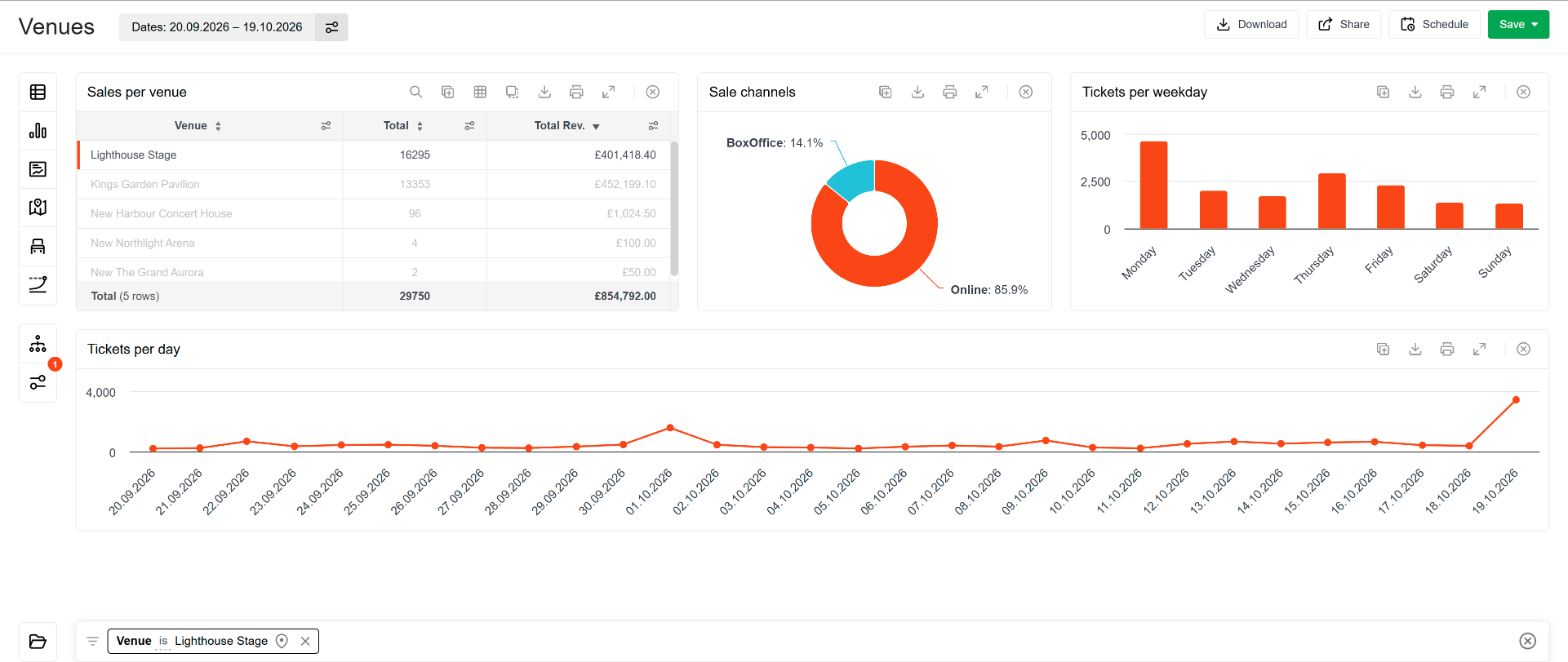
Table settings
1. Click a value in a table cell or a bar, slice or point of a chart. The other widgets fetch their data again for that value.
2. Hold Ctrl (Cmd on a Mac) and click more values of the same column to add them. Ctrl-click a selected value to take it out again.
3. Click a selected value again to remove it.
The widget you clicked in is not filtered itself. It highlights the selected values and moves their rows to the top, so you still see the rest.
Each selection is a chip in the bar at the bottom of the canvas, for example Venue is Lighthouse Stage. Click the cross on a chip to remove it, or press Esc or the cross at the end of the bar to remove all of them.
You can click events, event groups, venues, halls, promoters, seasons, organisations, price zones, ticket types, subscription types, payment types, sale types, order types, customers, cities, zip codes, countries and sale dates.
Available filters
is
Only the rows of the selected value.
is not
Every row except those of the selected value.
bought
Everything bought by the customers who have bought the selected value, including their other events. It looks at their purchases ever, whatever the report's dates. Use it to see what else the audience of one event buys.
didn't buy
Everything bought by the customers who have never bought the selected value: the customers you still have to reach.
bought and didn't buy are offered on events, event groups, venues, halls, promoters, seasons and organisations. Hover over a choice to see what it does.
With several values on a bought or didn't buy chip, choose any (customers who bought at least one of them) or all (customers who bought every one of them).
A bought or didn't buy selection can cover up to 50,000 customers. With more, the bar asks you to narrow the selection.
Keep a click as a report filter
Press the pin on a chip to turn it into one of the report's filters. It then moves to the Filters window and is saved with the report. Bought and didn't buy chips can not be pinned.
Widgets that do not follow clicks
Every table, chart, map, seat map and sales pace widget has the setting Follows clicks. Set it to No to keep a widget as it is when values are clicked in other widgets, for example a total that should always show the whole period.
Downloads and PDFs list the clicked values on a Selections line next to the filters, so it is always clear what the figures cover.
Tables
A table shows the columns you choose, one row per combination of the dimension columns, with a totals row at the bottom. Tables can be grouped into levels, pivoted, shown as percentages and coloured as a heat map.
Table settings
Click a table to open its settings.
Table template
Start from a saved table setup, or save the current setup as a template for your WorkGroup.
Title
The title shown on the widget and in downloads.
Data set
Where the data comes from, such as Events, Tickets or Customers.
Columns
The columns of the table. Press Add to open the column picker.
Show as %
Adds a percentage column next to a figure: each row's share of the total, shown with a bar.
Pivot by
Turns the values of a column into columns of their own.
Follows clicks
Whether the table filters when a value is clicked in another widget. Read more in Click to filter.
Hierarchy
Groups the rows into levels, such as event groups and their events.
Group rows into levels
Choose one or more levels under Hierarchy, for example Event Groups and then Events. Each group gets a subtotal row that can be opened with the arrow to show the rows below it.
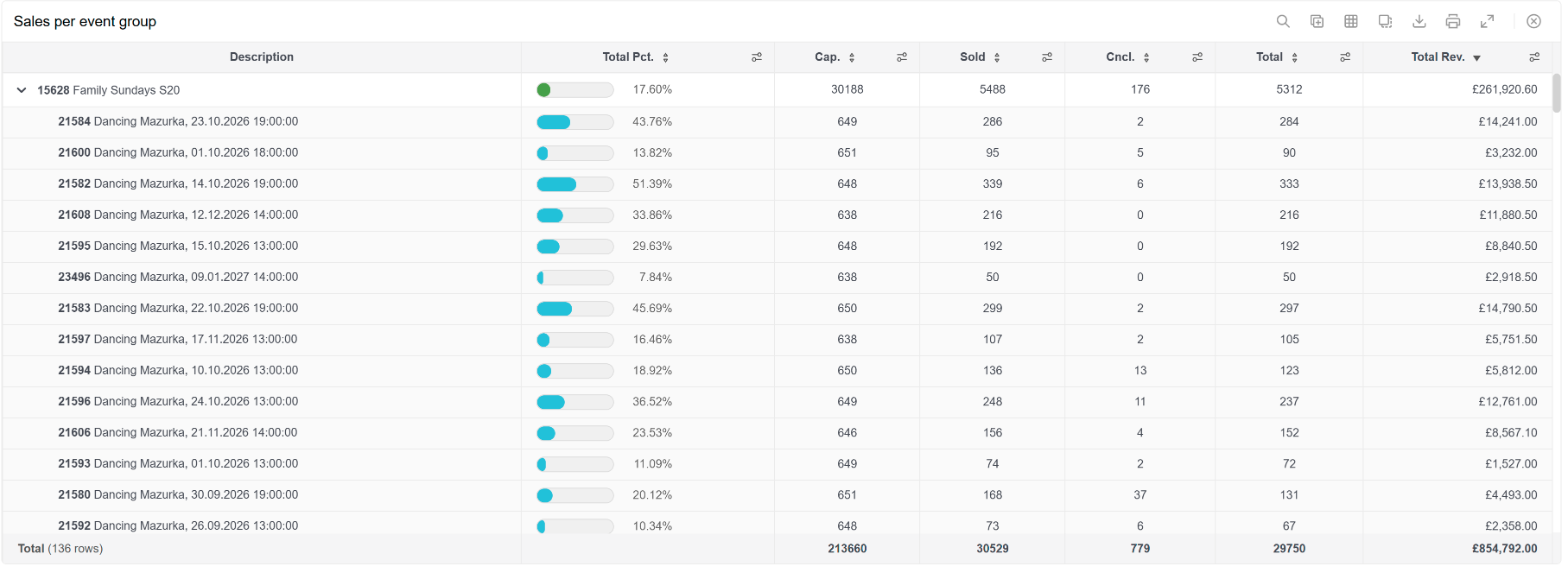
Pivot a table
Choose a column under Pivot by to spread its values across the table. In the example below, the tickets and revenue of each event are split by sale channel.
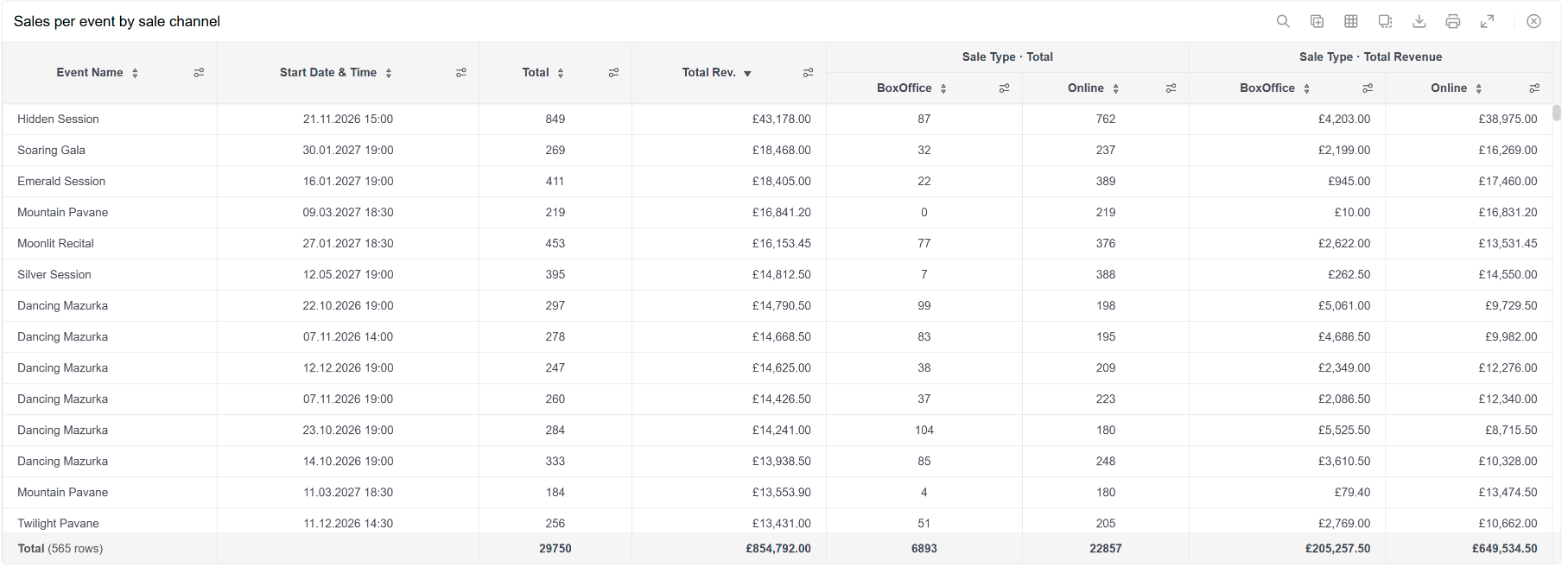
Working with the table
Sort by clicking a column header. Click again to reverse the order.
Move a column by dragging its header to a new place. The order is saved with the report and used in downloads.
Filter a column with the filter icon in its header, to show or hide values in this table only.
Scroll with the mouse or drag the scrollbar on the right. The headers and the totals row stay in place.
Click a value to filter the rest of the report to it. Read more in Click to filter.
The icons in the title bar of the table:

Search
Search for text in the table.
Duplicate
Adds a copy of the table to the report.
Heatmap
Colours the figures from low to high, so the highest values stand out.
Copy
Copies the table as an image or copies the table contents, for example to paste into Excel.
Download
Downloads this table as CSV, Excel or PDF.
Print
Prints this table.
Fullscreen
Shows the table on the whole screen.
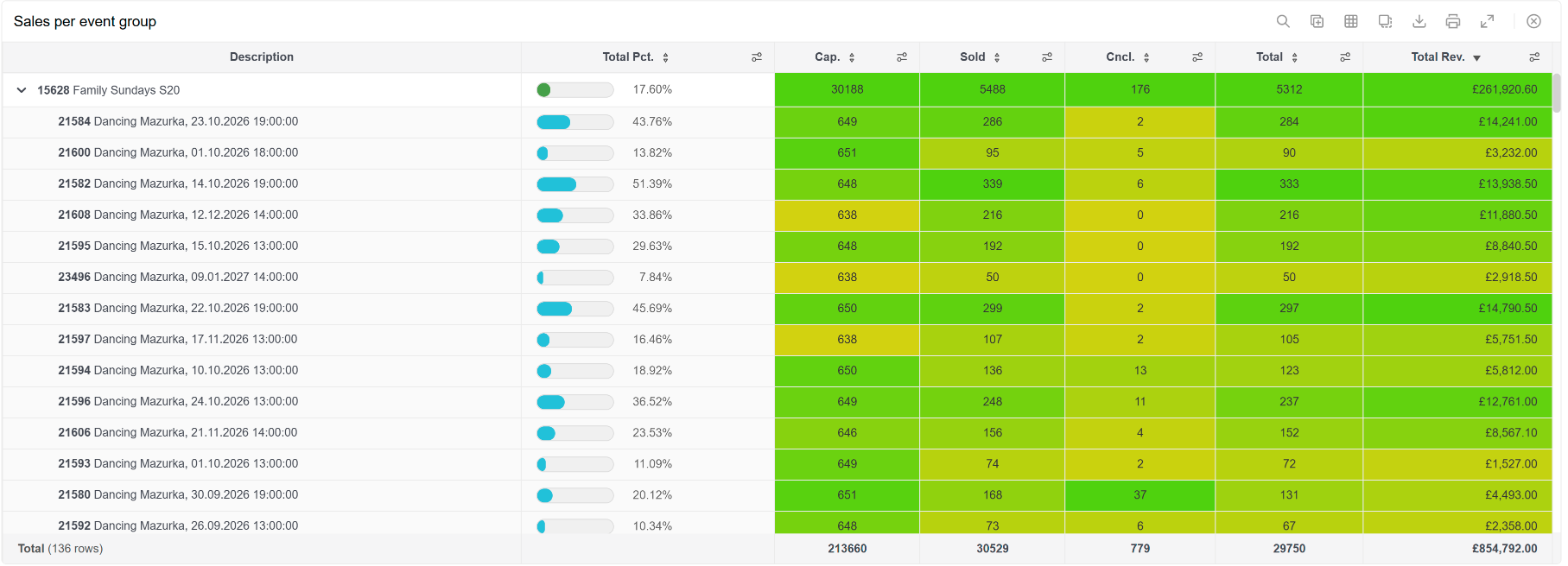
The Tickets and the Cancelled and released tickets data sets show one row per ticket and can not be grouped. They show up to 50,000 tickets and can be downloaded as CSV or Excel, not as PDF. Narrow the filters or the period to see all of them.
When a table is split by ticket type, sale type or another sales dimension, seat figures such as Capacity and Available are left blank on those rows, because a seat does not belong to one sale channel. They are shown on a row of their own for each event, with the ticket type Tickets not sold, and in the totals.
Charts
A chart shows one or more figures from a data set, for example tickets per day or revenue per sale channel. Charts follow the report's filters, just like tables.
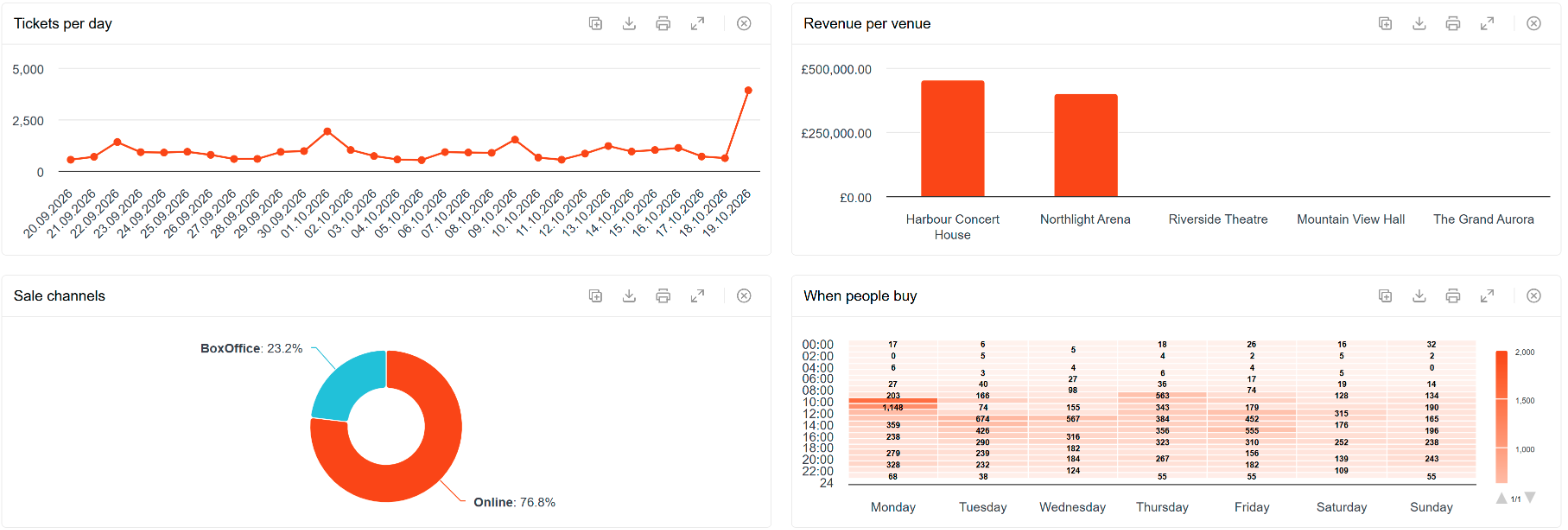
Chart settings
Click a chart to open its settings.
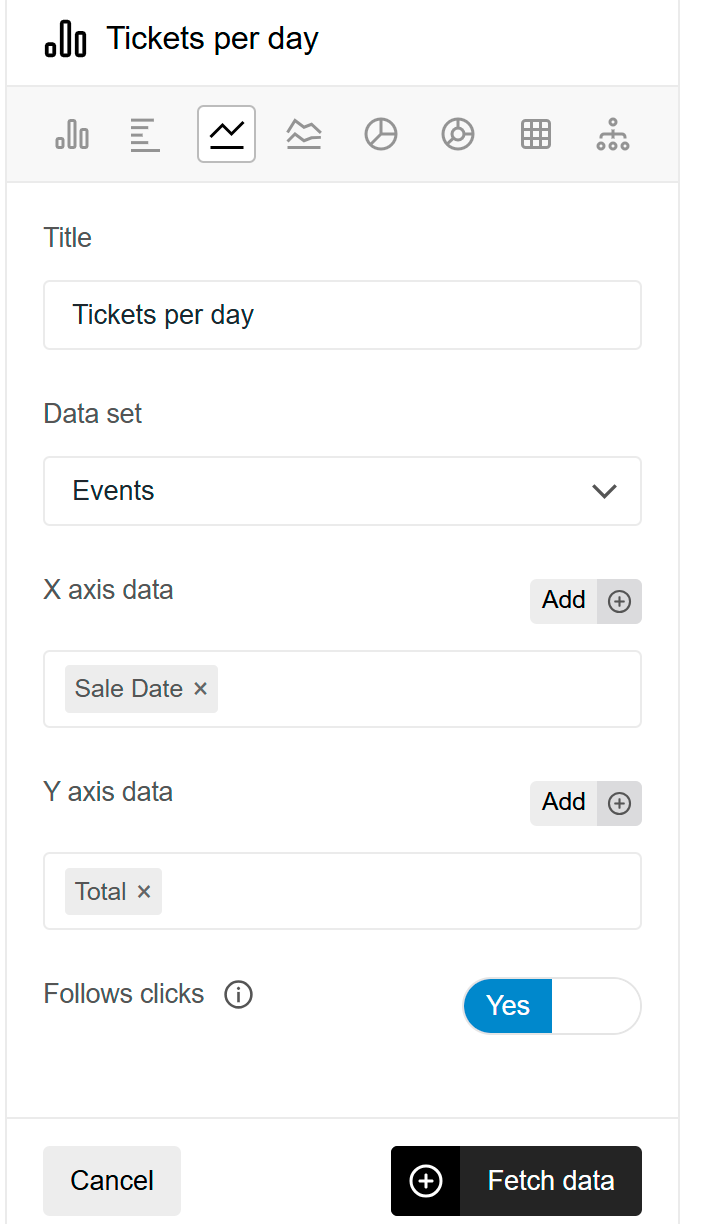
Chart type
The row of icons at the top: bar, horizontal bar, line, area, pie, donut, heatmap and Sankey.
Title
The title shown on the widget and in downloads.
Data set
Where the data comes from.
X axis data
What the chart is split by, such as Sale Date, Event Name or Sale Type.
Y axis data
The figures to show, such as Total or Total Revenue. Bar, line and area charts can show several figures at once.
Follows clicks
Whether the chart filters when a value is clicked in another widget. Read more in Click to filter.
Which chart to use
Bar and horizontal bar
Compare values side by side, for example tickets per weekday.
Line and area
Follow a figure over time, for example tickets per day.
Pie and donut
Show how a total is split, for example new and returning buyers. Works best with a few values.
Heatmap
Shows a figure across two dimensions, for example tickets by weekday and time of day. Choose the rows, the columns and the value. With Sale Hour, the hours can be grouped under Hour grouping, for example in three-hour blocks.
Flows (Sankey)
Shows flows from one value to another: choose From and To. On the Subscriptions data set it shows how subscribers moved between subscription types from one season to the next; Seasons back sets how many seasons it covers.
Working with the chart
Hover over a bar, line or slice to see its exact value. Click it to filter the rest of the report to that value (read more in Click to filter).
The icons in the title bar duplicate the chart, download it, print it or show it on the whole screen.
Tiles
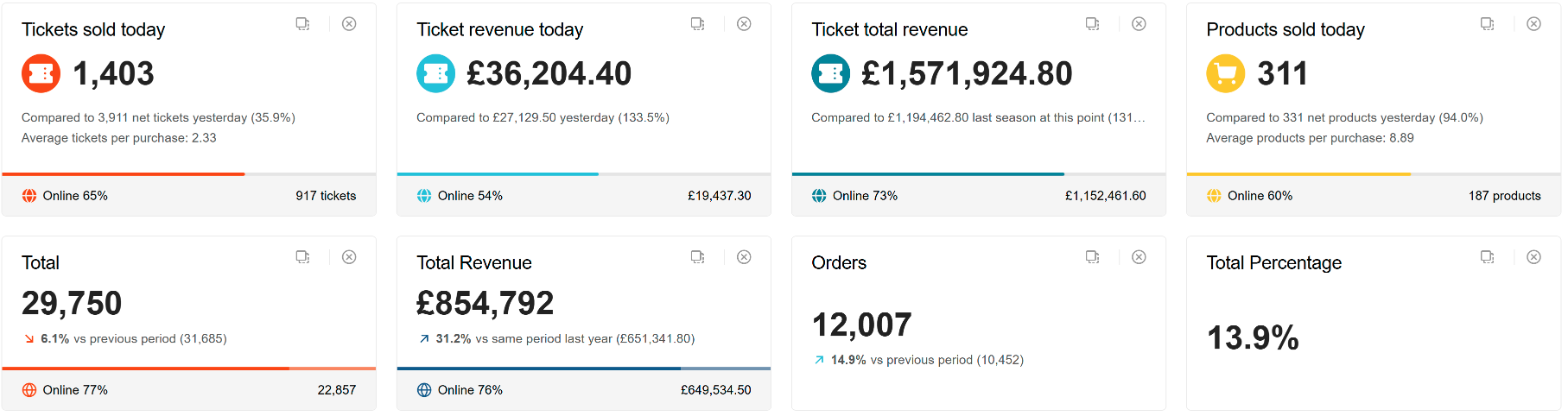
A tile shows one key figure in large numbers. There are two kinds of tiles: live tiles show today's figures, and figure tiles show a figure over the report period.
Live tiles
Live tiles show today's figures (or the season to date), compared with yesterday or the same point last season. They also show the average per purchase and the share sold online. Live tiles do not use the report's filters.
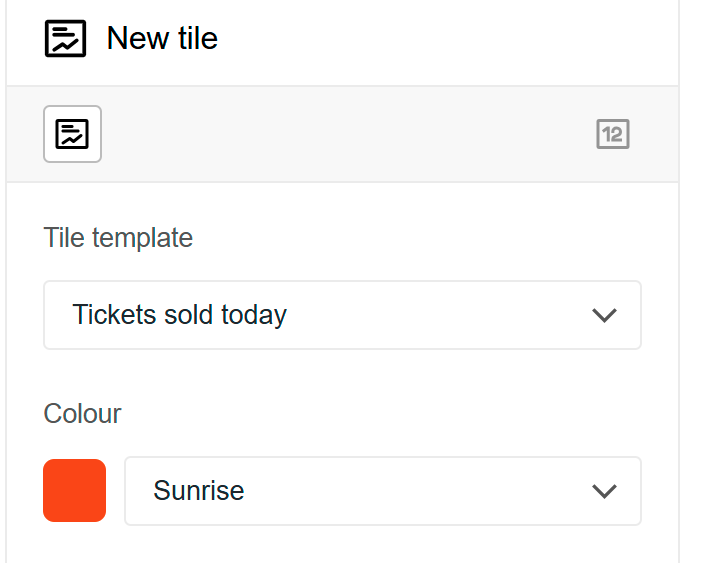
Tile template
The figure to show: tickets, products, memberships, gift cards or donations, as the number sold today, the revenue today or the revenue for the season to date. Tickets scanned today is also available.
Colour
The colour of the tile.
Figure tiles
Figure tiles show one figure over the report's period and filters, such as Total, Total Revenue or Sold Percentage, compared with an earlier period.
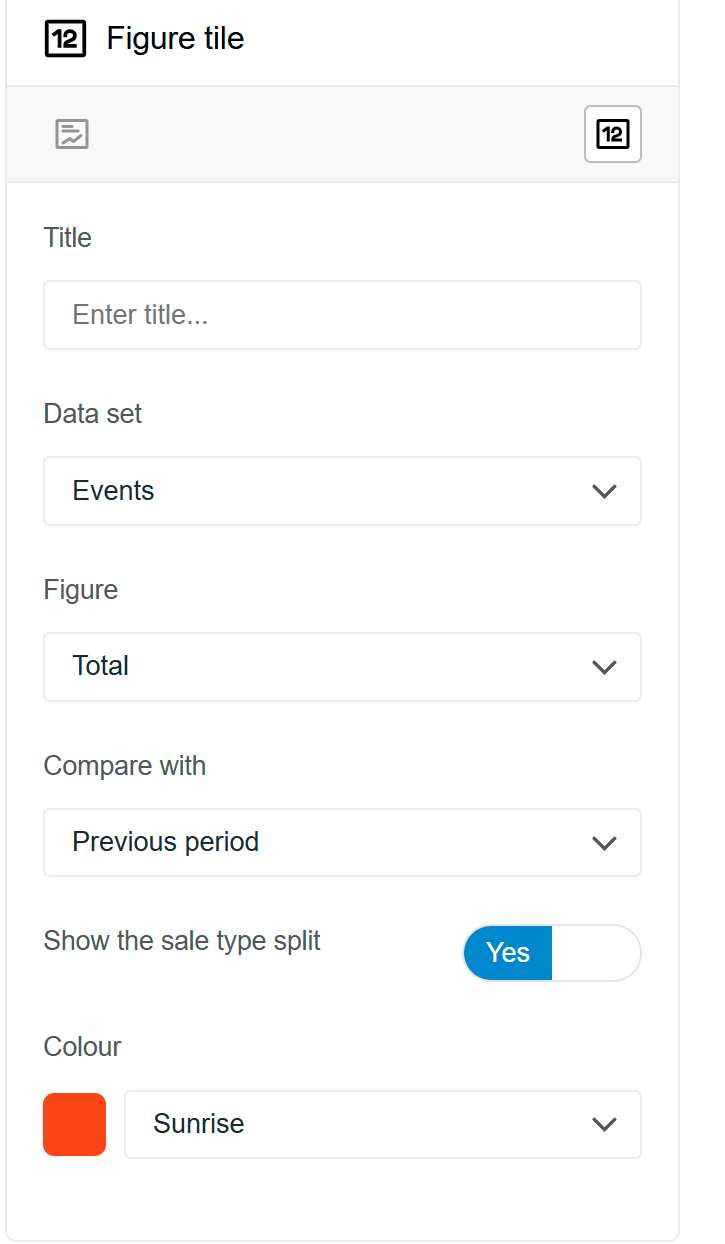
Title
Leave it empty to use the name of the figure.
Data set / Figure
The figure to show.
Compare with
Previous period, previous week, the same period last year or a chosen day. The arrow shows whether the figure went up or down.
Show the sale type split
Adds a bar under the figure, split by sale channel. Hover over the bar to see each channel.
Colour
The colour of the figure and the bar.
Figures that describe the situation right now, such as Capacity, Available and Reserved, are shown without a comparison. A period that is open at one end, such as Up until yesterday, has no earlier period to compare with.
Maps
A map shows where your buyers live, or where your venues are, on a map. It uses the report's filters, so it can show the buyers of one event, one season or one sale channel.
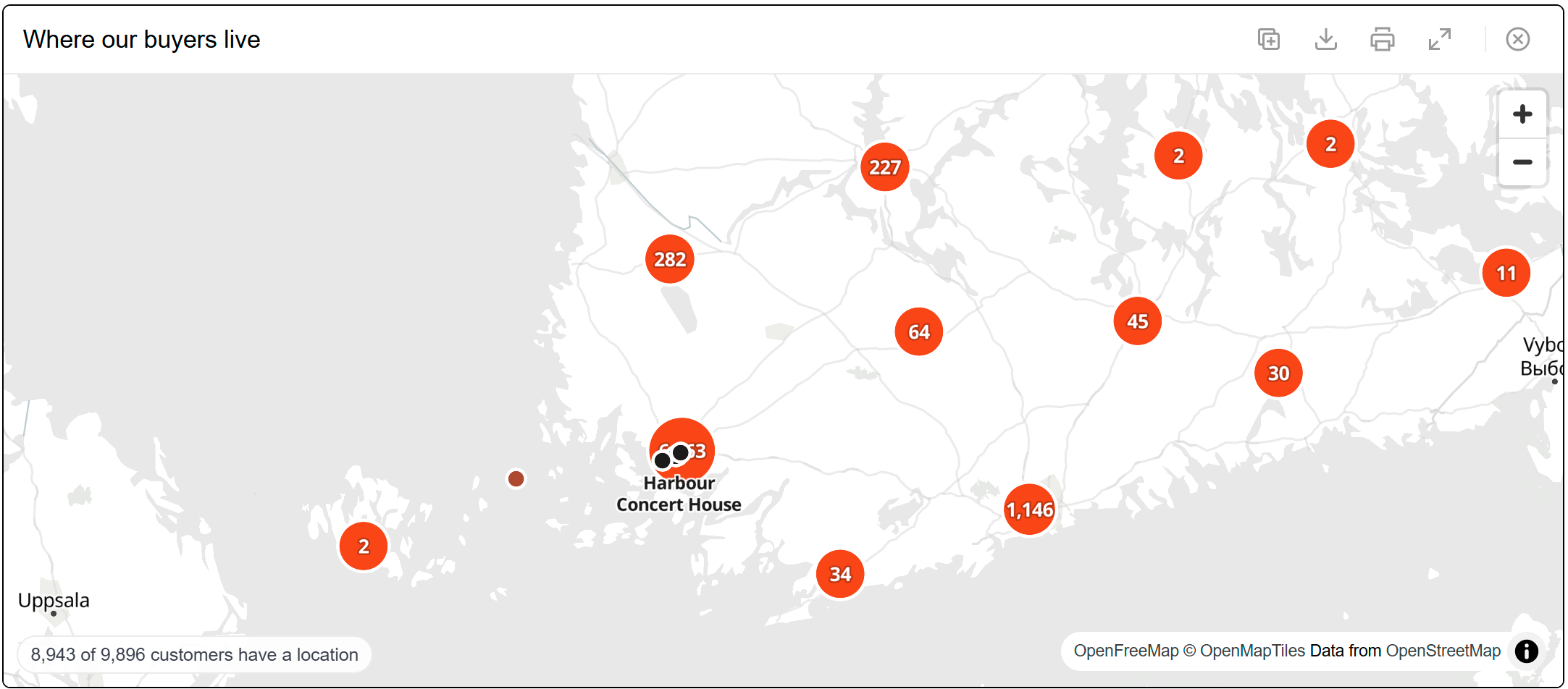
Map settings
Click a map to open its settings.
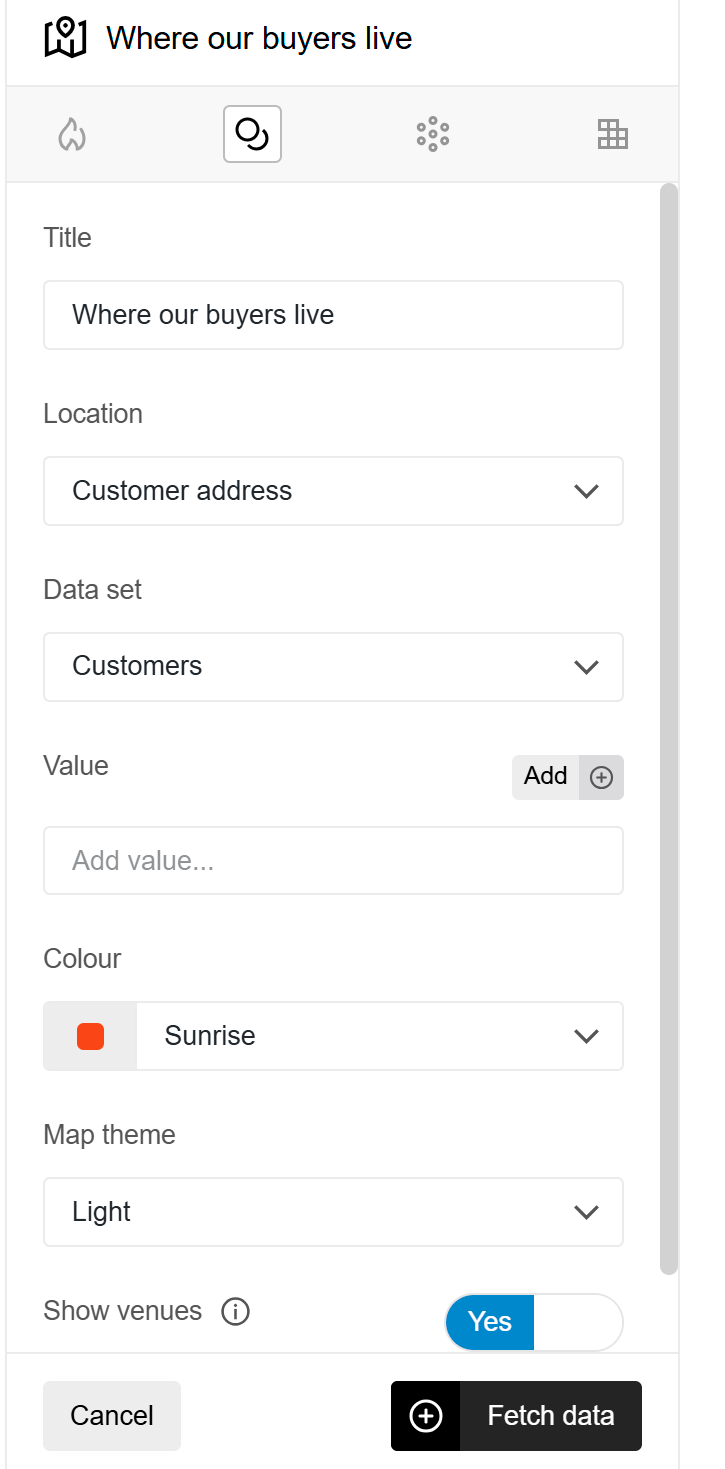
Map type
The row of icons at the top:
Heat map: where buyers are concentrated.
Clusters: buyers grouped into circles with a count, which split up as you zoom in.
Bubbles: a circle per place, sized and coloured by the value.
Grid: the value per square of about one kilometre.
Location
Customer address shows buyers, Venue shows your venues.
Data set
Where the data comes from.
Value
What the map counts: the number of customers, or a figure such as Total or Total Revenue.
Colour scale
Percentile steps puts the same number of places in each colour; Even steps splits the value range into equal parts.
Colour / Map theme
The colour of the data and the style of the map: Light, Streets or Dark.
Show values, Show legend
The value on each place, and the colour steps in the corner of the map.
Show venues
Shows your venues as pins on top of the customers.
Distance rings
Rings at 5, 20 and 50 km around your venues.
View
Fit to data zooms to all the places on the map. Use current view as default saves where the map is zoomed to with the report, and Forget saved view removes it again.
Follows clicks
Whether the map filters when a value is clicked in another widget.
Working with the map
Drag the map to move it. Hold Ctrl and scroll to zoom, or use the + and - buttons.
The lower left corner shows how many customers are on the map. Customers without a known address are not shown.
Seat maps
A seat map shows the hall of an event with every seat coloured by its status, price zone, sale channel and more. It shows at a glance which parts of the hall sell, and which seats sell first.
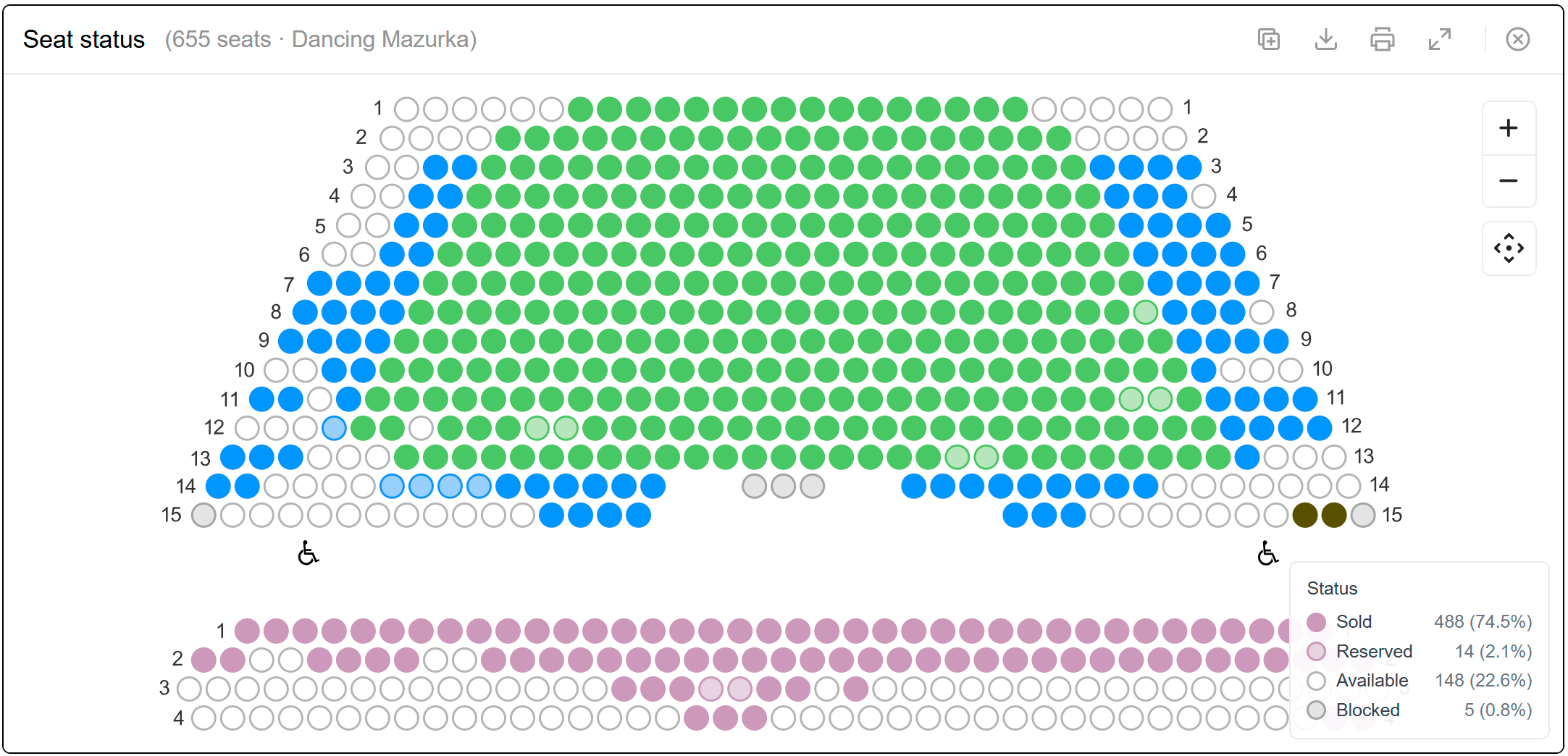
Choose the events
The report's filters decide which events the seat map shows, so add an Event Name or Start Date filter first. When the filter covers several events in the same hall, the seat map combines them. When the events are in different halls, choose the hall and the event in the seat map's settings.
Seat map settings
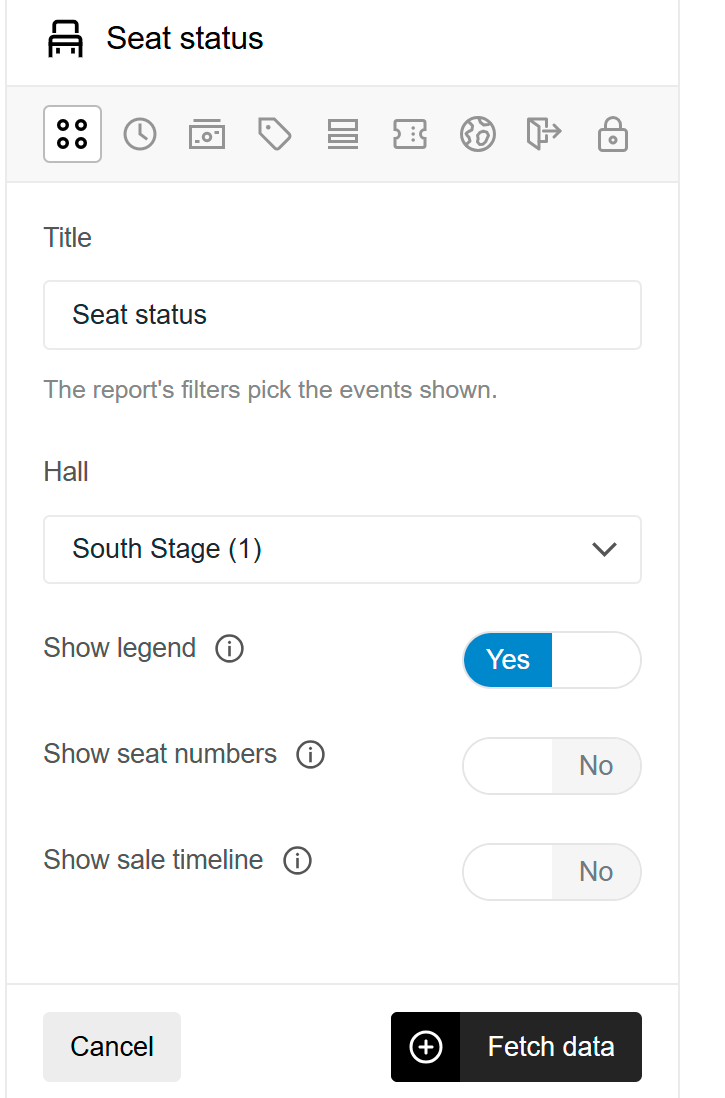
The row of icons at the top chooses how the seats are coloured:
Status
Sold, reserved, available, allocated and blocked seats.
Sale order
From green (sold first) to red (sold last).
Revenue
The revenue of each seat.
Price zone, Section, Ticket type, Sale type, Entrance and Allocation
The seats coloured by each of these.
Show legend
Shows the colours with the number and share of seats. Click a value in the legend to show only those seats, and click it again to show all seats.
Show seat numbers
Shows the seat number on each seat.
Show sale timeline
Adds a play button that replays the sale from the first ticket to the last, seat by seat.
Follows clicks
Whether the seat map filters when a value is clicked in another widget.
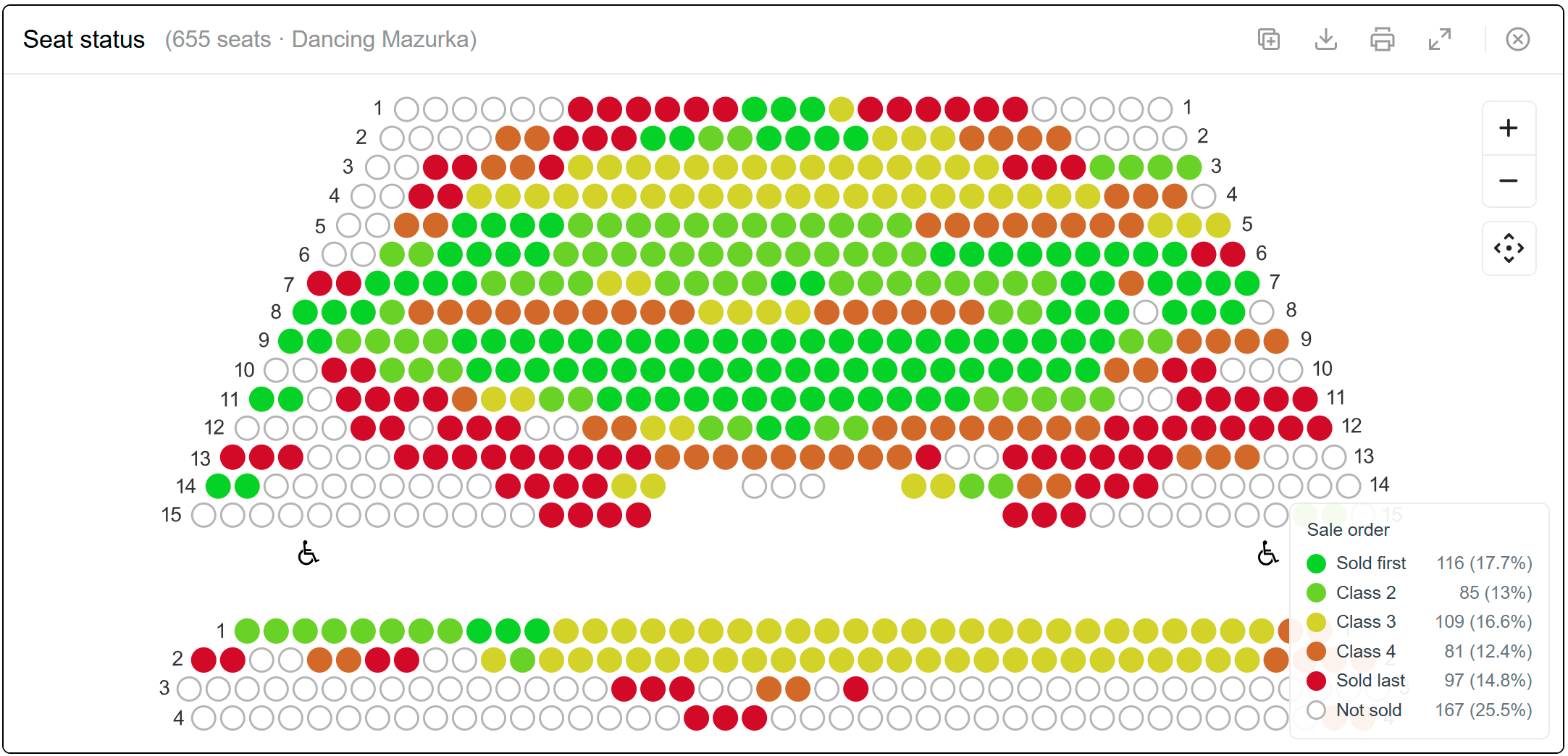
Use the Allocation Type filter to show only the seats of certain allocations, or the seats without an allocation.
Working with the seat map
Drag the hall to move it, hold Ctrl and scroll to zoom, or use the buttons on the right. Hover over a seat to see its section, row, seat, status, price zone, ticket type, sale time and price.
Event pace
The sales pace widget shows how your upcoming events are selling compared with similar events in the past. Every event is placed at the point where it stands today, against a benchmark of how comparable events had sold the same number of days before they started. It answers questions such as "Is this concert selling as well as usual?" and "Which events need a push?"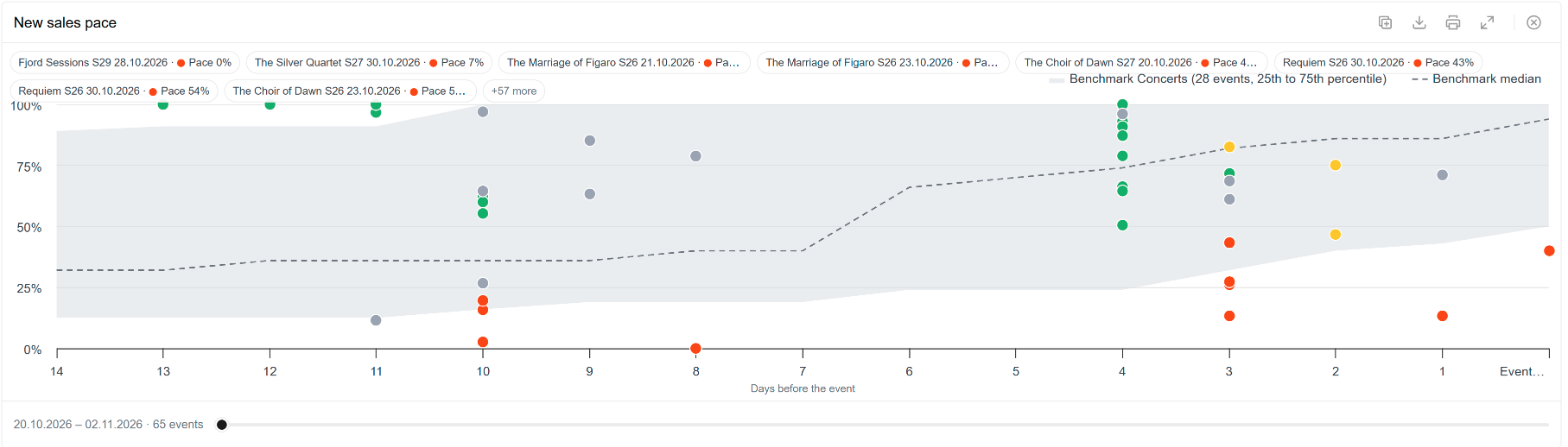
Add a sales pace widget
1. Click Add sales pace in the left menu.
2. Add a filter that picks the events to show, for example Start Date (relative) with Next 30 days, an event group or a venue. The report's filters decide which events are shown.
3. Press Fetch data.
Only events with sales are shown. The widget needs at least one filter before it shows data.
Read the chart
Days before the event
- The horizontal axis counts down to the event day. Each event is a dot at its own number of days to go, at the share of its capacity sold so far.
Benchmark
- The grey band shows how the comparable events had sold at each number of days before they started: the middle half of them (25th to 75th percentile). The dashed line is the median.
Colours
- Green: on or ahead of the benchmark (a pace of 100% or more).
- Yellow: watch it (85% to 100%).
- Red: behind (below 85%). Grey: no benchmark yet, or too early to judge.
Chips
The chips above the chart list the events with their date and pace, the slowest first. +[X] more shows the rest.
The slider
- Under the chart, the slider moves the window of event dates shown, for example two weeks at a time, and shows the dates and the number of events in the window.
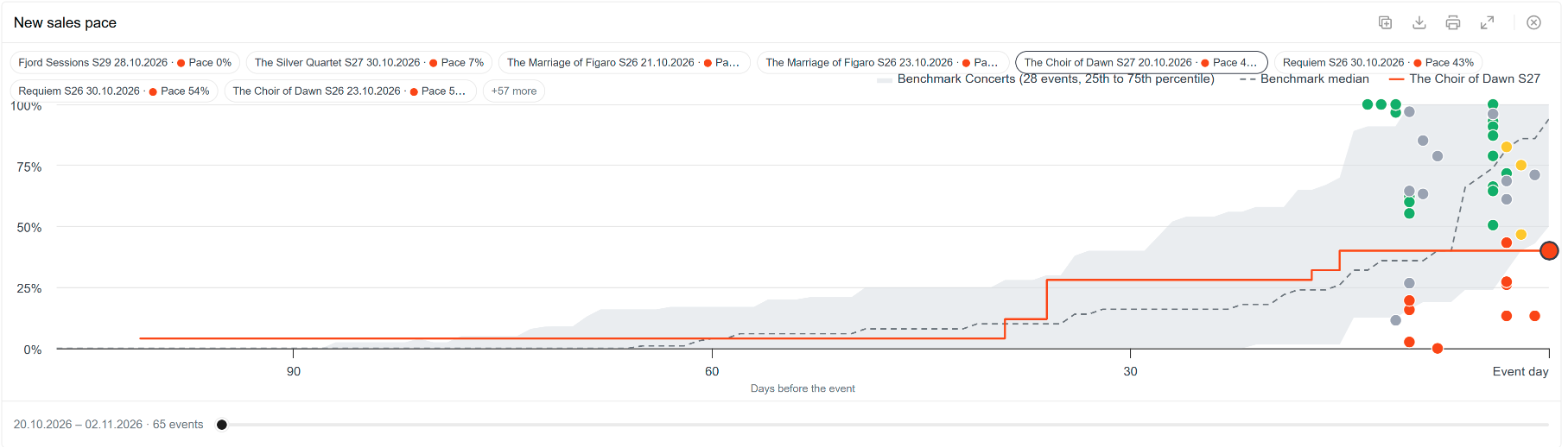
With up to five events, the chart shows the full sales curve of every event instead of dots.
Click a dot, a chip or a score to show the sales curve of that event from its first sale until today, with its projection. Click it again to hide the curve.
The Pace list in the settings shows every event with the days to go, how many tickets are sold of the capacity, its pace, the benchmark at this point and the projected final sales:
Pace
- How the event is selling compared with the benchmark. 100% means exactly as the comparable events had sold at the same point, 150% means half as much again, 50% means half as much.
Benchmark
What the comparable events had sold at the same number of days to go, as a percentage of capacity (the median).
Projected
- The final sales if the event keeps selling like the benchmark from today until the event day, never more than the capacity.
Pace settings
Click the widget to open its settings.
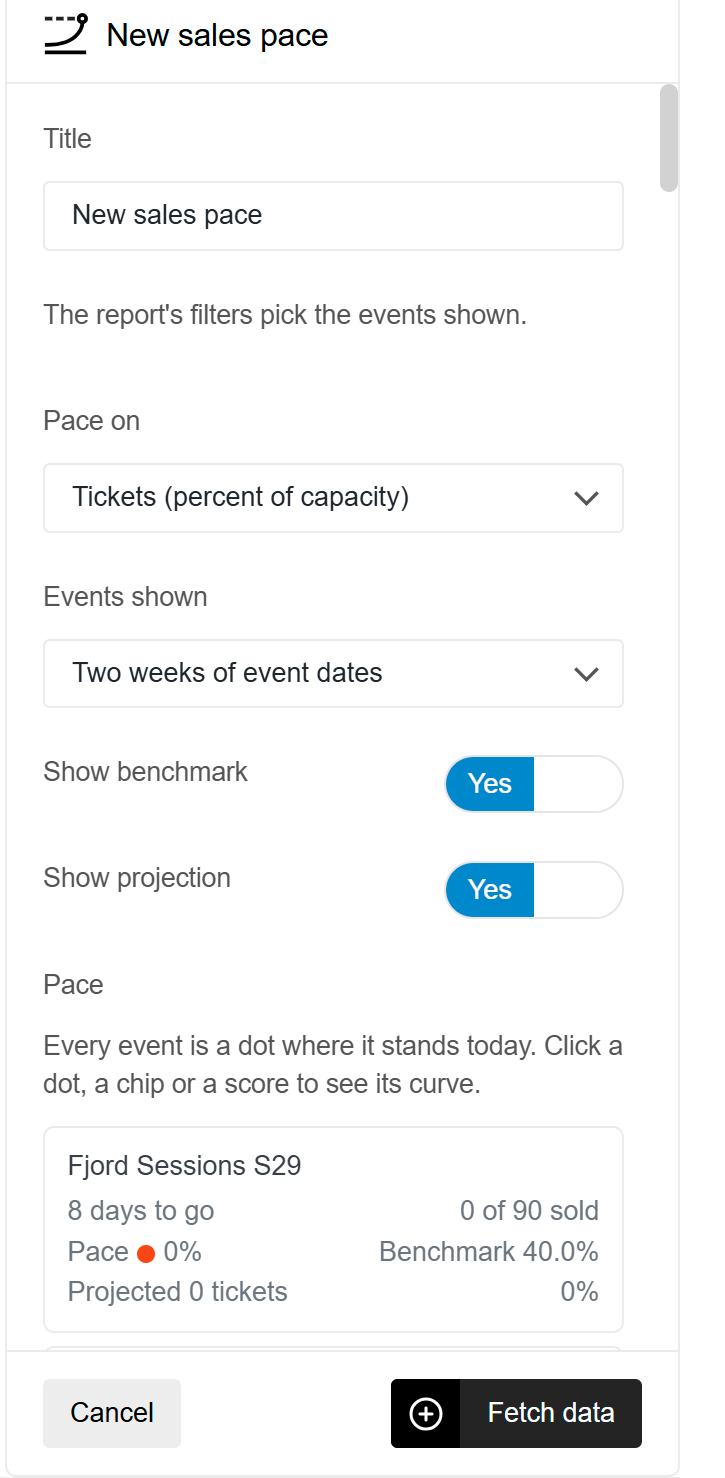
Title
The title shown on the widget and in downloads.
Pace on
Tickets (percent of capacity) measures the pace on tickets sold. Revenue (per seat) measures it on the revenue per sellable seat, so a high-priced event that sells fewer tickets can still be on pace.
Custom columns
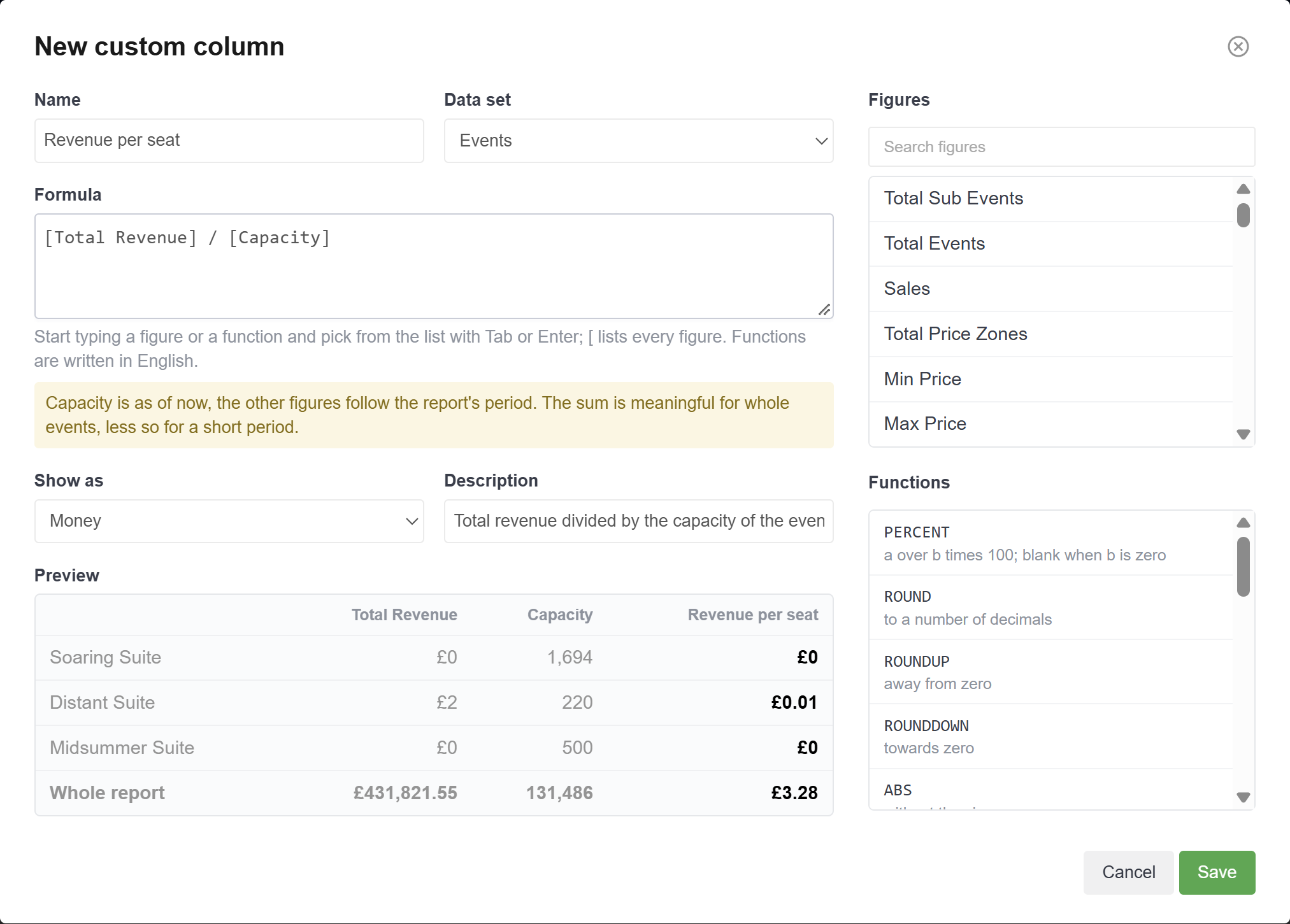
A custom column is a figure of your own, calculated from the figures of a data set. For example Revenue per seat as Total Revenue divided by Capacity, or No income as Free plus Available. Custom columns are shared with everyone in the WorkGroup and can be used in tables, charts and figure tiles like any other column.
Create a custom column
1. Open the column picker of a table and press New custom column, or open Group settings.
2. Give the column a Name and choose the Data set.
3. Write the Formula. Type [ to list the figures, or start typing the name of a figure or a function and pick it from the list.
4. Choose how to Show the result: as a whole number, a number with decimals, money or a percentage.
5. Add a Description. It is shown in the column picker.
6. Check the Preview, which calculates the column on the report's own filters, and press Save.
Formulas
A formula uses the figures of the data set in square brackets, numbers, + - * / and brackets. Functions are written in English:
PERCENT(a, b)
a as a percentage of b.
ROUND, ROUNDUP, ROUNDDOWN
Round to a number of decimals.
ABS, MIN, MAX
The absolute value, the smallest and the largest value.
IF, IFBLANK, AND, OR, NOT
Show one value or another depending on a condition.
DAYS(), EVENTS()
The number of days in the report period and the number of events.
SHARE([figure])
The row's share of the total.
PREVIOUS([figure]), GROWTH([figure])
The figure in the comparison period and the growth since then. They need a Compare with filter on the report.
A custom column is calculated on every row, group and total from that line's own figures, so a ratio is always the ratio of the totals. Dividing by zero gives an empty cell.
Use the figures of one fee group, fee or payment type
A formula can use the figures of one fee group, one fee or one payment type, written as two names in square brackets with a dot between them:
- [Fee Group].[Levy]: the total revenue of the fees in the fee group Levy.
- [Fee Name].[Booking Fee]: the total revenue of one fee.
- [Payment Type].[Card]: the amount paid with one payment type.
Type [Fee Group].[ to see the fee groups of your WorkGroup. A third part picks another figure than the total revenue, for example [Fee Group].[Levy].[Sold Revenue]. The figures are Sold, Cancelled, Total, Sold Revenue, Cancelled Revenue and Total Revenue, and for fees also Reserved Revenue, Reserved in Period Revenue, Available Projected Revenue (the open seats) and Allocated Projected Revenue (the held seats).
For example, the gross revenue without the levy and the transaction charges:
[Gross Revenue] - [Fee Group].[Levy] - [Fee Group].[Transaction Charge]
The fees are matched to the rows of the table, so the formula works on tables split by event, ticket type, price zone, section, sale channel and sale date. A value that is not in the data counts as 0.
Revenue without selected fee groups
When the same fee groups should be left out of many figures, there is a quicker way than a formula per column. Tick the fee groups under Group Settings > Fee groups to leave out. The Events data set then has these columns, each with the inside fees of those fee groups taken off:
- Gross Revenue (excl. selected fees)
- Sold Gross Revenue (excl. selected fees)
- Reserved Gross Revenue (excl. selected fees)
- Reserved in Period Gross Revenue (excl. selected fees)
- Available Projected Gross Revenue (excl. selected fees)
- Held Projected Gross Revenue (excl. selected fees)
- Average Gross Ticket Price (excl. selected fees.
The other columns do not change. With no fee group ticked, these columns are the same as the figures with all inside fees.
Edit or delete a custom column
Custom columns are listed in Group Settings, where they can be edited, duplicated and deleted. Before a column is deleted, the Report Builder shows how many saved reports use it.
Build reports with the chatbot
The chatbot builds reports for you. Describe the report or dashboard you want in your own words, for example "Ticket sales per sale channel for last month, with a chart per week", and it adds the widgets, columns and filters to the page. It can also change the report you have open.
Use the chatbot
1. Press Tixly Chat in the lower right corner of the Report Builder.
2. Describe the report you want, or the change to the open report, and send the message.
3. Check the widgets, filters and columns it added. Undo AI changes puts the report back as it was before.
4. Press Save to keep the report.
The chatbot sees the same data as you do. A short, specific request works best. The chatbot is available when it is switched on for your WorkGroup; if you do not see the button, contact Tixly Support.
Download and schedule reports
A report can be downloaded as CSV, Excel or PDF, or sent by e-mail on a schedule, for example every Monday morning. A scheduled e-mail can carry the report as a file, or show it in the e-mail itself so it can be read on a phone.
Download a report
Press Download in the upper right corner and choose the format.
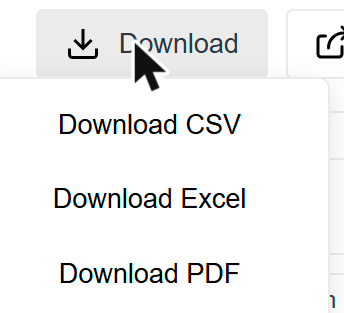
CSV
One file per table, for use in other systems.
Excel
One workbook with a sheet per table and a sheet listing the filters.
PDF
The whole report as it looks on screen: tables, charts, tiles, maps, seat maps and sales pace, with the filters at the top.
A single widget can also be downloaded with the download icon in its title bar. Ticket lists from the Tickets and the Cancelled and released tickets data sets can be downloaded as CSV or Excel, not as PDF.
When values are clicked to filter the report, the downloads list them on a Selections line next to the filters.
Schedule a report
Save the report first, then press Schedule.
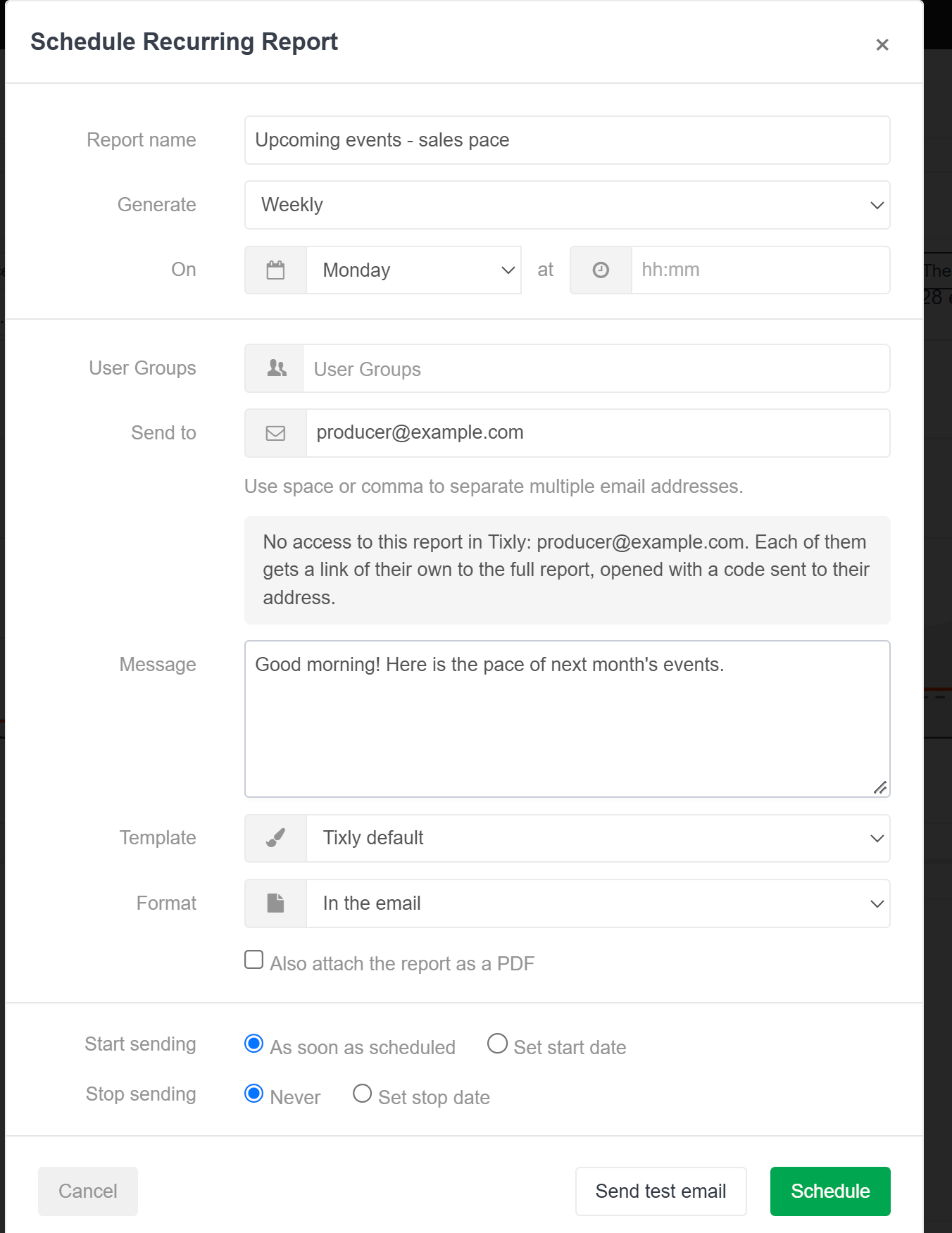
Report name
The name used in the e-mail.
Generate / On
How often the report is sent and when, for example weekly on Monday at 08:00.
User Groups / Send to
Who receives the report: user groups, e-mail addresses or both. Separate e-mail addresses with a space or a comma.
Message
An optional message in the e-mail.
Format
In the email, PDF, CSV or Excel. Read more about In the email below.
Template
The look of the e-mail. Tixly default needs no setup; your own mail templates are listed too.
Start sending / Stop sending
When the schedule starts and ends.
Use relative dates in a scheduled report, for example Last week, so every e-mail covers the latest period. Read more in Filters.
A scheduled report shows the data the person who scheduled it has access to. It sends the saved report: changes on the screen that are not saved are not sent. Clicked selections are never sent.
When a scheduled report is saved again, the Report Builder warns that the schedule will send the new version.
The report in the e-mail
With the format In the email, the report is shown in the body of the e-mail: tiles, charts, maps, seat maps and sales pace as pictures, sized to be read on a phone. Tables are not shown in the e-mail.
- Tick Also attach the report as a PDF to add the whole report, tables included, as a PDF.
- Every recipient gets an e-mail of their own, with a View the full report link. Recipients who can open the report in Tixly go straight to it. Others get a personal link of their own, opened with a code sent to their e-mail address, when the person who scheduled the report may share reports outside Tixly (read more in Share reports).
- A note under Send to names the recipients who have no access to the report in Tixly, so you can decide to attach the PDF.
Send a test e-mail
Press Send test email at the bottom of the Schedule window to send the report right away to the addresses under Send to, with [Test] in the subject. Use it to check how the e-mail looks before the first scheduled send.
Share reports
Press Share in the upper right corner to decide who in your WorkGroup sees a report and what they may do with it, or to send the report to people outside Tixly, such as a producer or a promoter, with a secure link.
A new report is saved first when you press Share. Copy link at the top of the Share window copies the link to the report, for colleagues who already have access to it.
Who has access in Tixly
The tab People in Tixly decides who in your WorkGroup sees the report.
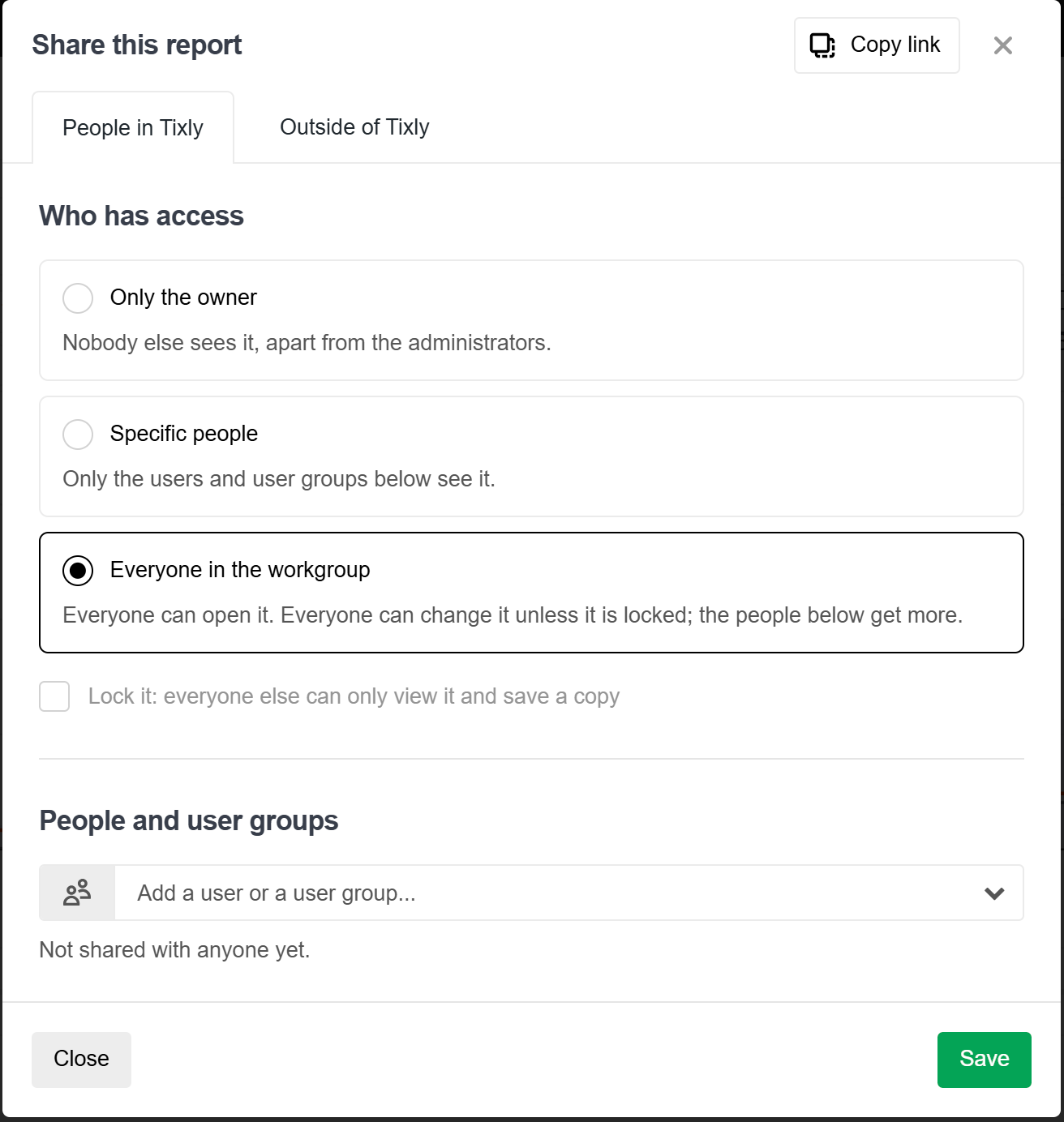
Only the owner
- Nobody else sees the report, apart from the administrators.
Specific people
- Only the users and user groups listed under People and user groups see the report.
Everyone in the workgroup
- Everyone can open it. Everyone can change it unless it is locked. This is how new reports start.
Under People and user groups, add users or user groups and give each of them a role:
Can view
- Open the report, change filters and widgets for themselves and save a copy. Their changes are not saved to the report.
Can edit
- Also save the report, rename it, move it to a folder and pin it.
Can manage
- Also decide who has access, lock it and delete it.
The owner of a report and the WorkGroup administrators can always manage it. Press Save to apply the changes. Only the people who manage the report can change who has access; others can copy the link.
Lock a report
Tick Lock it to keep a report shared with everyone as it is: everyone else can only view it and save a copy, and only the people who manage the report, or have been given Can edit, can change it. A locked report shows a padlock in the Reports window, and a notice next to the title tells others that they can change filters and widgets for themselves but need to save a copy to keep their changes. Locking is available when the report is shared with everyone in the workgroup.
Share with people outside Tixly
The tab Outside of Tixly sends the report to people who have no Tixly user, by e-mail, with a personal link.
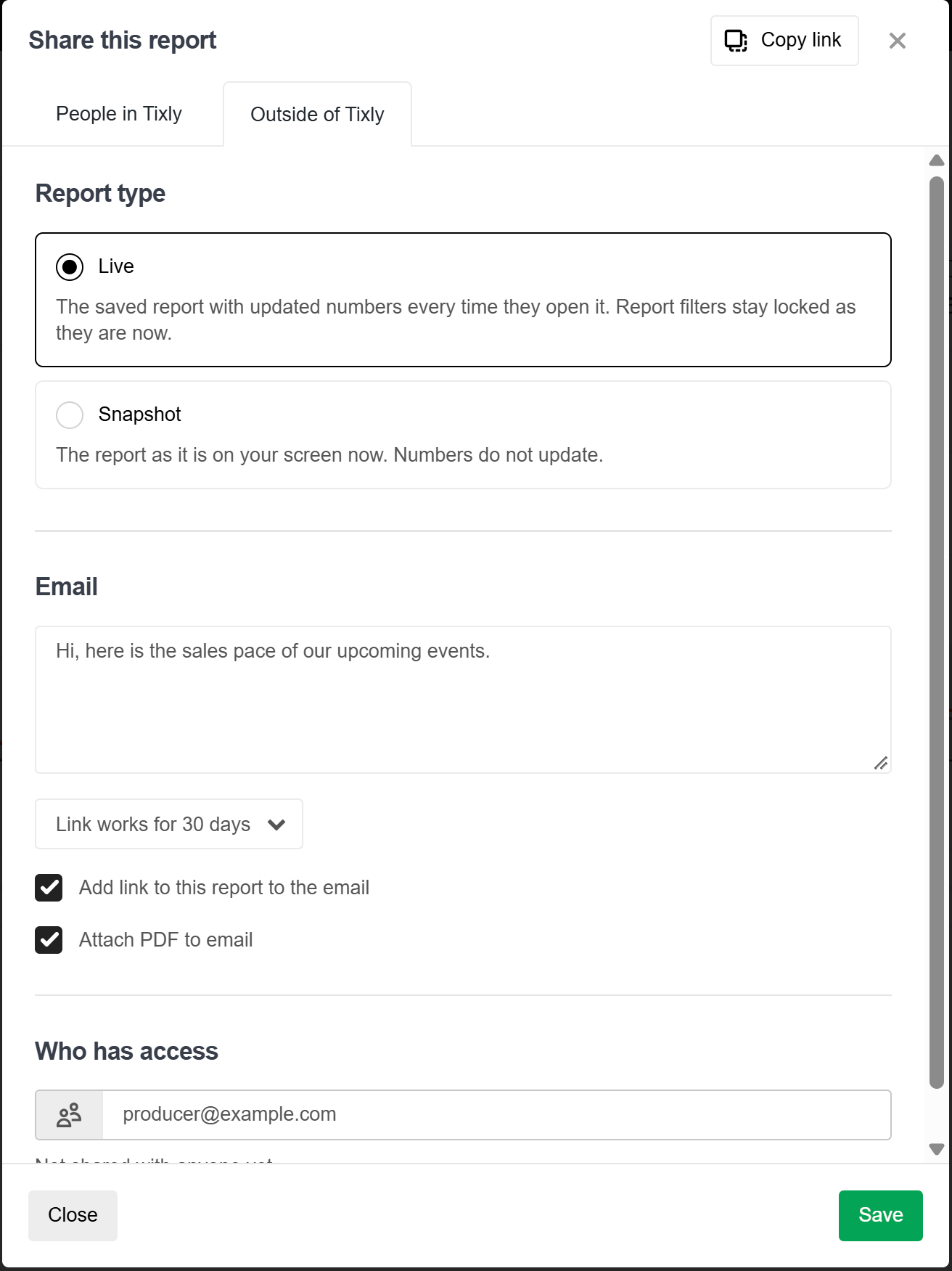
1. Choose the Report type:
- Live: the saved report, with updated figures every time they open it. The report's filters stay as they are now.
- Snapshot: the report as it is on your screen now. The figures do not change.
2. Write an optional message and choose how long the link works, from 7 days to a year.
3. Choose what the e-mail holds: Add link to this report to the email, Attach PDF to email, or both. With neither, the links are only made, ready to copy.
4. Add the e-mail addresses, separated by commas. Up to 20 at a time; each recipient gets a link of their own.
5. Press Save.
Sharing outside Tixly needs two things: the WorkGroup must allow report links for people outside Tixly (Administration > Edit WorkGroup > Report Builder links outside Tixly), and your user needs the right Can share reports outside Tixly (Edit User). The WorkGroup setting also decides how long a link can work at most and how long a viewing session lasts. The Share window tells you if one of them is missing.
Ticket lists (the Tickets and the Cancelled and released tickets data sets) are left out of shared reports.
What the recipient sees
1. The recipient opens the link and presses Email me a code.
2. A 6-digit code is sent to their e-mail address. It works for 10 minutes.
3. They enter the code and press Open the report.
The report opens in the browser, without a Tixly login. They can search, sort and zoom, and download a PDF. Customer details, such as names, e-mail addresses and addresses, are replaced with sample values and blurred, so personal data never leaves Tixly. The footer says who shared the report and until when the link works. After too many wrong codes the link is closed for a while.
Manage the links
The list under Who has access on the Outside of Tixly tab shows every link of the report: who it was sent to, by whom, how often it has been opened and when it ends.
- Copy link copies a link that was made just now.
- Extend makes an open link work again for the chosen period, counted from today.
- The minus icon revokes a link. It stops working at once.
Report history and recently deleted
Every change to a saved report is kept in its history, so an earlier version can always be brought back. Deleted reports stay in Recently deleted for 30 days before they are gone.
See the history of a report
Open the report and click History in the left menu, or open the Reports window and choose History in the report's More (…) menu.
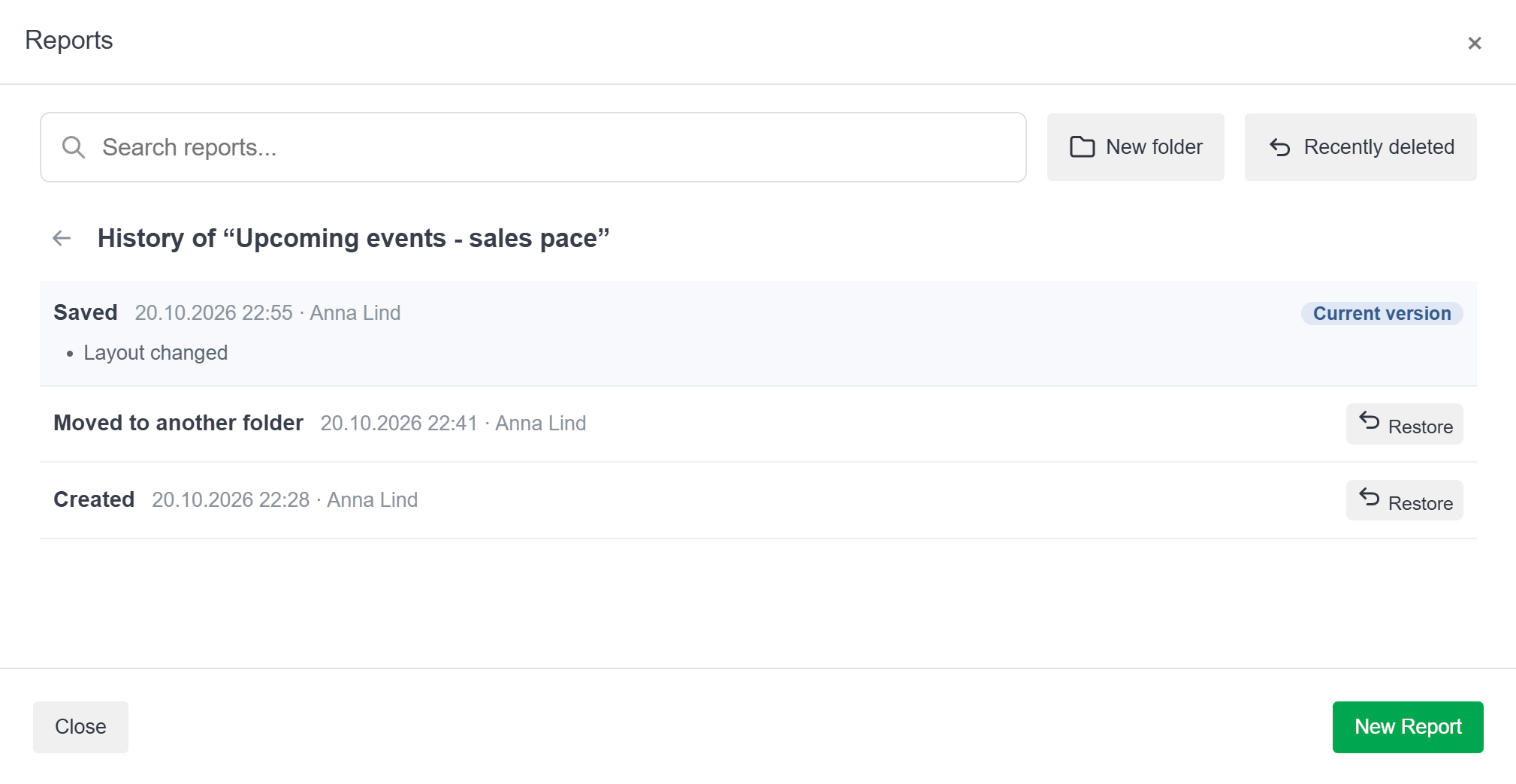
The history lists the changes, the newest first, with who made them and when: created, saved, renamed, moved to another folder, locked or unlocked, who can see it, deleted and brought back, and older versions restored. A saved change also says what changed, for example Added a widget, a widget's columns changed, or the layout changed.
Restore an earlier version
Press Restore on a version in the history. The report goes back to that version. The current version stays in the history, so the restore can be undone the same way.
Bring back a deleted report
Open the Reports window and press Recently deleted.
Find the report and press Restore.
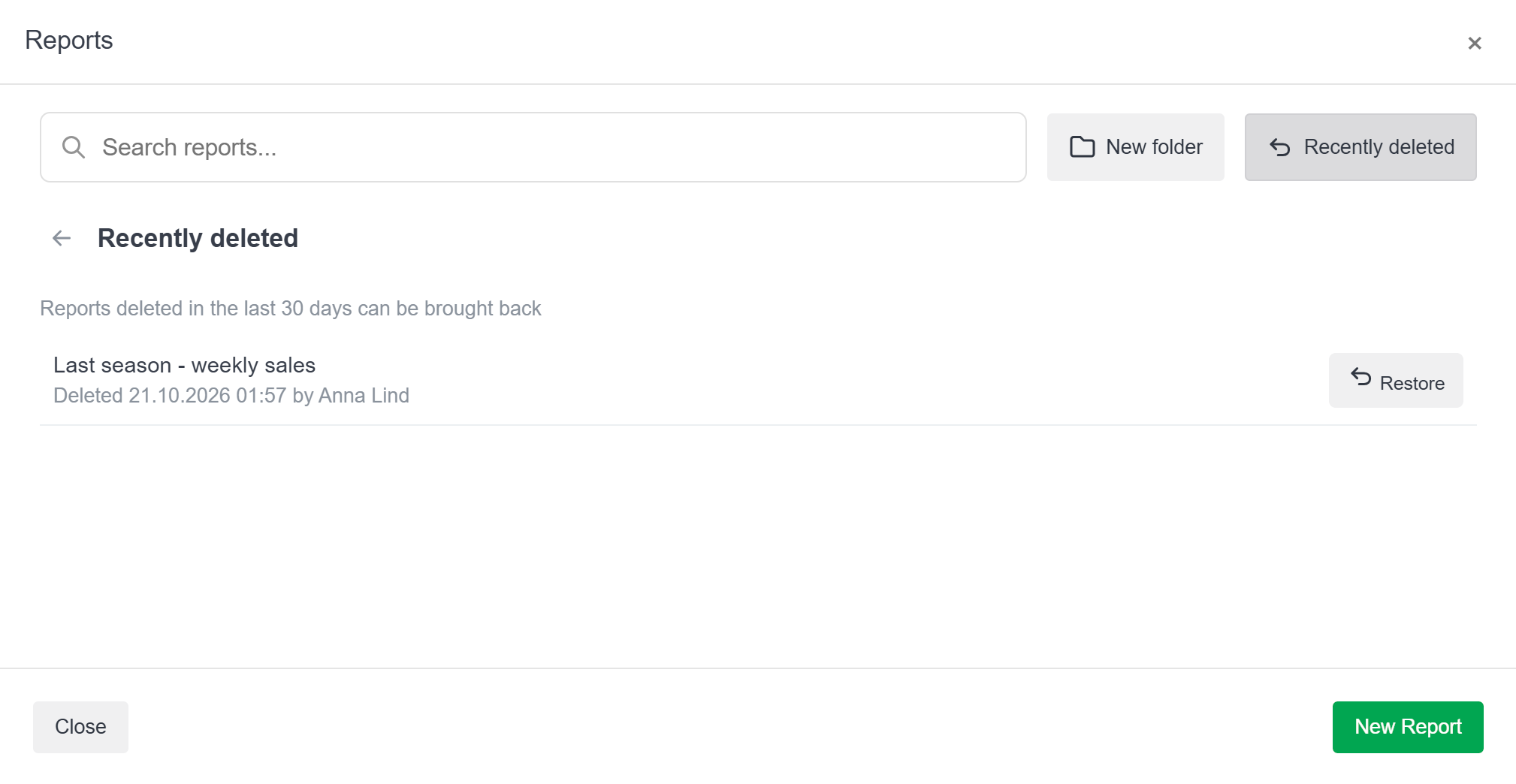
The report is back in the Reports window, with its history. Reports deleted more than 30 days ago can not be brought back.
Who may do what
- Everyone who can see a report can see its history and save a copy.
- Restoring a version needs the right to edit the report.
- Deleting, bringing back and locking a report needs the right to manage it: its owner, the WorkGroup administrators and the people it is shared with as Can manage. Read more in Share reports.
Group settings
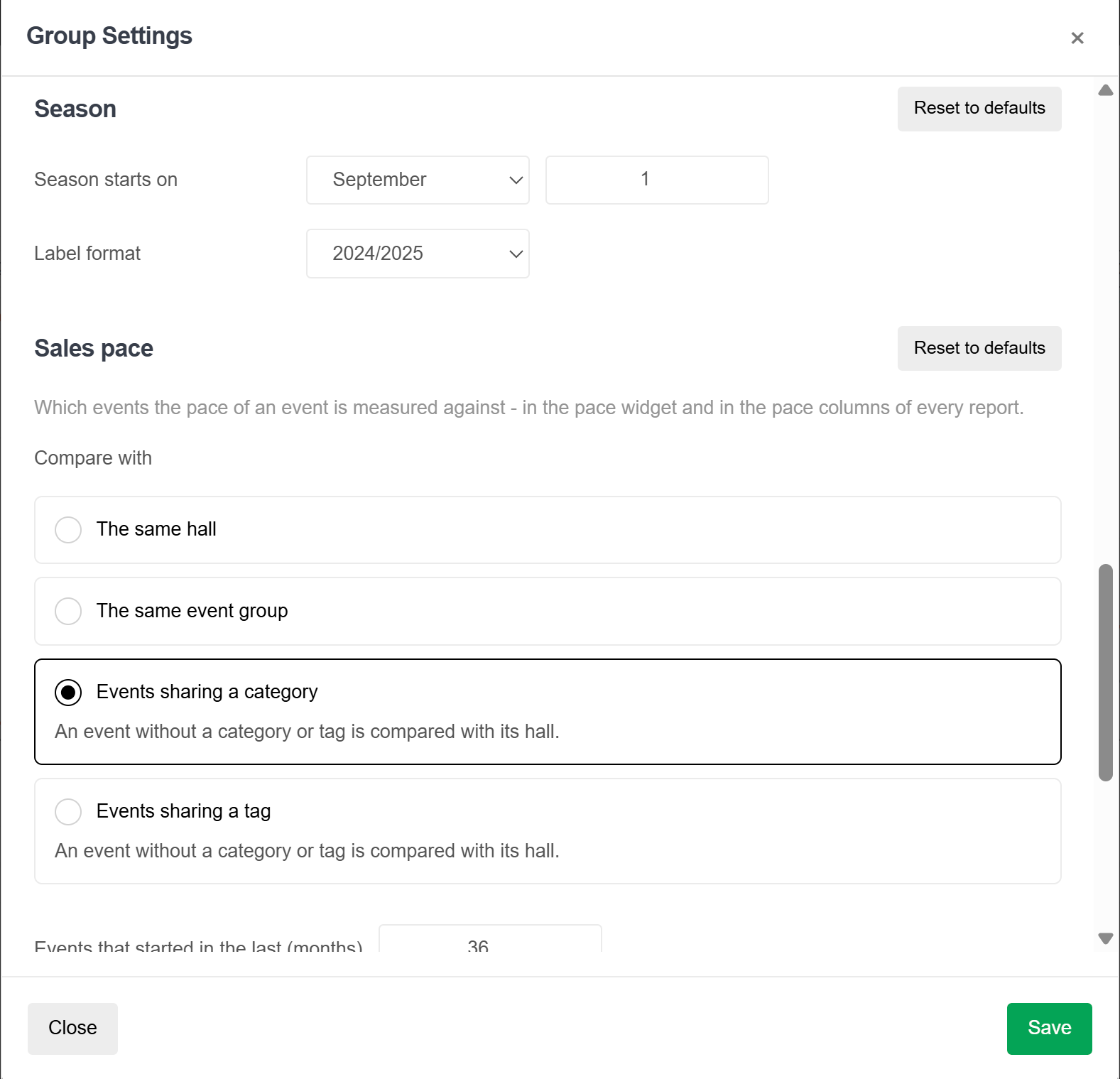
Group settings are shared by everyone in the WorkGroup. They decide how some columns are grouped, for example which ages make up an age group, which events the sales pace is measured against and which fee groups can be left out of the revenue. They also hold the WorkGroup's custom columns. Open them with Group Settings in the left menu.
Age Groups
- The age groups used by the Age Group column, such as Children & Teens or Senior, and the label for customers without a known age.
Distance to Venue
- Kilometres or miles, and the distance bands used by the Distance Band column and the Distance to Venue filter, such as Local or Tourist.
Booking Lead Time
- The groups used by the Booking Lead Time column: how long before the event the tickets were bought, and the label for sales after the event started.
Season
- The day the sale season starts on, used by the Sale Season column, and how the season is written: 2024/2025 or 24/25.
Sales pace
- Which events the pace of an event is measured against, in the sales pace widget and the pace columns: the same hall, the same event group, events sharing a category or events sharing a tag, how many months back and how many events at most. Read more in Event pace.
Fee groups to leave out
- The fee groups whose inside fees are taken off the columns named "excl. selected fees", such as Levy or Transaction Charge. Read more in Custom columns.
Custom columns
- The WorkGroup's custom columns, with New custom column. Read more in Custom columns.
Each section has Reset to defaults. Press Save to apply the changes. Reports use the new groups the next time they fetch data.
Data sets and columns
Every table, chart, map and figure tile uses a data set. The data set decides which columns are available and what one row stands for. This article lists the data sets; each has an article of its own with every column and its description.
Events
- Ticket sales, revenue and fees per event, together with capacity, availability, the seat inventory and the sales pace. Most reports start here.
Tickets
- One row per ticket, with its seat, order, price, customer and scan. Use it for ticket lists such as door lists or catering lists. Up to 50,000 tickets, as CSV or Excel.
Cancelled and released tickets
- One row per ticket that is gone: cancelled or refunded tickets, tickets moved to another seat or event, and released or expired reservations, with when, why and by whom. Up to 50,000 tickets, as CSV or Excel.
Customers
- One row per customer, with what they bought in the period, for the selected events and over their whole history.
Subscriptions
- Subscription sales, the status of the season's subscriptions and how subscribers moved between subscription types from one season to the next.
Ticket Fees
- The fees charged on tickets, per fee and fee group.
Payments
- The payments taken, per payment type, for everything that was sold.
Products
- Products sold, and when they were scanned.
Memberships & Donations
- Memberships and donations sold.
Gift Cards
- Gift cards sold and cancelled.
Services
- Services sold.
Dimensions and facts
Dimension columns describe a row, such as Event Name, Ticket Type or Sale Date. Tables are grouped by them, and charts are split by them. Fact columns are figures that add up, such as Total or Total Revenue.
Good to know
- Sold counts the sales, Cancelled the cancellations and Total the sales minus the cancellations. The same goes for the revenue: Total Revenue is the key figure.
- Total Revenue does not include fees; Gross Revenue includes the inside fee.
- Capacity, Available, Reserved and the other seat figures are as of now. The sales figures follow the report period. Reserved in Period counts the reservations made in the period.
- Customer columns, such as Customer Name or City, can be added to every data set. Venue columns and Distance to Venue are available on Events, Tickets, Payments and Products.
- Order Id is available on most data sets, to show one row per order.
Columns: Events
The Events data set is the heart of the Report Builder: ticket sales, revenue and fees per event, together with capacity, availability, the seat inventory and the sales pace. Most reports start here.
The columns are listed in the same categories as in the column picker. Dimension columns describe a row (a name, a date, a type) and are used to group the data. Fact columns are figures that add up, such as tickets or revenue.
Event
The event and where it takes place: names, dates, event group, venue and hall, promoter, season, organisation, categories and tags.
Event Id
Dimension
The unique id of the event
Event Name
Dimension
The name of the event
Event Info
Dimension
EventId, name and the startdate combined in one column
Admin Name
Dimension
Internal name of the event
Sale Status
Dimension
The event's sale status as set in BoxOffice: None, Few tickets, Sold out, Cancelled or Not scheduled
Subtitle
Dimension
Subtitle of the event
Start Date
Dimension
The start date of the event, not including time
Event Week
Dimension
The week commencing date of the event - the first day of the week the performance is in, per the market's week start. Group by it for weekly run totals
Start Date & Time
Dimension
The start date and time of the event
Event Group Id
Dimension
The unique id of the event group
Event Group
Dimension
The name of the event group
First Date
Dimension
The first date of an event in an event group
Last Date
Dimension
The last date of an event in an event group
Venue Id
Dimension
The unique id of the venue
Venue
Dimension
The name of the venue
Hall Id
Dimension
The unique id of the hall
Hall
Dimension
The name of the hall
Promoter
Dimension
The name of the promoter
Season
Dimension
The name of the season
Organisation
Dimension
The name of the organisation
VAT
Dimension
The vat of the event
Categories
Dimension
The categories of an event
Tags
Dimension
The tags of an event
Total Events
Fact
Total number of events in an event group
Promoter Id
Dimension
The unique id of the promoter
Season Id
Dimension
The unique id of the season
Organisation Id
Dimension
The unique id of the organisation that owns the event
Event Group SubTitle
Dimension
Subtitle of the event group
Event Group Admin Name
Dimension
Internal name of the event group
Ticket
What was sold: ticket types, subscription types, VAT, and the per-ticket fields of the Tickets dataset.
Subscription Type Id
Dimension
The unique id of the subscription type
Subscription Type
Dimension
The name of the subscription type
Ticket Type Id
Dimension
The unique id of the ticket type
Ticket Type
Dimension
The name of the ticket type
Ticket Type Group
Dimension
The name of the ticket type group
Ticket Type Group Id
Dimension
The unique id of the ticket type group
Sales
Ticket counts. Total is the net number (sold minus cancelled); Sold and Cancelled are the two sides of it.
Total Sub Events
Fact
Total number of events with this subscription type
Sales
Fact
The number of distinct sales (orders). Each sale is counted once, on its first ticket line
Standard vs Subscription
Dimension
Whether the ticket is standard or subscription
Sold Subscriptions
Fact
Total number of sold subscriptions
Cancelled Subscriptions
Fact
The number of subscriptions fully cancelled in the period: counted once, on the day its last ticket was cancelled, and only when no ticket of it is left. A partial cancellation does not count
Total Subscriptions
Fact
Sold Subscriptions minus Cancelled Subscriptions in the period
Default Subscription Price
Dimension
The default price per subscription ticket if sold on the default subscription ticket type
Sold
Fact
Total number of sold tickets excluding cancelled and including invitation tickets
Cancelled
Fact
Total number of cancelled tickets including invitation tickets
Total
Fact
Total number of all tickets including complimentary tickets
Free
Fact
Total number of free tickets
Sold With Value
Fact
Total number of sold tickets excluding invitation tickets
Sold Percentage
Fact
The percentage of sold tickets including invitation tickets
Total Percentage
Fact
The percentage of total tickets including invitation tickets
Standard Sold Total
Fact
Total number of standard sold tickets
Subscription Sold Total
Fact
Total number of subscription sold tickets
Standard Free
Fact
Total number of standard free tickets
Subscription Free
Fact
Total number of subscription free tickets
Revenue and fees
Money. Total Revenue is the net number; the others split it by paid, outstanding, inside and outside fees.
Sold Revenue
Fact
Revenue of the tickets sold in the period before cancellations are taken off (gross), all fees excluded. For the net number use Total Revenue
Gross Revenue
Fact
Revenue of the sold tickets including the inside fee (what the customer paid for the ticket, outside fees excluded)
Cancelled Revenue
Fact
Revenue of the cancelled tickets excluding all fees
Total Revenue
Fact
Total revenue of all tickets excluding the inside and outside fees
Average Ticket Price
Fact
Total Revenue divided by Total: the net average price of a ticket. A group's figure is its revenue over its tickets, never an average of averages
Percent of Gross Potential
Fact
Gross Revenue as a percentage of Capacity Revenue: how much of the sold-out potential the sales have reached, fees on both sides excluded except the inside fee in the gross
Net to Gross
Fact
Total Revenue as a percentage of Gross Revenue: the share of what the customers paid that is left after the inside fees
Sold Paid Revenue
Fact
The part of Sold Revenue that has been paid, as of now, all fees excluded
Sold Revenue Not Paid
Fact
The part of Sold Revenue still open on an invoice or on account, as of now, all fees excluded. Sold Paid Revenue + Sold Revenue Not Paid = Sold Revenue
Cancelled Revenue Not Paid
Fact
Cancelled revenue that was on an invoice and was credited without being paid, as of now, all fees excluded
Outstanding Revenue
Fact
Sold Revenue Not Paid + Cancelled Revenue Not Paid, as of now, all fees excluded
Sold Inside Fee Revenue
Fact
Total revenue of inside fees in tickets
Sold Outside Fee Revenue
Fact
Total revenue of outside fees in tickets
Standard Sold Revenue
Fact
Total revenue of standard sold tickets
Subscription Sold Revenue
Fact
Total revenue of subscription sold tickets
Week-over-week
The figures at the Compare with filter's window (As Of) and what moved since (Movement), for Sold, Total, Total Revenue and Gross Revenue. Offered while the report has a Compare with filter.
Sold As Of
Fact
Sold tickets as it stood at the comparison date (the Compare with filter): the last week's figure of a wrap sheet
Sold Movement
Fact
Sold tickets now minus sold tickets at the comparison date (the Compare with filter): what moved since, the week's wrap
Total As Of
Fact
Total tickets as it stood at the comparison date (the Compare with filter): the last week's figure of a wrap sheet
Total Movement
Fact
Total tickets now minus total tickets at the comparison date (the Compare with filter): what moved since, the week's wrap
Gross Revenue As Of
Fact
Gross Revenue as it stood at the comparison date (the Compare with filter): the last week's figure of a wrap sheet
Gross Revenue Movement
Fact
Gross Revenue now minus gross revenue at the comparison date (the Compare with filter): what moved since, the week's wrap
Total Revenue As Of
Fact
Total Revenue as it stood at the comparison date (the Compare with filter): the last week's figure of a wrap sheet
Total Revenue Movement
Fact
Total Revenue now minus total revenue at the comparison date (the Compare with filter): what moved since, the week's wrap
Seats and inventory
The house as it stands: capacity, availability, reservations, allocations, seat status, sections and seats, price zones and prices.
Price Zone
Dimension
Price zone of the event
Seat Status
Dimension
The current state of the seats: Available, Reserved, Sold, Allocated or Blocked. Seats are as of now, sales are the report period, so a Sold seat and a Sold ticket are different populations
Allocation
Dimension
The name of the allocation the seats belong to
Price Template
Dimension
The name of the price template
Total Price Zones
Fact
Total price zones on an event
Min Price
Fact
Minimum price of an event
Max Price
Fact
Maximum price of an event
Capacity Incl. Blocked
Fact
Total capacity of an event including blocked allocations
Capacity
Fact
Total capacity of an event excluding blocked allocations
Capacity Revenue
Fact
The sold-out potential: every sellable seat at the default price, fees excluded
Blocked
Fact
Total blocked allocations
Allocated
Fact
Total standard allocations
Available
Fact
Total tickets available for sale including standard allocations
Available Projected Revenue
Fact
The total revenue of all available tickets including standard allocations sold at the default ticket type
Available Projected Inside Fee Revenue
Fact
The total revenue of all inside fees for available tickets including standard allocations
Available Projected Outside Fee Revenue
Fact
The total revenue of all outside fees for available tickets including standard allocations
Allocated Available
Fact
Total allocated available tickets
Allocated Projected Revenue
Fact
The held seats without a ticket at the default price, fees excluded
Allocated Projected Inside Fee Revenue
Fact
The inside fees of the held seats without a ticket, at the default ticket type
Allocated Projected Outside Fee Revenue
Fact
The outside fees of the held seats without a ticket, at the default ticket type
Reserved
Fact
Total number of reserved tickets
Reserved Revenue
Fact
Total revenue of reserved tickets
Reserved Inside Fee Revenue
Fact
Total revenue of all inside fees of reserved tickets
Reserved Outside Fee Revenue
Fact
Total revenue of all outside fees of reserved tickets
Ticket Price
Dimension
The price of each ticket
Default Price
Dimension
The default price per ticket if sold on the default ticket type
Reserved Percentage
Fact
The percentage of reserved tickets
Standard Reserved
Fact
Total number of standard reserved tickets
Standard Reserved Revenue
Fact
Total revenue of standard reserved tickets
Subscription Reserved
Fact
Total number of subscription reserved tickets
Subscription Reserved Revenue
Fact
Total revenue of subscription reserved tickets
Price Zone Id
Dimension
The unique id of the price zone
Section
Dimension
The name of the venue section the ticket belongs to
Private Property
Dimension
Whether the sold seat is a private property of the venue
Price Template Id
Dimension
The unique id of the price template
Sale channel
How and by whom the sale was made: sale type, order type, sales organisation, user, skin, tracking code, special offer, order.
Payment Status
Dimension
Whether the sale is paid: Paid, Partly paid (an invoice partly settled) or Not paid (an open invoice, or awaiting payment). Today's state
Sale Type
Dimension
The type of sale, BoxOffice, Web or API
Order Type
Dimension
How the order was originally created - same values as Sale Type; an order can be created in BoxOffice and sold Online
Special Offer
Dimension
The name of the special offer
Skin
Dimension
The name of the skin
User Name
Dimension
The name of the user who made the sale
Sale Organisation
Dimension
The name of the organisation that sold the ticket
User Id
Dimension
The id of the user who made the sale
Sale Organisation Id
Dimension
The unique id of the organisation that sold the ticket
Skin Id
Dimension
The unique id of the skin
Tracking Code Id
Dimension
The unique id of the tracking code used in links
Tracking Code
Dimension
The name of the tracking code used in links
Special Offer Id
Dimension
The unique id of a special offer created in BoxOffice
Sale time
When the sale happened: date, hour, weekday, month, season, week commencing, week since on-sale, booking lead time.
Sale Date
Dimension
The date of the transaction
Sale Hour
Dimension
The hour of day of the transaction (0-23)
Sale Weekday
Dimension
The day of the week of the transaction
Sale Month
Dimension
The calendar month of the transaction
Sale Week
Dimension
The week commencing date of the transaction - the first day of the week, per the market's week start
Sale Week No.
Dimension
How many weeks into the sale the transaction happened: 1 = the week the event went on sale (its online sale start), 2 = the week after. 0 or less = before the on-sale date
Sale Season
Dimension
The season of the transaction, based on the season boundary defined in Group Settings
Booking Lead Time (Days)
Dimension
The number of days between the transaction and the event start
Booking Lead Time
Dimension
How far in advance of the event start the transaction happened, based on the lead time groups defined in Group Settings
Customer
Who the customer is and how to reach them: name, company, e-mail, phone, language, record dates.
Customer Id
Dimension
The unique id of the customer
Customer Name
Dimension
The full name of the customer
Customer Title
Dimension
The title of the customer
Academic Title
Dimension
The academic title of the customer
Academic Suffix
Dimension
The academic suffix of the customer
Initials
Dimension
The initials of the customer
First Name
Dimension
The first name of the customer
Last Name Prefix
Dimension
The last name prefix of the customer
Last Name
Dimension
The last name of the customer
Company Name
Dimension
The company name of the customer
CRN
Dimension
The company registration number of the customer
Customer Description
Dimension
The description on the customer record
Email
Dimension
The email address of the customer
Mobile
Dimension
The mobile number of the customer
Home Phone
Dimension
The home phone number of the customer
Work Phone
Dimension
The work phone number of the customer
Disallow Merge
Dimension
Whether the customer record is protected from merging
Is Anonymized
Dimension
Whether the customer record has been anonymized
Culture
Dimension
The language culture code of the customer
Language
Dimension
The language of the customer
Web User Id
Dimension
The web user id of the customer
Customer Created
Dimension
When the customer record was created
Customer Edited
Dimension
When the customer record was last edited
Customer location
Where the customer lives: address, city, country, coordinates, distance to the venue and its band.
Distance to Venue
Dimension
How far the customer's geocoded address is from the venue of the row, as the crow flies, in the unit chosen in Group Settings (km or miles); blank when either the customer or the venue has no coordinates
Distance Band
Dimension
The distance from the customer's address to the venue, bucketed by the distance bands in Group Settings. The shipped bands are Local (under 25 km), Regional (25 to 100 km), Interregional (100 to 250 km) and Tourist (250 km and over); every workgroup can rename or re-cut them. Customers or venues without coordinates fall in the unknown band
Address 1
Dimension
The first address line of the customer
Address 2
Dimension
The second address line of the customer
Street Name
Dimension
The street name of the customer
House Number
Dimension
The house number of the customer
House Extension
Dimension
The house extension of the customer
City
Dimension
The city of the customer
Zip Code
Dimension
The zip code of the customer
State
Dimension
The state of the customer
State Abbreviation
Dimension
The state abbreviation of the customer
Country
Dimension
The country of the customer
Country Code
Dimension
The ISO alpha-2 country code of the customer
Latitude
Dimension
The latitude of the customer's geocoded address, blank when the address has not been geocoded
Longitude
Dimension
The longitude of the customer's geocoded address, blank when the address has not been geocoded
Audience
Who the customers are as an audience: age, gender, new or returning, customer since, lifecycle, tags, and their purchase history over the period, the selected events and all time.
Date Of Birth
Dimension
The date of birth of the customer
Age
Dimension
The age of the customer in years
Age Group
Dimension
The age group of the customer, based on the age groups defined in Group Settings
Birth Month
Dimension
The month of birth of the customer
Gender
Dimension
The gender of the customer
Customer Since
Dimension
The date and time of the customer's very first purchase with you, regardless of the report period and its event filter
Buyer Type
Dimension
New when the customer's very first purchase with you was for one of the report's events (its event filter), inside the report period; Returning when they had bought something before. Without an event filter the period alone decides. It follows the customer, so every row of a new customer says New. Not specified without a customer
Buyer Type (This Sale)
Dimension
New when this row's sale is the customer's very first purchase with you, Returning when they had bought before. Judged per sale: a new customer's later purchases say Returning. On the Events dataset it is judged by the sale day, so it switches the sale time grain on. Not specified without a customer or a sale
Venue
The venue's address and coordinates.
Venue Address
Dimension
The first address line of the venue
Venue Address 2
Dimension
The second address line of the venue
Venue Zip Code
Dimension
The zip code of the venue
Venue City
Dimension
The city of the venue
Venue Country
Dimension
The country of the venue
Venue Country Code
Dimension
The two letter ISO country code of the venue
Venue Latitude
Dimension
The latitude of the venue, blank when the venue has not been geocoded
Venue Longitude
Dimension
The longitude of the venue, blank when the venue has not been geocoded
Accounting
External reference numbers, accounts, departments and the eight finance dimensions of events, event groups, products, memberships, services, fees, gift cards and payment types.
Event External Reference Number
Dimension
The external reference number of an event
Account
Dimension
The account number of an event
Event Department
Dimension
The department number of an event
Event Dimension 1
Dimension
Additional finance dimension 1 for an event
Event Dimension 2
Dimension
Additional finance dimension 2 for an event
Event Dimension 3
Dimension
Additional finance dimension 3 for an event
Event Dimension 4
Dimension
Additional finance dimension 4 for an event
Event Dimension 5
Dimension
Additional finance dimension 5 for an event
Event Dimension 6
Dimension
Additional finance dimension 6 for an event
Event Dimension 7
Dimension
Additional finance dimension 7 for an event
Event Dimension 8
Dimension
Additional finance dimension 8 for an event
Event Group External Reference Number
Dimension
The external reference number of the event group
Event Group Account
Dimension
The account number of the event group
Event Group Department
Dimension
The department number of the event group
Event Group Dimension 1
Dimension
Additional finance dimension 1 for an event group
Event Group Dimension 2
Dimension
Additional finance dimension 2 for an event group
Event Group Dimension 3
Dimension
Additional finance dimension 3 for an event group
Event Group Dimension 4
Dimension
Additional finance dimension 4 for an event group
Event Group Dimension 5
Dimension
Additional finance dimension 5 for an event group
Event Group Dimension 6
Dimension
Additional finance dimension 6 for an event group
Event Group Dimension 7
Dimension
Additional finance dimension 7 for an event group
Event Group Dimension 8
Dimension
Additional finance dimension 8 for an event group
Columns: Tickets
The Tickets data set lists every live ticket as its own row, with its seat, order, price and customer. Use it for ticket lists such as door lists, catering lists or no-show lists. It shows up to 50,000 tickets, and it can be downloaded as CSV or Excel (not PDF).
Event
The event and where it takes place: names, dates, event group, venue and hall, promoter, season, organisation, categories and tags.
Event Id
Dimension
The unique id of the event
Event Name
Dimension
The name of the event
Admin Name
Dimension
Internal name of the event
Sale Status
Dimension
The event's sale status as set in BoxOffice: None, Few tickets, Sold out, Cancelled or Not scheduled
Subtitle
Dimension
Subtitle of the event
Start Date
Dimension
The start date of the event, not including time
Event Week
Dimension
The week commencing date of the event - the first day of the week the performance is in, per the market's week start. Group by it for weekly run totals
Start Date & Time
Dimension
The start date and time of the event
Event Group Id
Dimension
The unique id of the event group
Event Group
Dimension
The name of the event group
Venue Id
Dimension
The unique id of the venue
Venue
Dimension
The name of the venue
Hall Id
Dimension
The unique id of the hall
Hall
Dimension
The name of the hall
Promoter
Dimension
The name of the promoter
Season
Dimension
The name of the season
Organisation
Dimension
The name of the organisation
VAT
Dimension
The vat of the event
Ticket
What was sold: ticket types, subscription types, VAT, and the per-ticket fields of the Tickets dataset.
Subscription Type Id
Dimension
The unique id of the subscription type
Subscription Type
Dimension
The name of the subscription type
Ticket Type Id
Dimension
The unique id of the ticket type
Ticket Type
Dimension
The name of the ticket type
Ticket Id
Dimension
The unique id of the ticket
Ticket Type Group
Dimension
The name of the ticket type group
Printed
Dimension
Whether the ticket has been printed
Printed Date
Dimension
When the ticket was last printed
Scanned
Dimension
Whether the ticket has been scanned at the entrance
Scanned Date
Dimension
When the ticket was scanned
Reservation Expires
Dimension
When a reserved ticket expires
Barcode
Dimension
The barcode of the ticket
Sales
Ticket counts. Total is the net number (sold minus cancelled); Sold and Cancelled are the two sides of it.
Sold
Fact
1 for a sold ticket, 0 for a reservation - counts sold tickets when rows are grouped
Tickets
Fact
The number of tickets - 1 per ticket row, the count when rows are grouped
Revenue and fees
Money. Total Revenue is the net number; the others split it by paid, outstanding, inside and outside fees.
Net Price
Fact
The price of the ticket excluding all fees, summed when rows are grouped
Gross Price
Fact
The price of the ticket including the inside fee, summed when rows are grouped
Inside Fee
Fact
The inside fee of the ticket, summed when rows are grouped
Outside Fee
Fact
The outside fee charged on the ticket, summed when rows are grouped
Seats and inventory
The house as it stands: capacity, availability, reservations, allocations, seat status, sections and seats, price zones and prices.
Price Zone
Dimension
Price zone of the event
Seat Status
Dimension
Sold or Reserved - the ticket's current state. Cancelled tickets are not listed
Allocation
Dimension
The name of the allocation the seats belong to
Reserved
Fact
1 for a reserved ticket, 0 for a sold one - counts reservations when rows are grouped
Price Zone Id
Dimension
The unique id of the price zone
Section
Dimension
The name of the venue section the ticket belongs to
Row
Dimension
The row of the seat, empty for unnumbered seating
Seat
Dimension
The seat, empty for unnumbered seating
Private Property
Dimension
Whether the sold seat is a private property of the venue
Sale channel
How and by whom the sale was made: sale type, order type, sales organisation, user, skin, tracking code, special offer, order.
Sale Id
Dimension
The id of the sale the ticket was sold in, 0 for a reservation
Order Id
Dimension
The id of the order the ticket belongs to
Order Description
Dimension
The description entered on the order
Sale Type
Dimension
The type of sale, BoxOffice, Web or API
Order Type
Dimension
How the order was originally created - same values as Sale Type; an order can be created in BoxOffice and sold Online
Special Offer
Dimension
The name of the special offer
Skin
Dimension
The name of the skin
User Name
Dimension
The user who sold the ticket, or who created the reservation
Sale Organisation
Dimension
The name of the organisation that sold the ticket
Sale time
When the sale happened: date, hour, weekday, month, season, week commencing, week since on-sale, booking lead time.
Sale Date & Time
Dimension
The date and time of the sale, or of the reservation for a reserved ticket
Sale Date
Dimension
The sale date of a sold ticket, the reservation date of a reserved one
Sale Hour
Dimension
The hour of the sale, or of the reservation for a reserved ticket
Sale Weekday
Dimension
The day of the week of the transaction
Sale Month
Dimension
The calendar month of the transaction
Sale Week
Dimension
The week commencing date of the transaction - the first day of the week, per the market's week start
Sale Week No.
Dimension
How many weeks into the sale the transaction happened: 1 = the week the event went on sale (its online sale start), 2 = the week after. 0 or less = before the on-sale date
Customer
Who the customer is and how to reach them: name, company, e-mail, phone, language, record dates.
Customer Id
Dimension
The unique id of the customer
Customer Name
Dimension
The full name of the customer
Customer Title
Dimension
The title of the customer
Academic Title
Dimension
The academic title of the customer
Academic Suffix
Dimension
The academic suffix of the customer
Initials
Dimension
The initials of the customer
First Name
Dimension
The first name of the customer
Last Name Prefix
Dimension
The last name prefix of the customer
Last Name
Dimension
The last name of the customer
Company Name
Dimension
The company name of the customer
CRN
Dimension
The company registration number of the customer
Customer Description
Dimension
The description on the customer record
Email
Dimension
The email address of the customer
Mobile
Dimension
The mobile number of the customer
Home Phone
Dimension
The home phone number of the customer
Work Phone
Dimension
The work phone number of the customer
Disallow Merge
Dimension
Whether the customer record is protected from merging
Is Anonymized
Dimension
Whether the customer record has been anonymized
Culture
Dimension
The language culture code of the customer
Language
Dimension
The language of the customer
Web User Id
Dimension
The web user id of the customer
Customer Created
Dimension
When the customer record was created
Customer Edited
Dimension
When the customer record was last edited
Customer location
Where the customer lives: address, city, country, coordinates, distance to the venue and its band.
Distance to Venue
Dimension
How far the customer's geocoded address is from the venue of the row, as the crow flies, in the unit chosen in Group Settings (km or miles); blank when either the customer or the venue has no coordinates
Distance Band
Dimension
The distance from the customer's address to the venue, bucketed by the distance bands in Group Settings. The shipped bands are Local (under 25 km), Regional (25 to 100 km), Interregional (100 to 250 km) and Tourist (250 km and over); every workgroup can rename or re-cut them. Customers or venues without coordinates fall in the unknown band
Address 1
Dimension
The first address line of the customer
Address 2
Dimension
The second address line of the customer
Street Name
Dimension
The street name of the customer
House Number
Dimension
The house number of the customer
House Extension
Dimension
The house extension of the customer
City
Dimension
The city of the customer
Zip Code
Dimension
The zip code of the customer
State
Dimension
The state of the customer
State Abbreviation
Dimension
The state abbreviation of the customer
Country
Dimension
The country of the customer
Country Code
Dimension
The ISO alpha-2 country code of the customer
Latitude
Dimension
The latitude of the customer's geocoded address, blank when the address has not been geocoded
Longitude
Dimension
The longitude of the customer's geocoded address, blank when the address has not been geocoded
Audience
Who the customers are as an audience: age, gender, new or returning, customer since, lifecycle, tags, and their purchase history over the period, the selected events and all time.
Date Of Birth
Dimension
The date of birth of the customer
Age
Dimension
The age of the customer in years
Age Group
Dimension
The age group of the customer, based on the age groups defined in Group Settings
Birth Month
Dimension
The month of birth of the customer
Gender
Dimension
The gender of the customer
Customer Since
Dimension
The date and time of the customer's very first purchase with you, regardless of the report period and its event filter
Buyer Type
Dimension
New when the customer's very first purchase with you was for one of the report's events (its event filter), inside the report period; Returning when they had bought something before. Without an event filter the period alone decides. It follows the customer, so every row of a new customer says New. Not specified without a customer
Buyer Type (This Sale)
Dimension
New when this row's sale is the customer's very first purchase with you, Returning when they had bought before. Judged per sale: a new customer's later purchases say Returning. On the Events dataset it is judged by the sale day, so it switches the sale time grain on. Not specified without a customer or a sale
Venue
The venue's address and coordinates.
Venue Address
Dimension
The first address line of the venue
Venue Address 2
Dimension
The second address line of the venue
Venue Zip Code
Dimension
The zip code of the venue
Venue City
Dimension
The city of the venue
Venue Country
Dimension
The country of the venue
Venue Country Code
Dimension
The two letter ISO country code of the venue
Venue Latitude
Dimension
The latitude of the venue, blank when the venue has not been geocoded
Venue Longitude
Dimension
The longitude of the venue, blank when the venue has not been geocoded
Columns: Customers
The Customers data set has one row per customer, with what they bought in the period, for the selected events and over their whole history, and where they are in the buyer lifecycle.
Sales
Ticket counts. Total is the net number (sold minus cancelled); Sold and Cancelled are the two sides of it.
Sales
Fact
The number of distinct sales (orders) the customer made in the period
Sold
Fact
Total number of tickets the customer bought in the period, excluding cancelled
Cancelled
Fact
Total number of tickets the customer cancelled in the period
Total
Fact
Net number of the customer's tickets in the period including cancellations
Revenue and fees
Money. Total Revenue is the net number; the others split it by paid, outstanding, inside and outside fees.
Sold Revenue
Fact
Total revenue from the customer's sold tickets in the period
Cancelled Revenue
Fact
Total revenue of the customer's cancelled tickets in the period
Total Revenue
Fact
Net total revenue from the customer in the period
Customer
Who the customer is and how to reach them: name, company, e-mail, phone, language, record dates.
Customer Id
Dimension
The unique id of the customer
Customer Name
Dimension
The full name of the customer
Customer Title
Dimension
The title of the customer
Academic Title
Dimension
The academic title of the customer
Academic Suffix
Dimension
The academic suffix of the customer
Initials
Dimension
The initials of the customer
First Name
Dimension
The first name of the customer
Last Name Prefix
Dimension
The last name prefix of the customer
Last Name
Dimension
The last name of the customer
Company Name
Dimension
The company name of the customer
CRN
Dimension
The company registration number of the customer
Customer Description
Dimension
The description on the customer record
Email
Dimension
The email address of the customer
Mobile
Dimension
The mobile number of the customer
Home Phone
Dimension
The home phone number of the customer
Work Phone
Dimension
The work phone number of the customer
Disallow Merge
Dimension
Whether the customer record is protected from merging
Is Anonymized
Dimension
Whether the customer record has been anonymized
Culture
Dimension
The language culture code of the customer
Language
Dimension
The language of the customer
Web User Id
Dimension
The web user id of the customer
Customer Created
Dimension
When the customer record was created
Customer Edited
Dimension
When the customer record was last edited
Customer location
Where the customer lives: address, city, country, coordinates, distance to the venue and its band.
Address 1
Dimension
The first address line of the customer
Address 2
Dimension
The second address line of the customer
Street Name
Dimension
The street name of the customer
House Number
Dimension
The house number of the customer
House Extension
Dimension
The house extension of the customer
City
Dimension
The city of the customer
Zip Code
Dimension
The zip code of the customer
State
Dimension
The state of the customer
State Abbreviation
Dimension
The state abbreviation of the customer
Country
Dimension
The country of the customer
Country Code
Dimension
The ISO alpha-2 country code of the customer
Latitude
Dimension
The latitude of the customer's geocoded address, blank when the address has not been geocoded
Longitude
Dimension
The longitude of the customer's geocoded address, blank when the address has not been geocoded
Audience
Who the customers are as an audience: age, gender, new or returning, customer since, lifecycle, tags, and their purchase history over the period, the selected events and all time.
Customer Tags
Dimension
The active customer tags of the customer
Buyer Lifecycle
Dimension
The customer's relationship with you in the report period. New: their very first purchase falls inside the period. Returning: they bought before the period and again in it. Reactivated: they came back after more than a year without buying. Lapsed: they bought before the period but not in it (only with an audience or tag base)
Events Attended
Fact
How many different events the customer bought tickets to inside the report period, any event
First Purchase
Dimension
The customer's first transaction inside the report period, any event. For their very first purchase ever, see Customer Since
Last Purchase
Dimension
The customer's last transaction inside the report period, any event. For their most recent purchase regardless of the period, see Last Purchase Ever
Customer Type
Dimension
Where the customer bought in the report period: Internet only, Box office only, Both, or None when they bought nothing in the period
Subscription Customer
Dimension
Subscription customer when any ticket the customer bought in the report period was a subscription ticket, otherwise Standard customer
Impulsiveness (Days)
Dimension
The customer's shortest gap in days between buying a ticket and the event starting, inside the report period. 0 means a purchase on the day of the event, a low number means impulsive buying, a negative number means bought after the event had started
Sold (Selected Events)
Fact
Sold tickets of the customer for the selected events (the report's event filter) inside the report period, cancelled tickets excluded. Without an event filter the same as Sold
Revenue (Selected Events)
Fact
Revenue of the customer's sold tickets for the selected events (the report's event filter) inside the report period, inside fees and cancelled tickets excluded. Without an event filter the same as Sold Revenue
Events Attended (Selected)
Fact
How many of the selected events (the report's event filter) the customer bought tickets to inside the report period. Without an event filter the same as Events Attended
First Purchase (Selected Events)
Dimension
The customer's first transaction for the selected events (the report's event filter) inside the report period. Without an event filter the same as First Purchase
Last Purchase (Selected Events)
Dimension
The customer's last transaction for the selected events (the report's event filter) inside the report period. Without an event filter the same as Last Purchase
Lifetime Sold
Fact
Every ticket the customer ever bought from you, cancelled tickets excluded, regardless of the report period and its event filter
Lifetime Revenue
Fact
The revenue of every ticket the customer ever bought from you, inside fees and cancelled tickets excluded, regardless of the report period and its event filter
Lifetime Events Attended
Fact
How many different events the customer ever bought tickets to, regardless of the report period and its event filter
Last Purchase Ever
Dimension
The date and time of the customer's most recent purchase with you, regardless of the report period and its event filter
Date Of Birth
Dimension
The date of birth of the customer
Age
Dimension
The age of the customer in years
Age Group
Dimension
The age group of the customer, based on the age groups defined in Group Settings
Birth Month
Dimension
The month of birth of the customer
Gender
Dimension
The gender of the customer
Customer Since
Dimension
The date and time of the customer's very first purchase with you, regardless of the report period and its event filter
Buyer Type
Dimension
New when the customer's very first purchase with you was for one of the report's events (its event filter), inside the report period; Returning when they had bought something before. Without an event filter the period alone decides. It follows the customer, so every row of a new customer says New. Not specified without a customer
Columns: Subscriptions
The Subscriptions data set covers subscription sales in the period, the status of the season's subscriptions (live, renewed, new and not renewed) and how subscribers moved between subscription types from one season to the next.
Event
The event and where it takes place: names, dates, event group, venue and hall, promoter, season, organisation, categories and tags.
Season
Dimension
The name of the season
Organisation
Dimension
The name of the organisation
Season Id
Dimension
The unique id of the season
Organisation Id
Dimension
The unique id of the organisation that owns the event
Ticket
What was sold: ticket types, subscription types, VAT, and the per-ticket fields of the Tickets dataset.
Subscription Type Id
Dimension
The unique id of the subscription type
Subscription Type
Dimension
The name of the subscription type
Ticket Type Id
Dimension
The unique id of the ticket type
Ticket Type
Dimension
The name of the ticket type
Sales
Ticket counts. Total is the net number (sold minus cancelled); Sold and Cancelled are the two sides of it.
Sold Subscriptions
Fact
Total number of sold subscriptions
Cancelled Subscriptions
Fact
The number of subscriptions fully cancelled in the period: counted once, on the day its last ticket was cancelled, and only when no ticket of it is left. A partial cancellation does not count
Total Subscriptions
Fact
Sold Subscriptions minus Cancelled Subscriptions in the period
Default Subscription Price
Dimension
The default price per subscription ticket if sold on the default subscription ticket type
Sold
Fact
Total number of sold tickets excluding cancelled and including invitation tickets
Cancelled
Fact
Total number of cancelled tickets including invitation tickets
Total
Fact
Total number of all tickets including complimentary tickets
Revenue and fees
Money. Total Revenue is the net number; the others split it by paid, outstanding, inside and outside fees.
Sold Revenue
Fact
Revenue of the tickets sold in the period before cancellations are taken off (gross), all fees excluded. For the net number use Total Revenue
Cancelled Revenue
Fact
Revenue of the cancelled tickets excluding all fees
Total Revenue
Fact
Total revenue of all tickets excluding the inside and outside fees
Sold Paid Revenue
Fact
The part of Sold Revenue that has been paid, as of now, all fees excluded
Sold Revenue Not Paid
Fact
The part of Sold Revenue still open on an invoice or on account, as of now, all fees excluded. Sold Paid Revenue + Sold Revenue Not Paid = Sold Revenue
Cancelled Revenue Not Paid
Fact
Cancelled revenue that was on an invoice and was credited without being paid, as of now, all fees excluded
Outstanding Revenue
Fact
Sold Revenue Not Paid + Cancelled Revenue Not Paid, as of now, all fees excluded
Sale channel
How and by whom the sale was made: sale type, order type, sales organisation, user, skin, tracking code, special offer, order.
Payment Status
Dimension
Whether the sale is paid: Paid, Partly paid (an invoice partly settled) or Not paid (an open invoice, or awaiting payment). Today's state
Sale Type
Dimension
The type of sale, BoxOffice, Web or API
User Name
Dimension
The name of the user who made the sale
Sale Organisation
Dimension
The name of the organisation that sold the ticket
User Id
Dimension
The id of the user who made the sale
Sale Organisation Id
Dimension
The unique id of the organisation that sold the ticket
Sale time
When the sale happened: date, hour, weekday, month, season, week commencing, week since on-sale, booking lead time.
Sale Date
Dimension
The date of the transaction
Sale Hour
Dimension
The hour of day of the transaction (0-23)
Sale Weekday
Dimension
The day of the week of the transaction
Sale Month
Dimension
The calendar month of the transaction
Subscription
The subscription: kind, abbreviation, events, the price paid and the list price, where it came from and went to between seasons, and its status: live, renewed, new, not renewed.
Subscription Abbreviation
Dimension
The short name of the subscription type
Subscription Kind
Dimension
Fixed dates, Free choice or Card
Events on Subscription
Dimension
The number of events on the subscription (free choice subscriptions differ per card)
Subscription Price
Dimension
What the customer paid for the subscription: its tickets that are still live, fees excluded
Previous Subscription Type
Dimension
The subscription type the customer held in the prior season (or that renews into this one); empty for new subscriptions
Previous Season
Dimension
The season of the previous subscription type
Movement From
Dimension
Where the subscription came from: '<season>: <type>' of the previous season, or New
Movement To
Dimension
Where it went: '<season>: <type>', or Dropout for a subscription nobody renewed
Live Subscriptions
Fact
The subscriptions of the report's seasons that are live today (not cancelled, tickets left). A season snapshot: the period does not apply
Renewed Subscriptions
Fact
Live subscriptions whose customer held one in the prior season (or of a type that renews into this one). Season snapshot
New Subscriptions
Fact
Live subscriptions whose customer held none in the prior season. Season snapshot
Not Renewed Subscriptions
Fact
The prior season's subscriptions nobody renewed, on the type they renew into. Season snapshot
Moved
Fact
The subscriptions moving from Movement From to Movement To - the weight of the Sankey chart
Customer
Who the customer is and how to reach them: name, company, e-mail, phone, language, record dates.
Customer Id
Dimension
The unique id of the customer
Customer Name
Dimension
The full name of the customer
Customer Title
Dimension
The title of the customer
Academic Title
Dimension
The academic title of the customer
Academic Suffix
Dimension
The academic suffix of the customer
Initials
Dimension
The initials of the customer
First Name
Dimension
The first name of the customer
Last Name Prefix
Dimension
The last name prefix of the customer
Last Name
Dimension
The last name of the customer
Company Name
Dimension
The company name of the customer
CRN
Dimension
The company registration number of the customer
Customer Description
Dimension
The description on the customer record
Email
Dimension
The email address of the customer
Mobile
Dimension
The mobile number of the customer
Home Phone
Dimension
The home phone number of the customer
Work Phone
Dimension
The work phone number of the customer
Disallow Merge
Dimension
Whether the customer record is protected from merging
Is Anonymized
Dimension
Whether the customer record has been anonymized
Culture
Dimension
The language culture code of the customer
Language
Dimension
The language of the customer
Web User Id
Dimension
The web user id of the customer
Customer Created
Dimension
When the customer record was created
Customer Edited
Dimension
When the customer record was last edited
Customer location
Where the customer lives: address, city, country, coordinates, distance to the venue and its band.
Address 1
Dimension
The first address line of the customer
Address 2
Dimension
The second address line of the customer
Street Name
Dimension
The street name of the customer
House Number
Dimension
The house number of the customer
House Extension
Dimension
The house extension of the customer
City
Dimension
The city of the customer
Zip Code
Dimension
The zip code of the customer
State
Dimension
The state of the customer
State Abbreviation
Dimension
The state abbreviation of the customer
Country
Dimension
The country of the customer
Country Code
Dimension
The ISO alpha-2 country code of the customer
Latitude
Dimension
The latitude of the customer's geocoded address, blank when the address has not been geocoded
Longitude
Dimension
The longitude of the customer's geocoded address, blank when the address has not been geocoded
Audience
Who the customers are as an audience: age, gender, new or returning, customer since, lifecycle, tags, and their purchase history over the period, the selected events and all time.
Date Of Birth
Dimension
The date of birth of the customer
Age
Dimension
The age of the customer in years
Age Group
Dimension
The age group of the customer, based on the age groups defined in Group Settings
Birth Month
Dimension
The month of birth of the customer
Gender
Dimension
The gender of the customer
Customer Since
Dimension
The date and time of the customer's very first purchase with you, regardless of the report period and its event filter
Buyer Type
Dimension
New when the customer's very first purchase with you was for one of the report's events (its event filter), inside the report period; Returning when they had bought something before. Without an event filter the period alone decides. It follows the customer, so every row of a new customer says New. Not specified without a customer
Buyer Type (This Sale)
Dimension
New when this row's sale is the customer's very first purchase with you, Returning when they had bought before. Judged per sale: a new customer's later purchases say Returning. On the Events dataset it is judged by the sale day, so it switches the sale time grain on. Not specified without a customer or a sale
Columns: Ticket Fees
The Ticket Fees data set shows the fees charged on tickets, per fee and per event.
Event
The event and where it takes place: names, dates, event group, venue and hall, promoter, season, organisation, categories and tags.
Event Id
Dimension
The unique id of the event
Event Name
Dimension
The name of the event this fee was charged on
Subtitle
Dimension
Subtitle of the event
Start Date
Dimension
The start date of the event, not including time
Start Date & Time
Dimension
The start date and time of the event
Event Group Id
Dimension
The unique id of the event group
Event Group
Dimension
The name of the event group this fee was charged on
Organisation
Dimension
The name of the organisation that owns the ticket fee
VAT
Dimension
The VAT of the fee
Organisation Id
Dimension
The unique id of the organisation that owns this fee
Event Group SubTitle
Dimension
Subtitle of the event group
Event Group Admin Name
Dimension
Internal name of the event group
Sales
Ticket counts. Total is the net number (sold minus cancelled); Sold and Cancelled are the two sides of it.
Sold
Fact
Total number of ticket fees sold
Cancelled
Fact
Total number of cancelled tickets fees
Total
Fact
Total number of ticket fees, sold and cancelled
Revenue and fees
Money. Total Revenue is the net number; the others split it by paid, outstanding, inside and outside fees.
Sold Revenue
Fact
Total fee revenue from sold tickets, excluding cancelled
Cancelled Revenue
Fact
Revenue of the cancelled tickets excluding all fees
Total Revenue
Fact
Total fee revenue from all tickets, sold and cancelled
Sale channel
How and by whom the sale was made: sale type, order type, sales organisation, user, skin, tracking code, special offer, order.
Sale Type
Dimension
The type of sale the fee was charged through, BoxOffice, Web or API
Skin
Dimension
The name of the skin the ticket fee was sold through
User Name
Dimension
The name of the user who sold the ticket fee
Sale Organisation
Dimension
The name of the organisation that sold the ticket fee
User Id
Dimension
The id of the user who sold the ticket fee
Sale Organisation Id
Dimension
The unique id of the organisation that sold the ticket fee
Skin Id
Dimension
The unique id of the skin
Sale time
When the sale happened: date, hour, weekday, month, season, week commencing, week since on-sale, booking lead time.
Sale Date
Dimension
The date of the transaction
Sale Hour
Dimension
The hour of day of the transaction (0-23)
Sale Weekday
Dimension
The day of the week of the transaction
Sale Month
Dimension
The calendar month of the transaction
Sale Season
Dimension
The season of the transaction, based on the season boundary defined in Group Settings
Fee
The ticket fee: name, admin name, VAT.
Fee Id
Dimension
The unique id of the fee
Fee Name
Dimension
The name of the fee
Fee Admin Name
Dimension
Internal name of the fee
Customer
Who the customer is and how to reach them: name, company, e-mail, phone, language, record dates.
Customer Id
Dimension
The unique id of the customer
Customer Name
Dimension
The full name of the customer
Customer Title
Dimension
The title of the customer
Academic Title
Dimension
The academic title of the customer
Academic Suffix
Dimension
The academic suffix of the customer
Initials
Dimension
The initials of the customer
First Name
Dimension
The first name of the customer
Last Name Prefix
Dimension
The last name prefix of the customer
Last Name
Dimension
The last name of the customer
Company Name
Dimension
The company name of the customer
CRN
Dimension
The company registration number of the customer
Customer Description
Dimension
The description on the customer record
Email
Dimension
The email address of the customer
Mobile
Dimension
The mobile number of the customer
Home Phone
Dimension
The home phone number of the customer
Work Phone
Dimension
The work phone number of the customer
Disallow Merge
Dimension
Whether the customer record is protected from merging
Is Anonymized
Dimension
Whether the customer record has been anonymized
Culture
Dimension
The language culture code of the customer
Language
Dimension
The language of the customer
Web User Id
Dimension
The web user id of the customer
Customer Created
Dimension
When the customer record was created
Customer Edited
Dimension
When the customer record was last edited
Customer location
Where the customer lives: address, city, country, coordinates, distance to the venue and its band.
Address 1
Dimension
The first address line of the customer
Address 2
Dimension
The second address line of the customer
Street Name
Dimension
The street name of the customer
House Number
Dimension
The house number of the customer
House Extension
Dimension
The house extension of the customer
City
Dimension
The city of the customer
Zip Code
Dimension
The zip code of the customer
State
Dimension
The state of the customer
State Abbreviation
Dimension
The state abbreviation of the customer
Country
Dimension
The country of the customer
Country Code
Dimension
The ISO alpha-2 country code of the customer
Latitude
Dimension
The latitude of the customer's geocoded address, blank when the address has not been geocoded
Longitude
Dimension
The longitude of the customer's geocoded address, blank when the address has not been geocoded
Audience
Who the customers are as an audience: age, gender, new or returning, customer since, lifecycle, tags, and their purchase history over the period, the selected events and all time.
Date Of Birth
Dimension
The date of birth of the customer
Age
Dimension
The age of the customer in years
Age Group
Dimension
The age group of the customer, based on the age groups defined in Group Settings
Birth Month
Dimension
The month of birth of the customer
Gender
Dimension
The gender of the customer
Customer Since
Dimension
The date and time of the customer's very first purchase with you, regardless of the report period and its event filter
Buyer Type
Dimension
New when the customer's very first purchase with you was for one of the report's events (its event filter), inside the report period; Returning when they had bought something before. Without an event filter the period alone decides. It follows the customer, so every row of a new customer says New. Not specified without a customer
Buyer Type (This Sale)
Dimension
New when this row's sale is the customer's very first purchase with you, Returning when they had bought before. Judged per sale: a new customer's later purchases say Returning. On the Events dataset it is judged by the sale day, so it switches the sale time grain on. Not specified without a customer or a sale
Accounting
External reference numbers, accounts, departments and the eight finance dimensions of events, event groups, products, memberships, services, fees, gift cards and payment types.
Event External Reference Number
Dimension
The external reference number of an event
Account
Dimension
The account number of an event
Event Department
Dimension
The department number of an event
Event Dimension 1
Dimension
Additional finance dimension 1 for an event
Event Dimension 2
Dimension
Additional finance dimension 2 for an event
Event Dimension 3
Dimension
Additional finance dimension 3 for an event
Event Dimension 4
Dimension
Additional finance dimension 4 for an event
Event Dimension 5
Dimension
Additional finance dimension 5 for an event
Event Dimension 6
Dimension
Additional finance dimension 6 for an event
Event Dimension 7
Dimension
Additional finance dimension 7 for an event
Event Dimension 8
Dimension
Additional finance dimension 8 for an event
Event Group External Reference Number
Dimension
The external reference number of the event group
Event Group Account
Dimension
The account number of the event group
Event Group Department
Dimension
The department number of the event group
Event Group Dimension 1
Dimension
Additional finance dimension 1 for an event group
Event Group Dimension 2
Dimension
Additional finance dimension 2 for an event group
Event Group Dimension 3
Dimension
Additional finance dimension 3 for an event group
Event Group Dimension 4
Dimension
Additional finance dimension 4 for an event group
Event Group Dimension 5
Dimension
Additional finance dimension 5 for an event group
Event Group Dimension 6
Dimension
Additional finance dimension 6 for an event group
Event Group Dimension 7
Dimension
Additional finance dimension 7 for an event group
Event Group Dimension 8
Dimension
Additional finance dimension 8 for an event group
Fee External Reference Number
Dimension
The external reference number of a fee
Fee Account
Dimension
The account number of a fee
Fee Department
Dimension
The department number of a fee
Fee Dimension 1
Dimension
Additional finance dimension 1 for a fee
Fee Dimension 2
Dimension
Additional finance dimension 2 for a fee
Fee Dimension 3
Dimension
Additional finance dimension 3 for a fee
Fee Dimension 4
Dimension
Additional finance dimension 4 for a fee
Fee Dimension 5
Dimension
Additional finance dimension 5 for a fee
Fee Dimension 6
Dimension
Additional finance dimension 6 for a fee
Fee Dimension 7
Dimension
Additional finance dimension 7 for a fee
Fee Dimension 8
Dimension
Additional finance dimension 8 for a fee
Columns: Payments
The Payments data set shows the payments taken, per payment type, for tickets, fees, products, gift cards, memberships and services. Amounts include fees and are dated by the payment date.
Event
The event and where it takes place: names, dates, event group, venue and hall, promoter, season, organisation, categories and tags.
Event Id
Dimension
The unique id of the event
Event Name
Dimension
The name of the event
Admin Name
Dimension
Internal name of the event
Subtitle
Dimension
Subtitle of the event
Start Date & Time
Dimension
The start date and time of the event
Event Group Id
Dimension
The unique id of the event group
Event Group
Dimension
The name of the event group
Venue Id
Dimension
The unique id of the venue
Venue
Dimension
The name of the venue
Hall Id
Dimension
The unique id of the hall
Hall
Dimension
The name of the hall
Promoter
Dimension
The name of the promoter
Season
Dimension
The name of the season
Organisation
Dimension
The name of the organisation the payment was processed for
Promoter Id
Dimension
The unique id of the promoter
Season Id
Dimension
The unique id of the season
Organisation Id
Dimension
The unique id of the organisation that owns the event
Event Group SubTitle
Dimension
Subtitle of the event group
Event Group Admin Name
Dimension
Internal name of the event group
Ticket
What was sold: ticket types, subscription types, VAT, and the per-ticket fields of the Tickets dataset.
Ticket Type Id
Dimension
The unique id of the ticket type
Ticket Type
Dimension
The name of the ticket type
Ticket Type Group
Dimension
The name of the ticket type group
Ticket Type Group Id
Dimension
The unique id of the ticket type group
Revenue and fees
Money. Total Revenue is the net number; the others split it by paid, outstanding, inside and outside fees.
Sold Revenue
Fact
Total amount paid through this payment type
Cancelled Revenue
Fact
Total amount refunded through this payment type
Total Revenue
Fact
Net total amount processed through this payment type
Sale channel
How and by whom the sale was made: sale type, order type, sales organisation, user, skin, tracking code, special offer, order.
User Name
Dimension
The name of the user who processed the payment
Sale Organisation
Dimension
The name of the organisation that processed the payment
User Id
Dimension
The id of the user who processed the payment
Sale Organisation Id
Dimension
The unique id of the organisation that processed the payment
Sale time
When the sale happened: date, hour, weekday, month, season, week commencing, week since on-sale, booking lead time.
Sale Date
Dimension
The date of the transaction
Sale Hour
Dimension
The hour of day of the transaction (0-23)
Sale Weekday
Dimension
The day of the week of the transaction
Sale Month
Dimension
The calendar month of the transaction
Sale Season
Dimension
The season of the transaction, based on the season boundary defined in Group Settings
Payment type
The payment type and the item paid for.
Payment Type Id
Dimension
The unique id of the payment type
Payment Type
Dimension
The name of the payment type
Item Type
Dimension
What the payment was for: Tickets, Ticket Fees, Gift Cards, Memberships, Products or Services
Customer
Who the customer is and how to reach them: name, company, e-mail, phone, language, record dates.
Customer Id
Dimension
The unique id of the customer
Customer Name
Dimension
The full name of the customer
Customer Title
Dimension
The title of the customer
Academic Title
Dimension
The academic title of the customer
Academic Suffix
Dimension
The academic suffix of the customer
Initials
Dimension
The initials of the customer
First Name
Dimension
The first name of the customer
Last Name Prefix
Dimension
The last name prefix of the customer
Last Name
Dimension
The last name of the customer
Company Name
Dimension
The company name of the customer
CRN
Dimension
The company registration number of the customer
Customer Description
Dimension
The description on the customer record
Email
Dimension
The email address of the customer
Mobile
Dimension
The mobile number of the customer
Home Phone
Dimension
The home phone number of the customer
Work Phone
Dimension
The work phone number of the customer
Disallow Merge
Dimension
Whether the customer record is protected from merging
Is Anonymized
Dimension
Whether the customer record has been anonymized
Culture
Dimension
The language culture code of the customer
Language
Dimension
The language of the customer
Web User Id
Dimension
The web user id of the customer
Customer Created
Dimension
When the customer record was created
Customer Edited
Dimension
When the customer record was last edited
Customer location
Where the customer lives: address, city, country, coordinates, distance to the venue and its band.
Distance to Venue
Dimension
How far the customer's geocoded address is from the venue of the row, as the crow flies, in the unit chosen in Group Settings (km or miles); blank when either the customer or the venue has no coordinates
Distance Band
Dimension
The distance from the customer's address to the venue, bucketed by the distance bands in Group Settings. The shipped bands are Local (under 25 km), Regional (25 to 100 km), Interregional (100 to 250 km) and Tourist (250 km and over); every workgroup can rename or re-cut them. Customers or venues without coordinates fall in the unknown band
Address 1
Dimension
The first address line of the customer
Address 2
Dimension
The second address line of the customer
Street Name
Dimension
The street name of the customer
House Number
Dimension
The house number of the customer
House Extension
Dimension
The house extension of the customer
City
Dimension
The city of the customer
Zip Code
Dimension
The zip code of the customer
State
Dimension
The state of the customer
State Abbreviation
Dimension
The state abbreviation of the customer
Country
Dimension
The country of the customer
Country Code
Dimension
The ISO alpha-2 country code of the customer
Latitude
Dimension
The latitude of the customer's geocoded address, blank when the address has not been geocoded
Longitude
Dimension
The longitude of the customer's geocoded address, blank when the address has not been geocoded
Audience
Who the customers are as an audience: age, gender, new or returning, customer since, lifecycle, tags, and their purchase history over the period, the selected events and all time.
Date Of Birth
Dimension
The date of birth of the customer
Age
Dimension
The age of the customer in years
Age Group
Dimension
The age group of the customer, based on the age groups defined in Group Settings
Birth Month
Dimension
The month of birth of the customer
Gender
Dimension
The gender of the customer
Customer Since
Dimension
The date and time of the customer's very first purchase with you, regardless of the report period and its event filter
Buyer Type
Dimension
New when the customer's very first purchase with you was for one of the report's events (its event filter), inside the report period; Returning when they had bought something before. Without an event filter the period alone decides. It follows the customer, so every row of a new customer says New. Not specified without a customer
Buyer Type (This Sale)
Dimension
New when this row's sale is the customer's very first purchase with you, Returning when they had bought before. Judged per sale: a new customer's later purchases say Returning. On the Events dataset it is judged by the sale day, so it switches the sale time grain on. Not specified without a customer or a sale
Venue
The venue's address and coordinates.
Venue Address
Dimension
The first address line of the venue
Venue Address 2
Dimension
The second address line of the venue
Venue Zip Code
Dimension
The zip code of the venue
Venue City
Dimension
The city of the venue
Venue Country
Dimension
The country of the venue
Venue Country Code
Dimension
The two letter ISO country code of the venue
Venue Latitude
Dimension
The latitude of the venue, blank when the venue has not been geocoded
Venue Longitude
Dimension
The longitude of the venue, blank when the venue has not been geocoded
Accounting
External reference numbers, accounts, departments and the eight finance dimensions of events, event groups, products, memberships, services, fees, gift cards and payment types.
Event External Reference Number
Dimension
The external reference number of an event
Account
Dimension
The account number of an event
Event Department
Dimension
The department number of an event
Event Dimension 1
Dimension
Additional finance dimension 1 for an event
Event Dimension 2
Dimension
Additional finance dimension 2 for an event
Event Dimension 3
Dimension
Additional finance dimension 3 for an event
Event Dimension 4
Dimension
Additional finance dimension 4 for an event
Event Dimension 5
Dimension
Additional finance dimension 5 for an event
Event Dimension 6
Dimension
Additional finance dimension 6 for an event
Event Dimension 7
Dimension
Additional finance dimension 7 for an event
Event Dimension 8
Dimension
Additional finance dimension 8 for an event
Event Group External Reference Number
Dimension
The external reference number of the event group
Event Group Account
Dimension
The account number of the event group
Event Group Department
Dimension
The department number of the event group
Event Group Dimension 1
Dimension
Additional finance dimension 1 for an event group
Event Group Dimension 2
Dimension
Additional finance dimension 2 for an event group
Event Group Dimension 3
Dimension
Additional finance dimension 3 for an event group
Event Group Dimension 4
Dimension
Additional finance dimension 4 for an event group
Event Group Dimension 5
Dimension
Additional finance dimension 5 for an event group
Event Group Dimension 6
Dimension
Additional finance dimension 6 for an event group
Event Group Dimension 7
Dimension
Additional finance dimension 7 for an event group
Event Group Dimension 8
Dimension
Additional finance dimension 8 for an event group
Payment Type External Reference Number
Dimension
The external reference number of a payment type
Payment Type Account
Dimension
The account number of a payment type
Payment Type Department
Dimension
The department number of a payment type
Columns: Products
The Products data set shows products sold, on their own or together with tickets.
Event
The event and where it takes place: names, dates, event group, venue and hall, promoter, season, organisation, categories and tags.
Event Id
Dimension
The unique id of the event this product was sold in connection to, if any
Event Name
Dimension
The name of the event this product was sold in connection to, if any
Admin Name
Dimension
Internal name of the event
Subtitle
Dimension
Subtitle of the event this product was sold in connection to, if any
Start Date & Time
Dimension
The start date and time of the event this product was sold in connection to, if any
Event Group Id
Dimension
The unique id of the event group this product was sold in connection to, if any
Venue Id
Dimension
The unique id of the venue
Venue
Dimension
The name of the venue of the event this product was sold in connection to, if any
Hall Id
Dimension
The unique id of the hall
Hall
Dimension
The name of the hall of the event this product was sold in connection to, if any
Promoter
Dimension
The name of the promoter of the event this product was sold in connection to, if any
Season
Dimension
The name of the season of the event this product was sold in connection to, if any
Organisation
Dimension
The name of the organisation that owns the product
VAT
Dimension
The VAT of the product
Promoter Id
Dimension
The unique id of the promoter
Season Id
Dimension
The unique id of the season
Organisation Id
Dimension
The unique id of the organisation that owns the product
Event Group SubTitle
Dimension
Subtitle of the event group
Event Group Admin Name
Dimension
Internal name of the event group
Event Group
Dimension
The name of the event group
Sales
Ticket counts. Total is the net number (sold minus cancelled); Sold and Cancelled are the two sides of it.
Sold
Fact
Total number of sold products
Cancelled
Fact
Total number of cancelled products
Total
Fact
Total number of all products including cancelled
Revenue and fees
Money. Total Revenue is the net number; the others split it by paid, outstanding, inside and outside fees.
Sold Revenue
Fact
Total revenue of sold products excluding cancelled
Cancelled Revenue
Fact
Total revenue of cancelled products
Total Revenue
Fact
Total revenue of all products
Sale channel
How and by whom the sale was made: sale type, order type, sales organisation, user, skin, tracking code, special offer, order.
Sale Type
Dimension
The type of sale the product was sold through, BoxOffice, Web or API
Skin
Dimension
The name of the skin the product was sold through
User Name
Dimension
The name of the user who sold the product
Sale Organisation
Dimension
The name of the organisation that sold the product
User Id
Dimension
The id of the user who sold the product
Sale Organisation Id
Dimension
The unique id of the organisation that sold the product
Skin Id
Dimension
The unique id of the skin
Sale time
When the sale happened: date, hour, weekday, month, season, week commencing, week since on-sale, booking lead time.
Sale Date
Dimension
The date of the transaction
Sale Hour
Dimension
The hour of day of the transaction (0-23)
Sale Weekday
Dimension
The day of the week of the transaction
Sale Month
Dimension
The calendar month of the transaction
Sale Season
Dimension
The season of the transaction, based on the season boundary defined in Group Settings
Product
The product sold: name, SKU, group, price.
Product Id
Dimension
The unique id of the product
Product Name
Dimension
The name of the product
SKU
Dimension
The SKU of the product
Grouping
Dimension
The grouping text of the product
Product Price
Dimension
The price of the product
Customer
Who the customer is and how to reach them: name, company, e-mail, phone, language, record dates.
Customer Id
Dimension
The unique id of the customer
Customer Name
Dimension
The full name of the customer
Customer Title
Dimension
The title of the customer
Academic Title
Dimension
The academic title of the customer
Academic Suffix
Dimension
The academic suffix of the customer
Initials
Dimension
The initials of the customer
First Name
Dimension
The first name of the customer
Last Name Prefix
Dimension
The last name prefix of the customer
Last Name
Dimension
The last name of the customer
Company Name
Dimension
The company name of the customer
CRN
Dimension
The company registration number of the customer
Customer Description
Dimension
The description on the customer record
Email
Dimension
The email address of the customer
Mobile
Dimension
The mobile number of the customer
Home Phone
Dimension
The home phone number of the customer
Work Phone
Dimension
The work phone number of the customer
Disallow Merge
Dimension
Whether the customer record is protected from merging
Is Anonymized
Dimension
Whether the customer record has been anonymized
Culture
Dimension
The language culture code of the customer
Language
Dimension
The language of the customer
Web User Id
Dimension
The web user id of the customer
Customer Created
Dimension
When the customer record was created
Customer Edited
Dimension
When the customer record was last edited
Customer location
Where the customer lives: address, city, country, coordinates, distance to the venue and its band.
Distance to Venue
Dimension
How far the customer's geocoded address is from the venue of the row, as the crow flies, in the unit chosen in Group Settings (km or miles); blank when either the customer or the venue has no coordinates
Distance Band
Dimension
The distance from the customer's address to the venue, bucketed by the distance bands in Group Settings. The shipped bands are Local (under 25 km), Regional (25 to 100 km), Interregional (100 to 250 km) and Tourist (250 km and over); every workgroup can rename or re-cut them. Customers or venues without coordinates fall in the unknown band
Address 1
Dimension
The first address line of the customer
Address 2
Dimension
The second address line of the customer
Street Name
Dimension
The street name of the customer
House Number
Dimension
The house number of the customer
House Extension
Dimension
The house extension of the customer
City
Dimension
The city of the customer
Zip Code
Dimension
The zip code of the customer
State
Dimension
The state of the customer
State Abbreviation
Dimension
The state abbreviation of the customer
Country
Dimension
The country of the customer
Country Code
Dimension
The ISO alpha-2 country code of the customer
Latitude
Dimension
The latitude of the customer's geocoded address, blank when the address has not been geocoded
Longitude
Dimension
The longitude of the customer's geocoded address, blank when the address has not been geocoded
Audience
Who the customers are as an audience: age, gender, new or returning, customer since, lifecycle, tags, and their purchase history over the period, the selected events and all time.
Date Of Birth
Dimension
The date of birth of the customer
Age
Dimension
The age of the customer in years
Age Group
Dimension
The age group of the customer, based on the age groups defined in Group Settings
Birth Month
Dimension
The month of birth of the customer
Gender
Dimension
The gender of the customer
Customer Since
Dimension
The date and time of the customer's very first purchase with you, regardless of the report period and its event filter
Buyer Type
Dimension
New when the customer's very first purchase with you was for one of the report's events (its event filter), inside the report period; Returning when they had bought something before. Without an event filter the period alone decides. It follows the customer, so every row of a new customer says New. Not specified without a customer
Buyer Type (This Sale)
Dimension
New when this row's sale is the customer's very first purchase with you, Returning when they had bought before. Judged per sale: a new customer's later purchases say Returning. On the Events dataset it is judged by the sale day, so it switches the sale time grain on. Not specified without a customer or a sale
Venue
The venue's address and coordinates.
Venue Address
Dimension
The first address line of the venue
Venue Address 2
Dimension
The second address line of the venue
Venue Zip Code
Dimension
The zip code of the venue
Venue City
Dimension
The city of the venue
Venue Country
Dimension
The country of the venue
Venue Country Code
Dimension
The two letter ISO country code of the venue
Venue Latitude
Dimension
The latitude of the venue, blank when the venue has not been geocoded
Venue Longitude
Dimension
The longitude of the venue, blank when the venue has not been geocoded
Accounting
External reference numbers, accounts, departments and the eight finance dimensions of events, event groups, products, memberships, services, fees, gift cards and payment types.
Event External Reference Number
Dimension
The external reference number of an event
Account
Dimension
The account number of an event
Event Department
Dimension
The department number of an event
Event Dimension 1
Dimension
Additional finance dimension 1 for an event
Event Dimension 2
Dimension
Additional finance dimension 2 for an event
Event Dimension 3
Dimension
Additional finance dimension 3 for an event
Event Dimension 4
Dimension
Additional finance dimension 4 for an event
Event Dimension 5
Dimension
Additional finance dimension 5 for an event
Event Dimension 6
Dimension
Additional finance dimension 6 for an event
Event Dimension 7
Dimension
Additional finance dimension 7 for an event
Event Dimension 8
Dimension
Additional finance dimension 8 for an event
Event Group External Reference Number
Dimension
The external reference number of the event group
Event Group Account
Dimension
The account number of the event group
Event Group Department
Dimension
The department number of the event group
Event Group Dimension 1
Dimension
Additional finance dimension 1 for an event group
Event Group Dimension 2
Dimension
Additional finance dimension 2 for an event group
Event Group Dimension 3
Dimension
Additional finance dimension 3 for an event group
Event Group Dimension 4
Dimension
Additional finance dimension 4 for an event group
Event Group Dimension 5
Dimension
Additional finance dimension 5 for an event group
Event Group Dimension 6
Dimension
Additional finance dimension 6 for an event group
Event Group Dimension 7
Dimension
Additional finance dimension 7 for an event group
Event Group Dimension 8
Dimension
Additional finance dimension 8 for an event group
Product External Reference Number
Dimension
The external reference number of the product
Product Account
Dimension
The account number of the product
Product Department
Dimension
The department number of the product
Product Dimension 1
Dimension
Additional finance dimension 1 for a product
Product Dimension 2
Dimension
Additional finance dimension 2 for a product
Product Dimension 3
Dimension
Additional finance dimension 3 for a product
Product Dimension 4
Dimension
Additional finance dimension 4 for a product
Product Dimension 5
Dimension
Additional finance dimension 5 for a product
Product Dimension 6
Dimension
Additional finance dimension 6 for a product
Product Dimension 7
Dimension
Additional finance dimension 7 for a product
Product Dimension 8
Dimension
Additional finance dimension 8 for a product
Columns: Memberships
The Memberships data set shows memberships and donations sold.
Event
The event and where it takes place: names, dates, event group, venue and hall, promoter, season, organisation, categories and tags.
Organisation
Dimension
The name of the organisation that owns the membership
VAT
Dimension
The VAT of the membership
Organisation Id
Dimension
The unique id of the organisation that owns the membership
Sales
Ticket counts. Total is the net number (sold minus cancelled); Sold and Cancelled are the two sides of it.
Sold
Fact
Total number of sold memberships
Cancelled
Fact
Total number of cancelled memberships
Total
Fact
Total number of all memberships including cancelled
Revenue and fees
Money. Total Revenue is the net number; the others split it by paid, outstanding, inside and outside fees.
Sold Revenue
Fact
Total revenue of sold memberships excluding cancelled
Cancelled Revenue
Fact
Total revenue of cancelled memberships
Total Revenue
Fact
Total revenue of all memberships
Sold Paid Revenue
Fact
The part of Sold Revenue that has been paid, as of now, all fees excluded
Sold Revenue Not Paid
Fact
The part of Sold Revenue still open on an invoice or on account, as of now, all fees excluded. Sold Paid Revenue + Sold Revenue Not Paid = Sold Revenue
Cancelled Revenue Not Paid
Fact
Cancelled revenue that was on an invoice and was credited without being paid, as of now, all fees excluded
Outstanding Revenue
Fact
Sold Revenue Not Paid + Cancelled Revenue Not Paid, as of now, all fees excluded
Sale channel
How and by whom the sale was made: sale type, order type, sales organisation, user, skin, tracking code, special offer, order.
Payment Status
Dimension
Whether the sale is paid: Paid, Partly paid (an invoice partly settled) or Not paid (an open invoice, or awaiting payment). Today's state
Sale Type
Dimension
The type of sale the membership was sold through, BoxOffice, Web or API
Skin
Dimension
The name of the skin the membership was sold through
User Name
Dimension
The name of the user who sold the membership
Sale Organisation
Dimension
The name of the organisation that sold the membership
User Id
Dimension
The id of the user who sold the membership
Sale Organisation Id
Dimension
The unique id of the organisation that sold the membership
Skin Id
Dimension
The unique id of the skin
Sale time
When the sale happened: date, hour, weekday, month, season, week commencing, week since on-sale, booking lead time.
Sale Date
Dimension
The date of the transaction
Sale Hour
Dimension
The hour of day of the transaction (0-23)
Sale Weekday
Dimension
The day of the week of the transaction
Sale Month
Dimension
The calendar month of the transaction
Sale Season
Dimension
The season of the transaction, based on the season boundary defined in Group Settings
Membership
The membership sold: name, price.
Membership Id
Dimension
The unique id of the membership
Membership
Dimension
The name of the membership
Membership Price
Fact
The price of the membership at time of sale
Customer
Who the customer is and how to reach them: name, company, e-mail, phone, language, record dates.
Customer Id
Dimension
The unique id of the customer
Customer Name
Dimension
The full name of the customer
Customer Title
Dimension
The title of the customer
Academic Title
Dimension
The academic title of the customer
Academic Suffix
Dimension
The academic suffix of the customer
Initials
Dimension
The initials of the customer
First Name
Dimension
The first name of the customer
Last Name Prefix
Dimension
The last name prefix of the customer
Last Name
Dimension
The last name of the customer
Company Name
Dimension
The company name of the customer
CRN
Dimension
The company registration number of the customer
Customer Description
Dimension
The description on the customer record
Email
Dimension
The email address of the customer
Mobile
Dimension
The mobile number of the customer
Home Phone
Dimension
The home phone number of the customer
Work Phone
Dimension
The work phone number of the customer
Disallow Merge
Dimension
Whether the customer record is protected from merging
Is Anonymized
Dimension
Whether the customer record has been anonymized
Culture
Dimension
The language culture code of the customer
Language
Dimension
The language of the customer
Web User Id
Dimension
The web user id of the customer
Customer Created
Dimension
When the customer record was created
Customer Edited
Dimension
When the customer record was last edited
Customer location
Where the customer lives: address, city, country, coordinates, distance to the venue and its band.
Address 1
Dimension
The first address line of the customer
Address 2
Dimension
The second address line of the customer
Street Name
Dimension
The street name of the customer
House Number
Dimension
The house number of the customer
House Extension
Dimension
The house extension of the customer
City
Dimension
The city of the customer
Zip Code
Dimension
The zip code of the customer
State
Dimension
The state of the customer
State Abbreviation
Dimension
The state abbreviation of the customer
Country
Dimension
The country of the customer
Country Code
Dimension
The ISO alpha-2 country code of the customer
Latitude
Dimension
The latitude of the customer's geocoded address, blank when the address has not been geocoded
Longitude
Dimension
The longitude of the customer's geocoded address, blank when the address has not been geocoded
Audience
Who the customers are as an audience: age, gender, new or returning, customer since, lifecycle, tags, and their purchase history over the period, the selected events and all time.
Date Of Birth
Dimension
The date of birth of the customer
Age
Dimension
The age of the customer in years
Age Group
Dimension
The age group of the customer, based on the age groups defined in Group Settings
Birth Month
Dimension
The month of birth of the customer
Gender
Dimension
The gender of the customer
Customer Since
Dimension
The date and time of the customer's very first purchase with you, regardless of the report period and its event filter
Buyer Type
Dimension
New when the customer's very first purchase with you was for one of the report's events (its event filter), inside the report period; Returning when they had bought something before. Without an event filter the period alone decides. It follows the customer, so every row of a new customer says New. Not specified without a customer
Buyer Type (This Sale)
Dimension
New when this row's sale is the customer's very first purchase with you, Returning when they had bought before. Judged per sale: a new customer's later purchases say Returning. On the Events dataset it is judged by the sale day, so it switches the sale time grain on. Not specified without a customer or a sale
Accounting
External reference numbers, accounts, departments and the eight finance dimensions of events, event groups, products, memberships, services, fees, gift cards and payment types.
Membership Ext. Ref. No.
Dimension
The external reference number of the membership
Membership Account
Dimension
The account number of the membership
Membership Department
Dimension
The department number of the membership
Membership Dim. 1
Dimension
Additional finance dimension 1 for a membership
Membership Dim. 2
Dimension
Additional finance dimension 2 for a membership
Membership Dim. 3
Dimension
Additional finance dimension 3 for a membership
Membership Dim. 4
Dimension
Additional finance dimension 4 for a membership
Membership Dim. 5
Dimension
Additional finance dimension 5 for a membership
Membership Dim. 6
Dimension
Additional finance dimension 6 for a membership
Membership Dim. 7
Dimension
Additional finance dimension 7 for a membership
Membership Dim. 8
Dimension
Additional finance dimension 8 for a membership
Columns: Gift Cards
The Gift Cards data set shows gift cards sold and cancelled.
Event
The event and where it takes place: names, dates, event group, venue and hall, promoter, season, organisation, categories and tags.
Organisation
Dimension
The name of the organisation that owns the gift card
Organisation Id
Dimension
The unique id of the organisation that owns the gift card
Sales
Ticket counts. Total is the net number (sold minus cancelled); Sold and Cancelled are the two sides of it.
Sold
Fact
Total number of sold gift cards
Cancelled
Fact
Total number of cancelled gift cards
Total
Fact
Total number of all gift cards including cancelled
Revenue and fees
Money. Total Revenue is the net number; the others split it by paid, outstanding, inside and outside fees.
Sold Revenue
Fact
Total revenue of sold gift cards excluding cancelled
Cancelled Revenue
Fact
Total revenue of cancelled gift cards
Total Revenue
Fact
Total revenue of all gift cards
Sold Paid Revenue
Fact
The part of Sold Revenue that has been paid, as of now, all fees excluded
Sold Revenue Not Paid
Fact
The part of Sold Revenue still open on an invoice or on account, as of now, all fees excluded. Sold Paid Revenue + Sold Revenue Not Paid = Sold Revenue
Cancelled Revenue Not Paid
Fact
Cancelled revenue that was on an invoice and was credited without being paid, as of now, all fees excluded
Outstanding Revenue
Fact
Sold Revenue Not Paid + Cancelled Revenue Not Paid, as of now, all fees excluded
Amount
Fact
The gift card amount
Redeemed Amount
Fact
The amount redeemed from the gift card
Unredeemed Amount
Fact
The remaining unredeemed amount on the gift card
Sale channel
How and by whom the sale was made: sale type, order type, sales organisation, user, skin, tracking code, special offer, order.
Payment Status
Dimension
Whether the sale is paid: Paid, Partly paid (an invoice partly settled) or Not paid (an open invoice, or awaiting payment). Today's state
Sale Type
Dimension
The type of sale the gift card was sold through, BoxOffice, Web or API
Skin
Dimension
The name of the skin the gift card was sold through
User Name
Dimension
The name of the user who sold the gift card
Sale Organisation
Dimension
The name of the organisation that sold the gift card
User Id
Dimension
The id of the user who sold the gift card
Sale Organisation Id
Dimension
The unique id of the organisation that sold the gift card
Skin Id
Dimension
The unique id of the skin
Sale time
When the sale happened: date, hour, weekday, month, season, week commencing, week since on-sale, booking lead time.
Sale Date
Dimension
The date of the transaction
Sale Hour
Dimension
The hour of day of the transaction (0-23)
Sale Weekday
Dimension
The day of the week of the transaction
Sale Month
Dimension
The calendar month of the transaction
Sale Season
Dimension
The season of the transaction, based on the season boundary defined in Group Settings
Gift card
The gift card: number, group, expiry, amounts redeemed and unredeemed.
Gift Card Id
Dimension
The unique id of the gift card
Gift Card Number
Dimension
The gift card number
Pin
Dimension
The gift card pin
Gift Card Group Id
Dimension
The unique id of the gift card group
Gift Card Group
Dimension
The name of the gift card group, if there is no group then it is the name of the workgroup
Expires
Dimension
The expiry date of the gift card
Customer
Who the customer is and how to reach them: name, company, e-mail, phone, language, record dates.
Customer Id
Dimension
The unique id of the customer
Customer Name
Dimension
The full name of the customer
Customer Title
Dimension
The title of the customer
Academic Title
Dimension
The academic title of the customer
Academic Suffix
Dimension
The academic suffix of the customer
Initials
Dimension
The initials of the customer
First Name
Dimension
The first name of the customer
Last Name Prefix
Dimension
The last name prefix of the customer
Last Name
Dimension
The last name of the customer
Company Name
Dimension
The company name of the customer
CRN
Dimension
The company registration number of the customer
Customer Description
Dimension
The description on the customer record
Email
Dimension
The email address of the customer
Mobile
Dimension
The mobile number of the customer
Home Phone
Dimension
The home phone number of the customer
Work Phone
Dimension
The work phone number of the customer
Disallow Merge
Dimension
Whether the customer record is protected from merging
Is Anonymized
Dimension
Whether the customer record has been anonymized
Culture
Dimension
The language culture code of the customer
Language
Dimension
The language of the customer
Web User Id
Dimension
The web user id of the customer
Customer Created
Dimension
When the customer record was created
Customer Edited
Dimension
When the customer record was last edited
Customer location
Where the customer lives: address, city, country, coordinates, distance to the venue and its band.
Address 1
Dimension
The first address line of the customer
Address 2
Dimension
The second address line of the customer
Street Name
Dimension
The street name of the customer
House Number
Dimension
The house number of the customer
House Extension
Dimension
The house extension of the customer
City
Dimension
The city of the customer
Zip Code
Dimension
The zip code of the customer
State
Dimension
The state of the customer
State Abbreviation
Dimension
The state abbreviation of the customer
Country
Dimension
The country of the customer
Country Code
Dimension
The ISO alpha-2 country code of the customer
Latitude
Dimension
The latitude of the customer's geocoded address, blank when the address has not been geocoded
Longitude
Dimension
The longitude of the customer's geocoded address, blank when the address has not been geocoded
Audience
Who the customers are as an audience: age, gender, new or returning, customer since, lifecycle, tags, and their purchase history over the period, the selected events and all time.
Date Of Birth
Dimension
The date of birth of the customer
Age
Dimension
The age of the customer in years
Age Group
Dimension
The age group of the customer, based on the age groups defined in Group Settings
Birth Month
Dimension
The month of birth of the customer
Gender
Dimension
The gender of the customer
Customer Since
Dimension
The date and time of the customer's very first purchase with you, regardless of the report period and its event filter
Buyer Type
Dimension
New when the customer's very first purchase with you was for one of the report's events (its event filter), inside the report period; Returning when they had bought something before. Without an event filter the period alone decides. It follows the customer, so every row of a new customer says New. Not specified without a customer
Buyer Type (This Sale)
Dimension
New when this row's sale is the customer's very first purchase with you, Returning when they had bought before. Judged per sale: a new customer's later purchases say Returning. On the Events dataset it is judged by the sale day, so it switches the sale time grain on. Not specified without a customer or a sale
Accounting
External reference numbers, accounts, departments and the eight finance dimensions of events, event groups, products, memberships, services, fees, gift cards and payment types.
GiftCard External Reference Number
Dimension
The external reference number of a GiftCard
GiftCard Account
Dimension
The account number of a GiftCard
GiftCard Department
Dimension
The department number of a GiftCard
GiftCard Dimension 1
Dimension
Additional finance dimension 1 for a gift card
GiftCard Dimension 2
Dimension
Additional finance dimension 2 for a gift card
GiftCard Dimension 3
Dimension
Additional finance dimension 3 for a gift card
GiftCard Dimension 4
Dimension
Additional finance dimension 4 for a gift card
GiftCard Dimension 5
Dimension
Additional finance dimension 5 for a gift card
GiftCard Dimension 6
Dimension
Additional finance dimension 6 for a gift card
GiftCard Dimension 7
Dimension
Additional finance dimension 7 for a gift card
GiftCard Dimension 8
Dimension
Additional finance dimension 8 for a gift card
Columns: Services
The Services data set shows services sold, such as delivery or handling.
Event
The event and where it takes place: names, dates, event group, venue and hall, promoter, season, organisation, categories and tags.
Organisation
Dimension
The name of the organisation that owns the service
VAT
Dimension
The VAT of the service
Organisation Id
Dimension
The unique id of the organisation that owns the service
Sales
Ticket counts. Total is the net number (sold minus cancelled); Sold and Cancelled are the two sides of it.
Sold
Fact
Total number of sold services
Cancelled
Fact
Total number of cancelled services
Total
Fact
Total number of all services including cancelled
Revenue and fees
Money. Total Revenue is the net number; the others split it by paid, outstanding, inside and outside fees.
Sold Revenue
Fact
Total revenue of sold services excluding cancelled
Cancelled Revenue
Fact
Total revenue of cancelled services
Total Revenue
Fact
Total revenue of all services
Sale channel
How and by whom the sale was made: sale type, order type, sales organisation, user, skin, tracking code, special offer, order.
Sale Type
Dimension
The type of sale the service was sold through, BoxOffice, Web or API
Skin
Dimension
The name of the skin the service was sold through
User Name
Dimension
The name of the user who sold the service
Sale Organisation
Dimension
The name of the organisation that sold the service
User Id
Dimension
The id of the user who made the sale
Sale Organisation Id
Dimension
The unique id of the organisation that sold the service
Skin Id
Dimension
The unique id of the skin
Sale time
When the sale happened: date, hour, weekday, month, season, week commencing, week since on-sale, booking lead time.
Sale Date
Dimension
The date of the transaction
Sale Hour
Dimension
The hour of day of the transaction (0-23)
Sale Weekday
Dimension
The day of the week of the transaction
Sale Month
Dimension
The calendar month of the transaction
Sale Season
Dimension
The season of the transaction, based on the season boundary defined in Group Settings
Service
The service sold: type, name, price.
Service Type Id
Dimension
The unique id of the service type
Service Type
Dimension
The name of the service type
Service
Dimension
The specific name of the service - the delivery type name when the service type is Delivery, otherwise the service type name
Service Price
Dimension
The price of the service at time of sale
Customer
Who the customer is and how to reach them: name, company, e-mail, phone, language, record dates.
Customer Id
Dimension
The unique id of the customer
Customer Name
Dimension
The full name of the customer
Customer Title
Dimension
The title of the customer
Academic Title
Dimension
The academic title of the customer
Academic Suffix
Dimension
The academic suffix of the customer
Initials
Dimension
The initials of the customer
First Name
Dimension
The first name of the customer
Last Name Prefix
Dimension
The last name prefix of the customer
Last Name
Dimension
The last name of the customer
Company Name
Dimension
The company name of the customer
CRN
Dimension
The company registration number of the customer
Customer Description
Dimension
The description on the customer record
Email
Dimension
The email address of the customer
Mobile
Dimension
The mobile number of the customer
Home Phone
Dimension
The home phone number of the customer
Work Phone
Dimension
The work phone number of the customer
Disallow Merge
Dimension
Whether the customer record is protected from merging
Is Anonymized
Dimension
Whether the customer record has been anonymized
Culture
Dimension
The language culture code of the customer
Language
Dimension
The language of the customer
Web User Id
Dimension
The web user id of the customer
Customer Created
Dimension
When the customer record was created
Customer Edited
Dimension
When the customer record was last edited
Customer location
Where the customer lives: address, city, country, coordinates, distance to the venue and its band.
Address 1
Dimension
The first address line of the customer
Address 2
Dimension
The second address line of the customer
Street Name
Dimension
The street name of the customer
House Number
Dimension
The house number of the customer
House Extension
Dimension
The house extension of the customer
City
Dimension
The city of the customer
Zip Code
Dimension
The zip code of the customer
State
Dimension
The state of the customer
State Abbreviation
Dimension
The state abbreviation of the customer
Country
Dimension
The country of the customer
Country Code
Dimension
The ISO alpha-2 country code of the customer
Latitude
Dimension
The latitude of the customer's geocoded address, blank when the address has not been geocoded
Longitude
Dimension
The longitude of the customer's geocoded address, blank when the address has not been geocoded
Audience
Who the customers are as an audience: age, gender, new or returning, customer since, lifecycle, tags, and their purchase history over the period, the selected events and all time.
Date Of Birth
Dimension
The date of birth of the customer
Age
Dimension
The age of the customer in years
Age Group
Dimension
The age group of the customer, based on the age groups defined in Group Settings
Birth Month
Dimension
The month of birth of the customer
Gender
Dimension
The gender of the customer
Customer Since
Dimension
The date and time of the customer's very first purchase with you, regardless of the report period and its event filter
Buyer Type
Dimension
New when the customer's very first purchase with you was for one of the report's events (its event filter), inside the report period; Returning when they had bought something before. Without an event filter the period alone decides. It follows the customer, so every row of a new customer says New. Not specified without a customer
Buyer Type (This Sale)
Dimension
New when this row's sale is the customer's very first purchase with you, Returning when they had bought before. Judged per sale: a new customer's later purchases say Returning. On the Events dataset it is judged by the sale day, so it switches the sale time grain on. Not specified without a customer or a sale
Accounting
External reference numbers, accounts, departments and the eight finance dimensions of events, event groups, products, memberships, services, fees, gift cards and payment types.
Service Ext. Ref. No.
Dimension
The external reference number of the service
Service Ext. Ref. No.
Dimension
The external reference number of the service
Service Account
Dimension
The account number of the service
Service Department
Dimension
The department number of the service
Service Dim. 1
Dimension
Additional finance dimension 1 for a service
Service Dim. 2
Dimension
Additional finance dimension 2 for a service
Service Dim. 3
Dimension
Additional finance dimension 3 for a service
Service Dim. 4
Dimension
Additional finance dimension 4 for a service
Service Dim. 5
Dimension
Additional finance dimension 5 for a service
Service Dim. 6
Dimension
Additional finance dimension 6 for a service
Service Dim. 7
Dimension
Additional finance dimension 7 for a service
Service Dim. 8
Dimension
Additional finance dimension 8 for a service
Was this article helpful?
That’s Great!
Thank you for your feedback
Sorry! We couldn't be helpful
Thank you for your feedback
Feedback sent
We appreciate your effort and will try to fix the article