Ticketswap
With the TicketSwap SecureSwap integration, visitors can safely resell their tickets via TicketSwap. When a ticket is resold via SecureSwap, the original barcode is automatically invalidated and the new buyer receives a completely new ticket with its own unique barcode. This prevents fraud and double use of tickets.
Setting up the integration
SecureSwap must be enabled on two levels: on the workgroup and on the event. Only when both are active can tickets for that event be swapped.
Create a Box Office user
Create a separate Box Office user that will be used for all TicketSwap transactions. This user:
Performs all SecureSwap sales
Appears in sales and cash reports as the sale user, so that TicketSwap transactions are always traceable
It is recommended, but not required to use a Sales user type for this user.
Create a payment type
Create a payment type for TicketSwap transactions. This payment type should be used exclusively for Ticketswap transactions. This payment type is linked to the workgroup and ensures that SecureSwap sales are shown separately in the reports.
Create a delivery type
Create a Mobile or PDF delivery type for TicketSwap transactions. This delivery type should be used exclusively for Ticketswap transactions. This delivery type is linked via the workgroup and ensures that SecureSwap sales can be delivered correctly.
Activate SecureSwap on the workgroup
If there is no Workgroup Administrator within your organisation, contact Tixly Support for this.
Navigate to Workgroup settings > Advanced
Enter the following values:
Use secure swap
Yes
User
Select the newly created TicketSwap user
The user will only be available for selection in the dropdown list once they have been logged in at least once.
Payment type
Select the newly created TicketSwap payment type
Delivery type
Select the newly created TicketSwap delivery type
The workgroup settings cannot be saved if SecureSwap is enabled without both a user and a payment type being selected.
Activate SecureSwap on events
Enable Use SecureSwap under the Information tab on every event for which resale via TicketSwap should be allowed. This can also be done for multiple events at once via bulk edit.
SecureSwap must be active on both the workgroup and the event in order to work. If either one is switched off, swapping is not possible.Ticket PDF and mobile tickets
All tickets that are created after SecureSwap has been enabled on the workgroup contain an invisible identifier in:
PDF tickets
Mobile tickets
This invisible tag makes it possible for TicketSwap to reliably link tickets to Tixly during the validation and the swap process.
What happens during a swap?
When can a ticket be swapped?
A ticket can be swapped if all of the conditions below are met:
Event not cancelled
Cancelled events are not eligible
Event not yet over
Once the event end time has passed, swapping is no longer possible
Ticket is paid
Tickets with an outstanding invoice or another unpaid status are excluded
SecureSwap active on the workgroup
See section above
SecureSwap active on the event
See section above
The validity of the ticket is checked at three moments:
When the ticket is uploaded to TicketSwap
Just before a swap occurs
During the swap process
How the swap works
When a SecureSwap is successful, the following happens automatically:
The original ticket is refunded to the Ticketswap payment type, including:
Ticket price
Any forced products
Any ticket fees
A new order is created and paid with the Ticketswap payment type with:
The same ticket price, fees, and forced products as the original ticket
The same seat
A new ticket with a new barcode
Customer handling:
The new order is placed in the name of the person who bought the ticket on TicketSwap.
If no customer exists with the buyer's email address, a new customer profile is created
If one customer exists with the buyer’s email, that profile is reused
If multiple customers exist with the same email, matching is done on first name, last name and recency
No confirmation email is sent from Tixly. The new buyer receives the ticket via TicketSwap.
A new ticket PDF is generated and delivered to the buyer via TicketSwap.
Restrictions after a swap
Once a ticket has been resold via TicketSwap SecureSwap, the following actions are no longer possible, both online and in Box Office:
Move tickets
Change seats
Change ticket type
Split orders
Merge orders
Refunds
Online: Refunds are not possible. The customer sees a message that a refund must be requested via TicketSwap.
Box Office: Refunds are possible to a limited extent and can only be carried out with the TicketSwap payment type.
Examples from TicketSwap
SecureSwap is switched off on the event, but on for the workgroup:
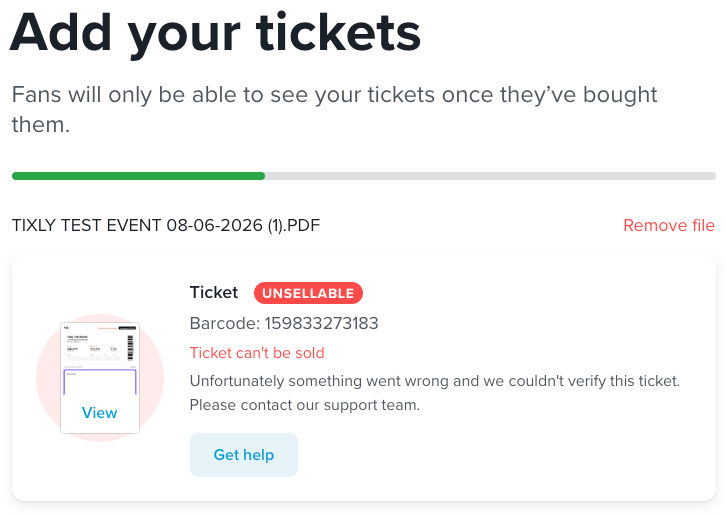
SecureSwap is switched off on the workgroup:
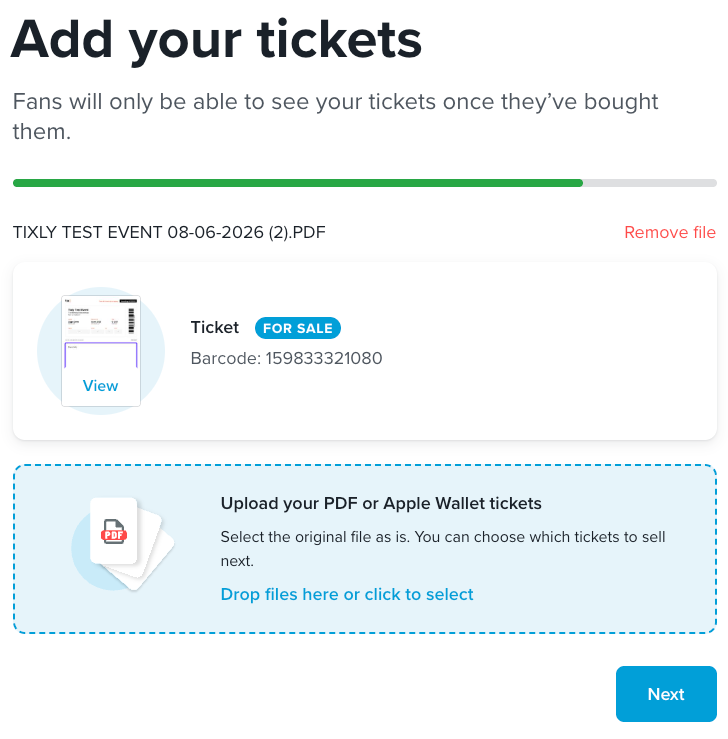
SecureSwap is switched on for both the event and the workgroup, and you try to sell a ticket you have already sold:
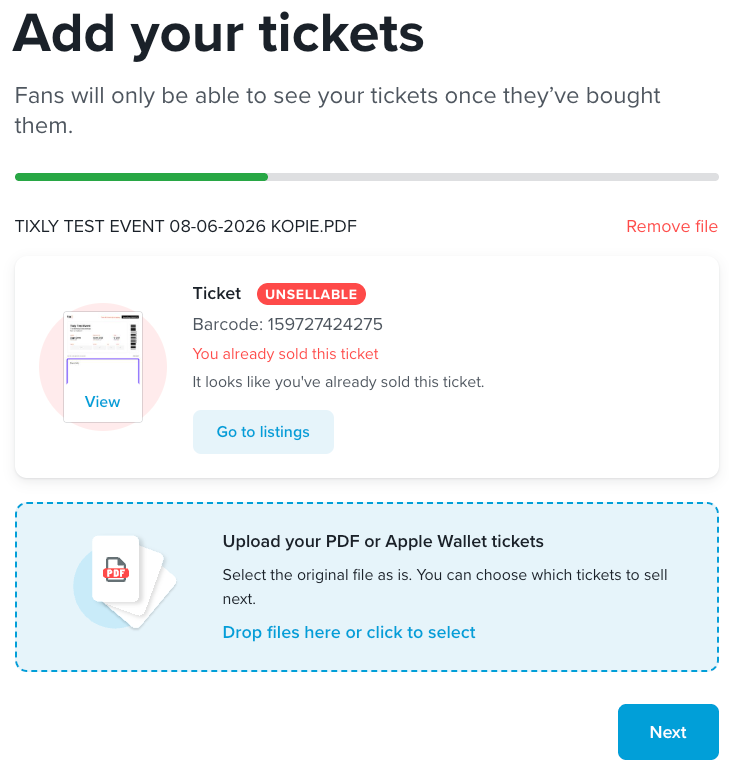
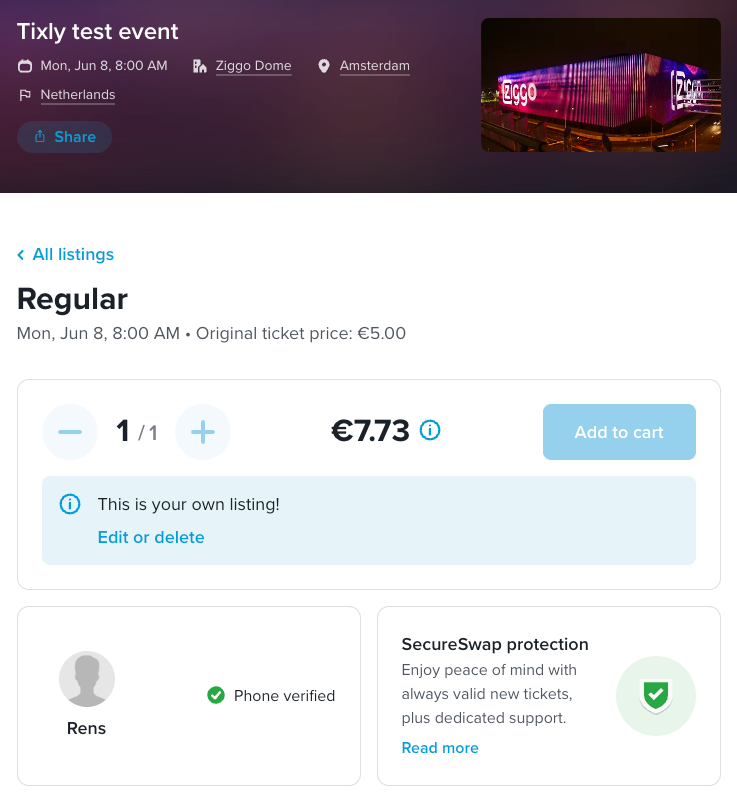
SecureSwap is switched on for both the workgroup and the event:
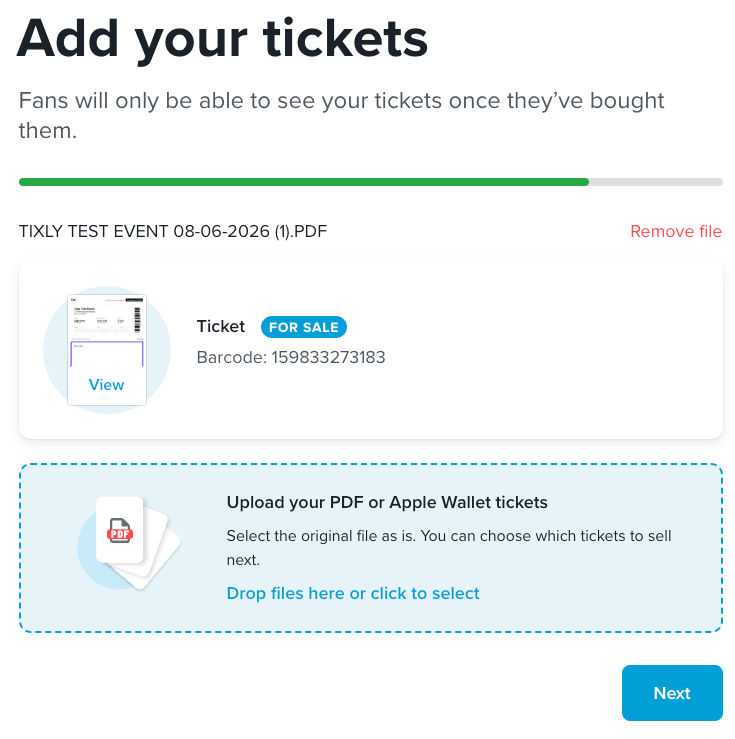
Listing for tickets with SecureSwap:
Was this article helpful?
That’s Great!
Thank you for your feedback
Sorry! We couldn't be helpful
Thank you for your feedback
Feedback sent
We appreciate your effort and will try to fix the article